Host Status Window
Host Status Window
Every Windows workstation with the Remotle host has a status window. It shows the installed version, the licence, whether the host is registered and ready for connections, and the state of each host service. Any signed-in user can open it. No administrator rights are needed.
Use it first when a workstation cannot be connected to, before collecting logs.
Read it in one pass
Section titled “Read it in one pass”-
Open Start, Computle, Computle (Remotle) Host.
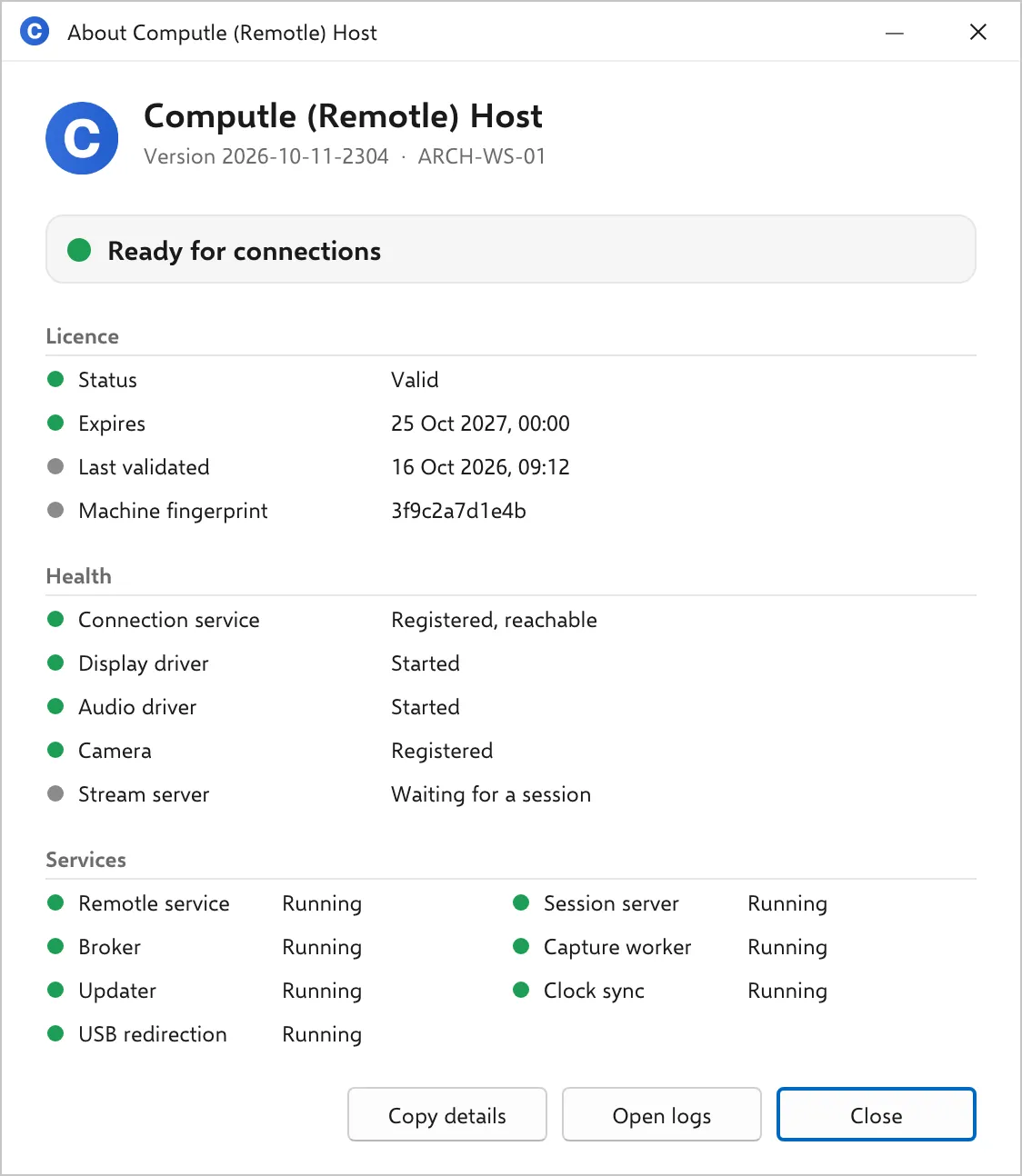
The window is titled “About Computle (Remotle) Host”. The header shows the version and the computer name.
-
Read the banner.
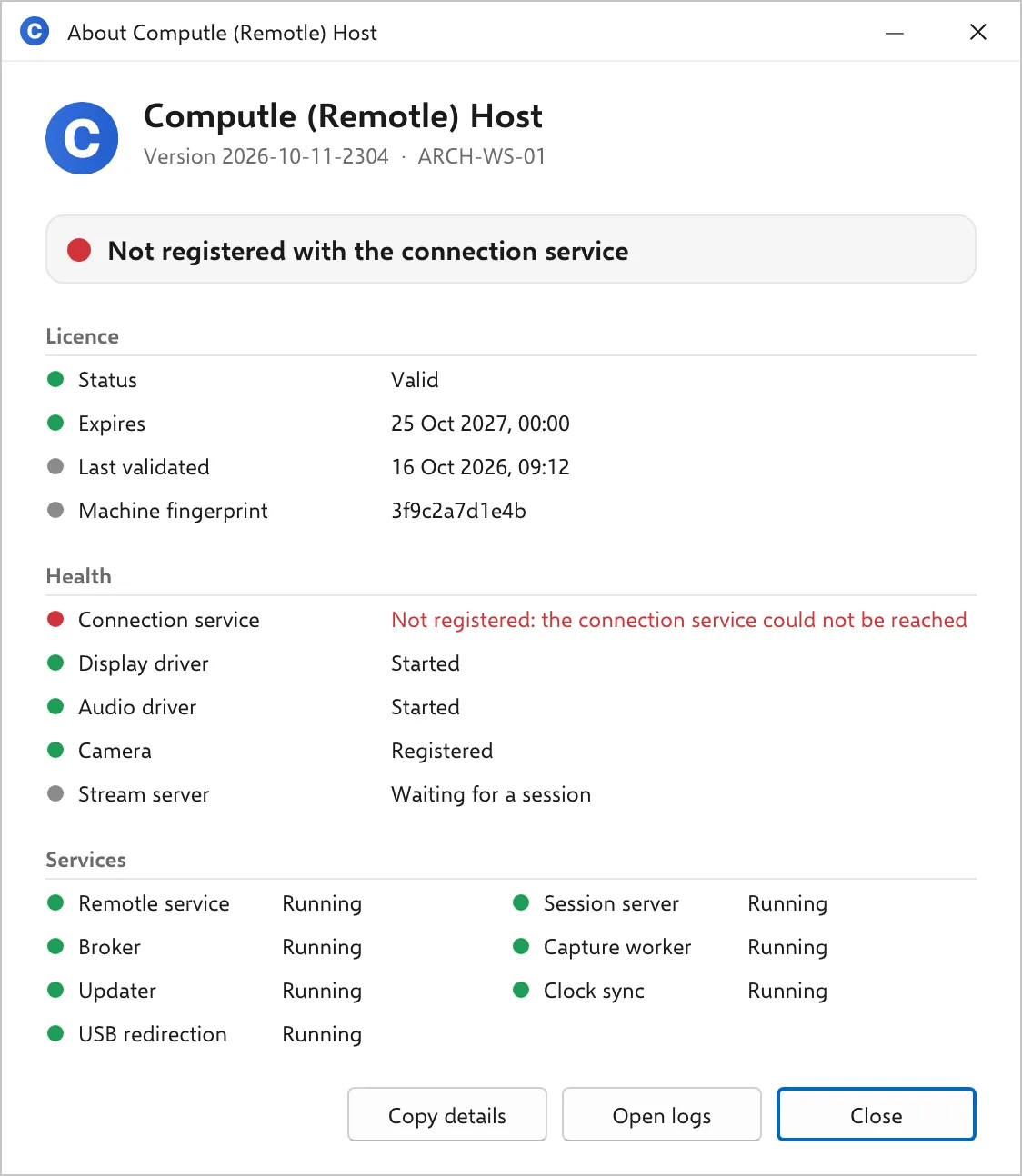
One line sums up the host. Green “Ready for connections” means the workstation is fine. Any other line names the fault, and the section below it says why. All eight lines are on Banner states.
-
Read the Licence section.
Status, Expires, Last validated and Machine fingerprint. Red means connections are refused; see Licence.
-
Read the Health section.
Connection service, Display driver, Audio driver, Camera and Stream server. A red line names the component that did not start; see Health.
-
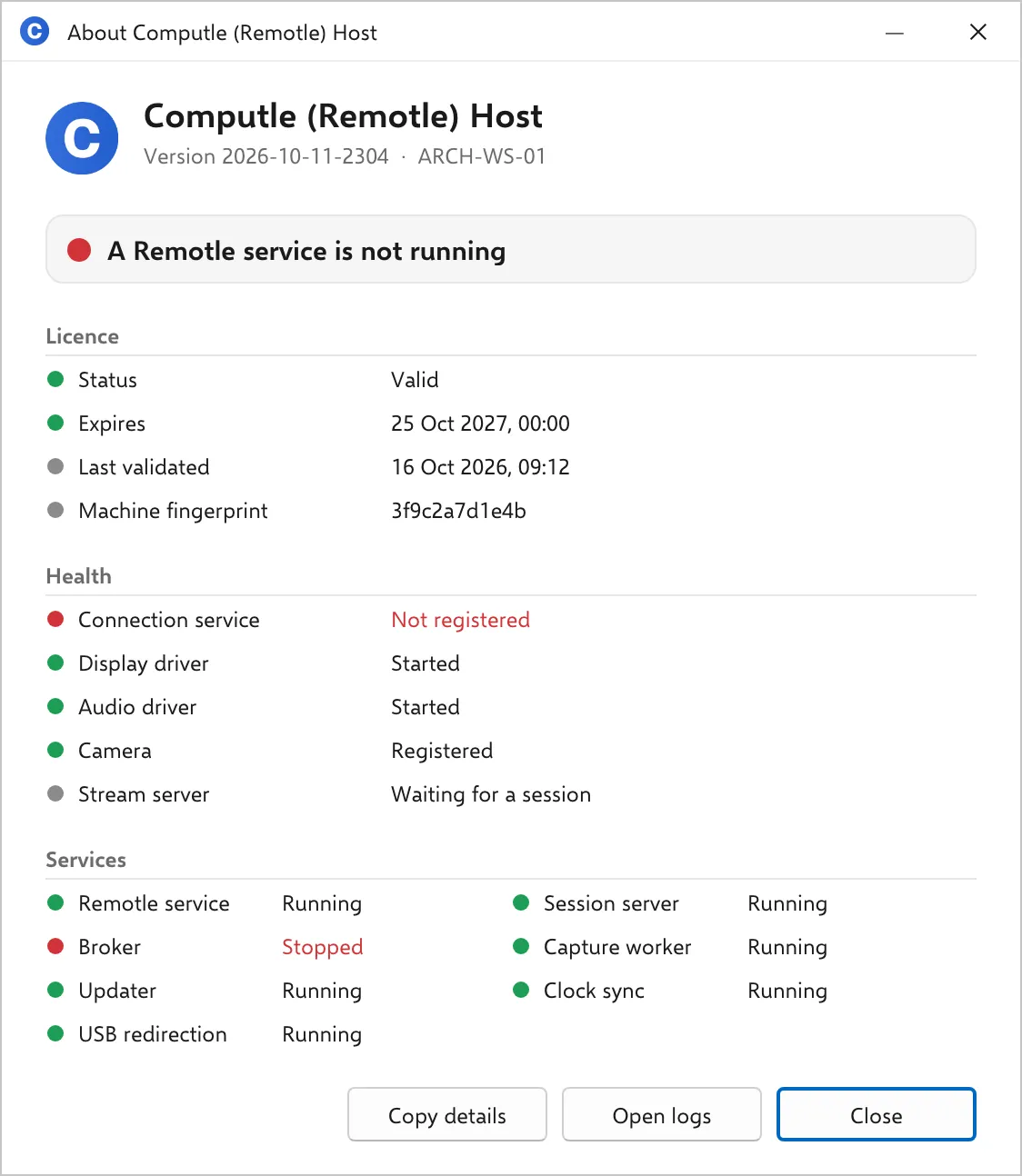
Read the Services section.
The seven host services in two columns. Stopped on a required service is red; see Services.
-
Click Copy details and paste the text into your support ticket.
Everything the window shows goes to the clipboard as text. Open logs opens the log folder; see Host Logs.
The window refreshes every 2 seconds while it is open.
The window
Section titled “The window”| Area | Contents |
|---|---|
| Header | “Computle (Remotle) Host”, the version and the computer name |
| Banner | One line summing up the host’s state, with a coloured dot: green for ready, amber for a warning, red for a fault |
| Licence | Status, Expires, Last validated, Machine fingerprint |
| Health | Connection service, Display driver, Audio driver, Camera, Stream server |
| Services | The seven host services and the state of each, in two columns |
| Buttons | Copy details, Open logs, Close |
Every value is drawn with a coloured dot: green means good, amber means a warning, red means a fault, grey means information or not applicable. A red value is also written in red.