Download and Install
Uninstall Remotle
How to remove Remotle from each device. Removing Remotle does not change your account or your workstation. Install it again at any time from Download and Install.
From Settings
Section titled “From Settings”-
Open Settings, Apps, Installed apps.
-
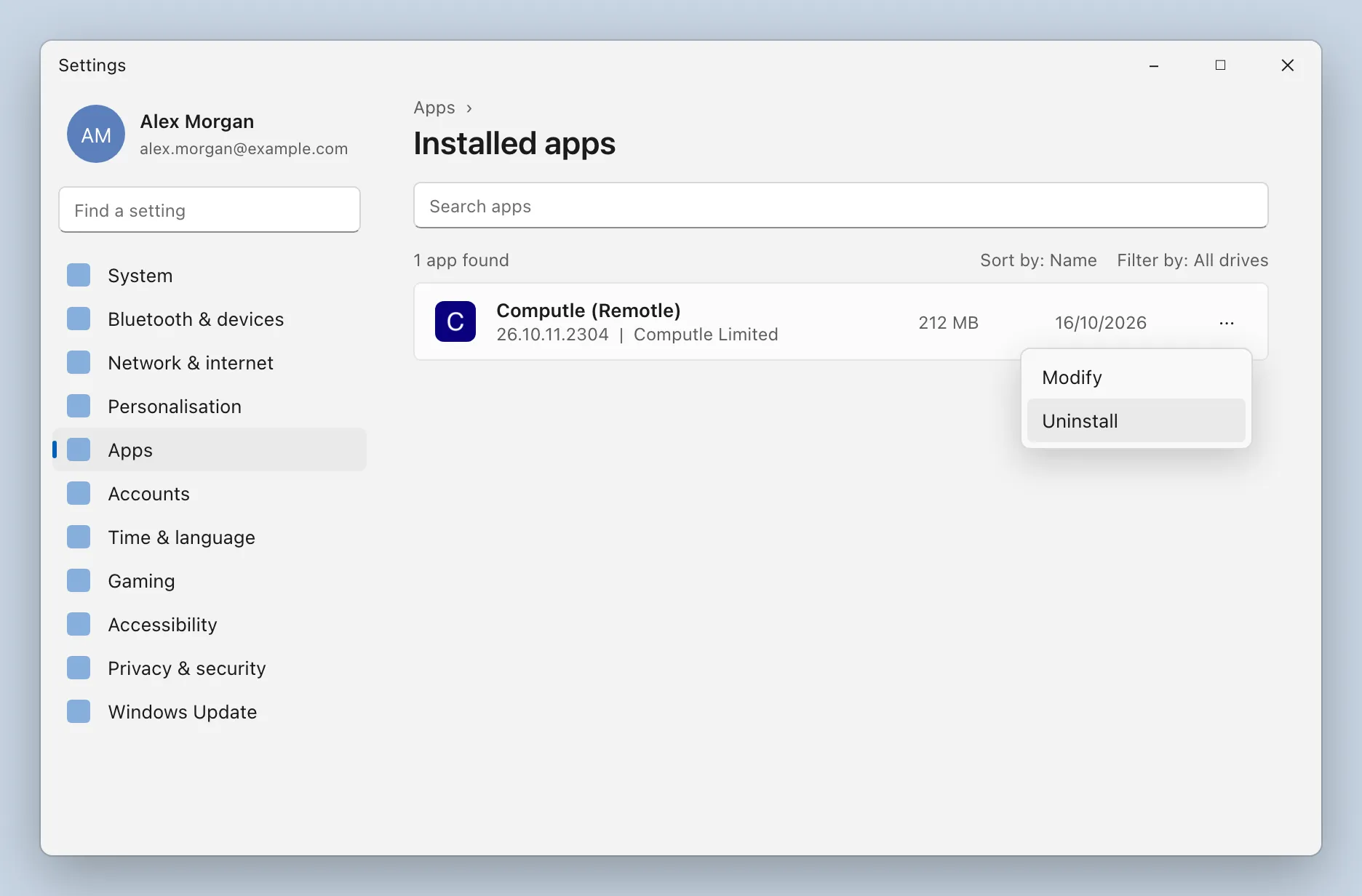
Find Computle (Remotle), click the three dots and click Uninstall.
-
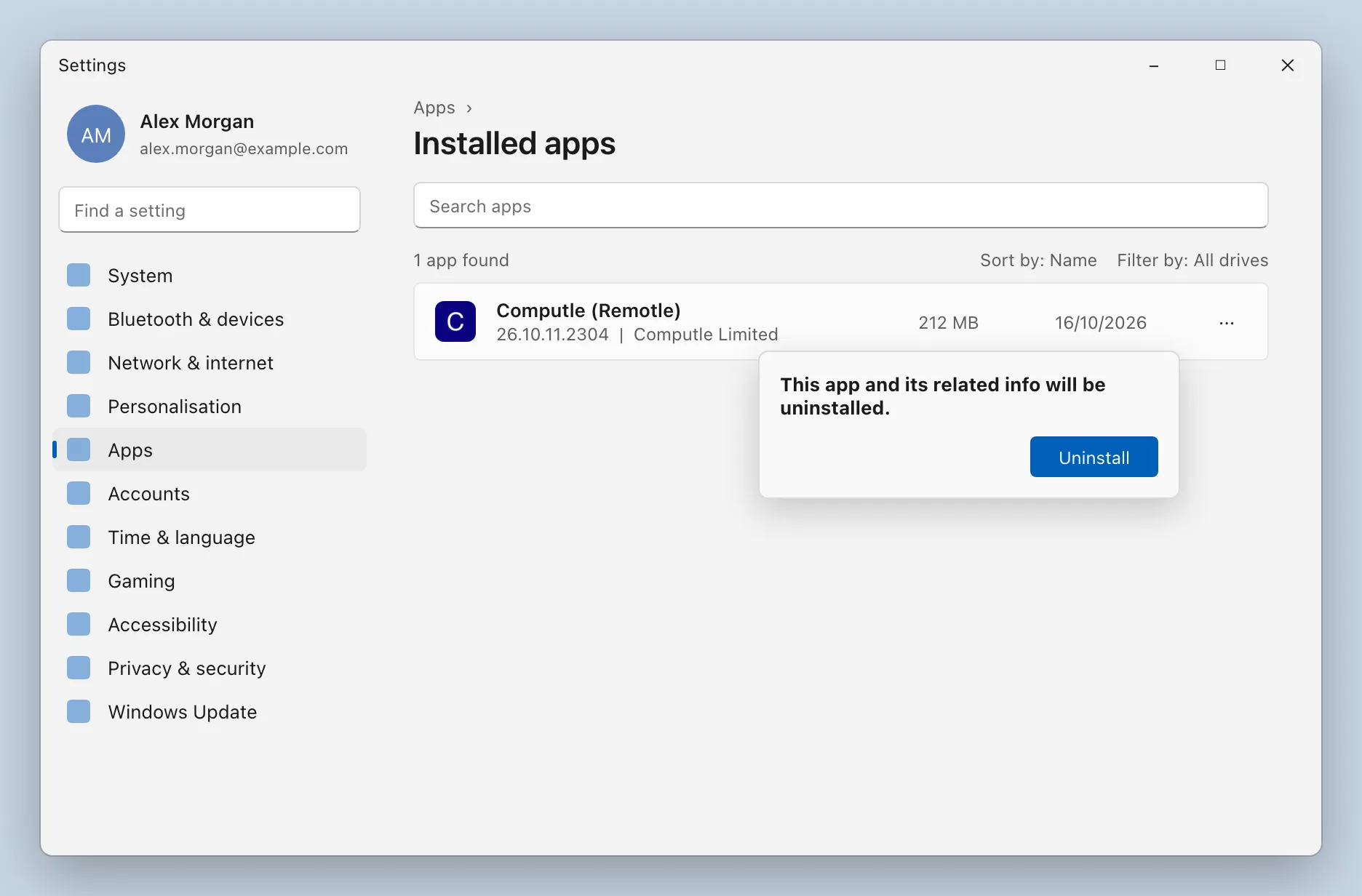
Click Uninstall again to confirm.
Windows asks for permission to make changes. Click Yes. The update service, the USB sharing service and the shortcuts are removed. If the PC is a kiosk terminal, uninstalling also removes the kiosk account.
From the setup program
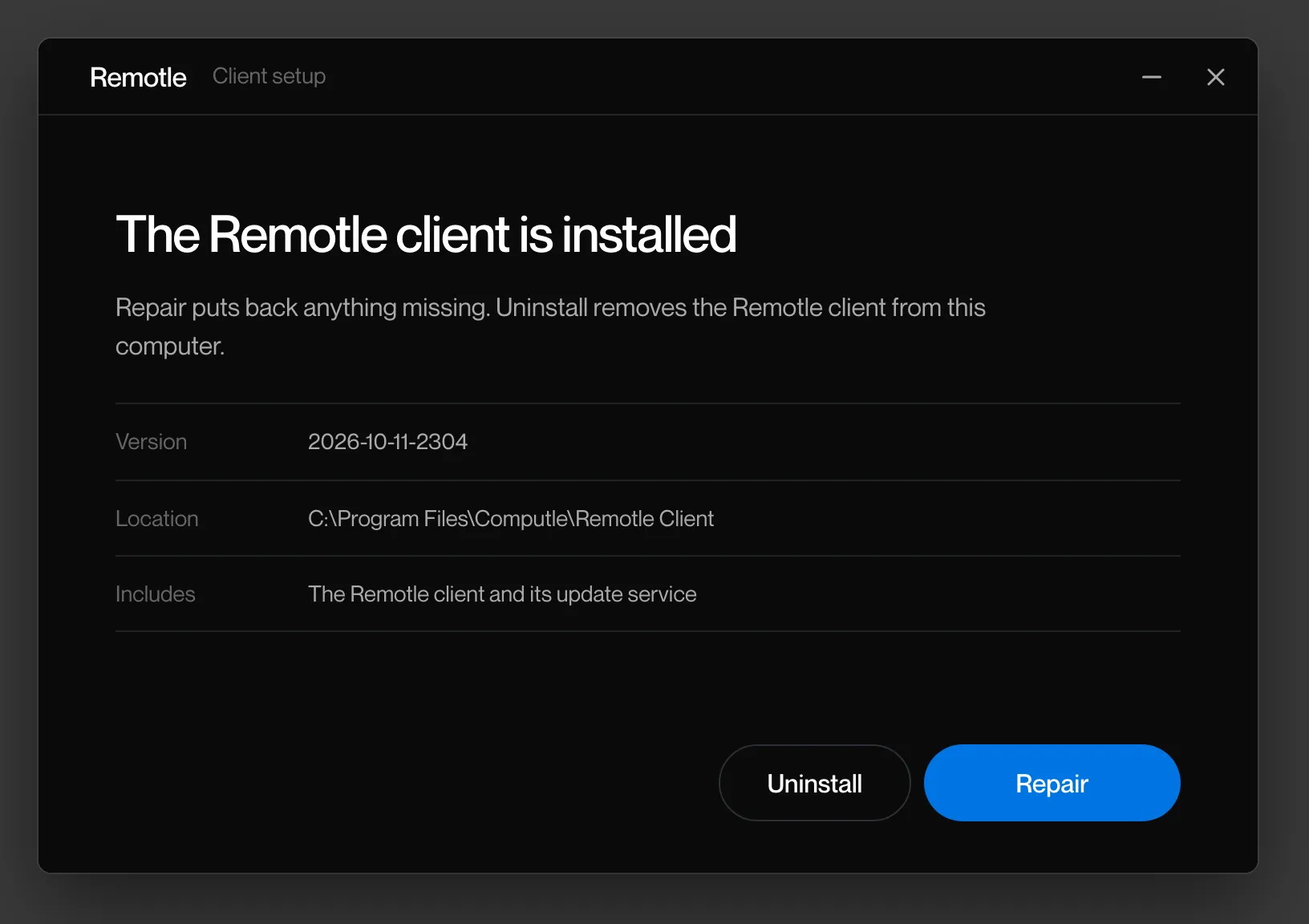
Section titled “From the setup program”Opening ComputleRemotleClient-Setup.exe on a PC that already has the same version offers Repair and Uninstall.
-
Open ComputleRemotleClient-Setup.exe and click Uninstall.
-
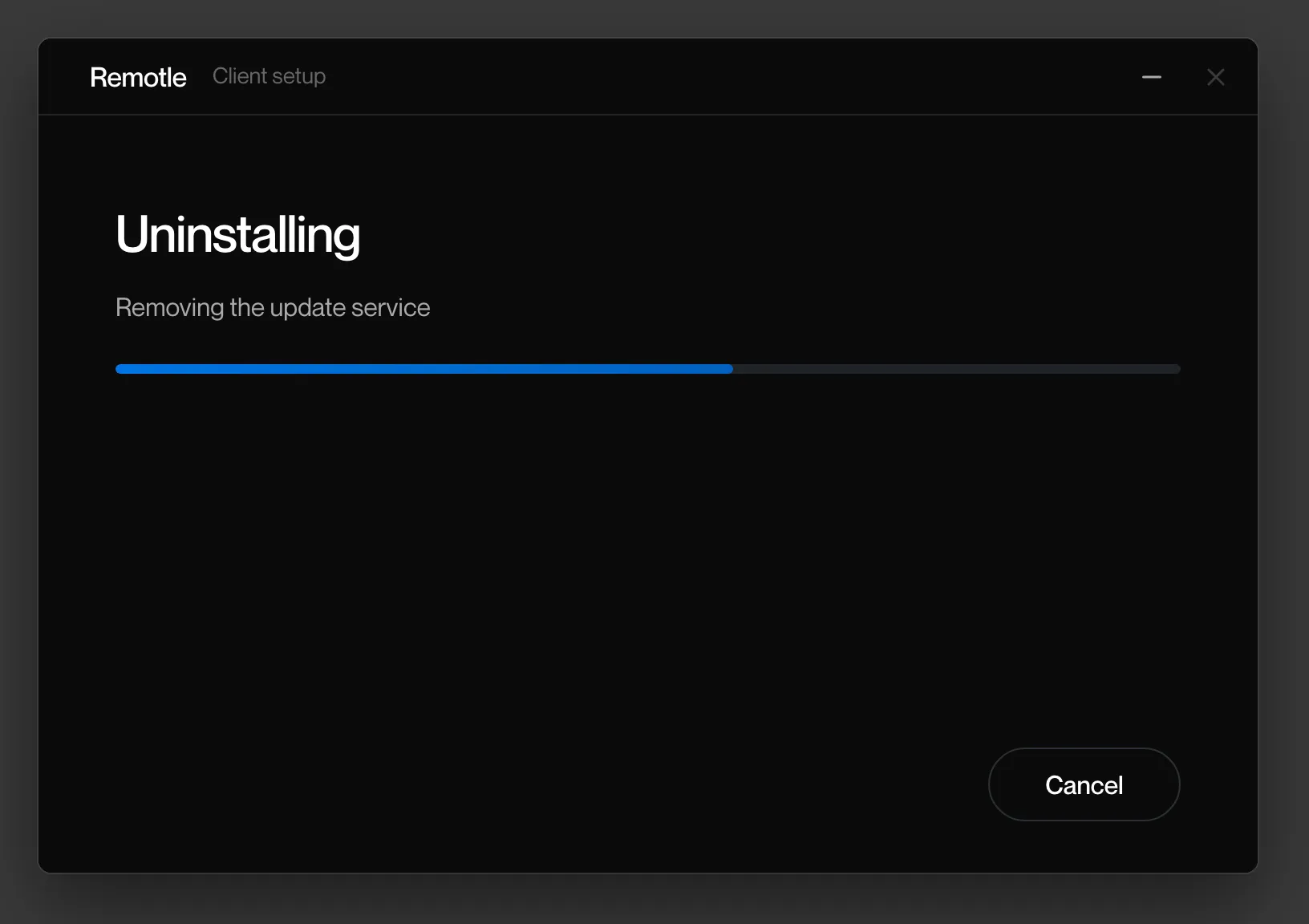
Wait while Setup removes it.
-
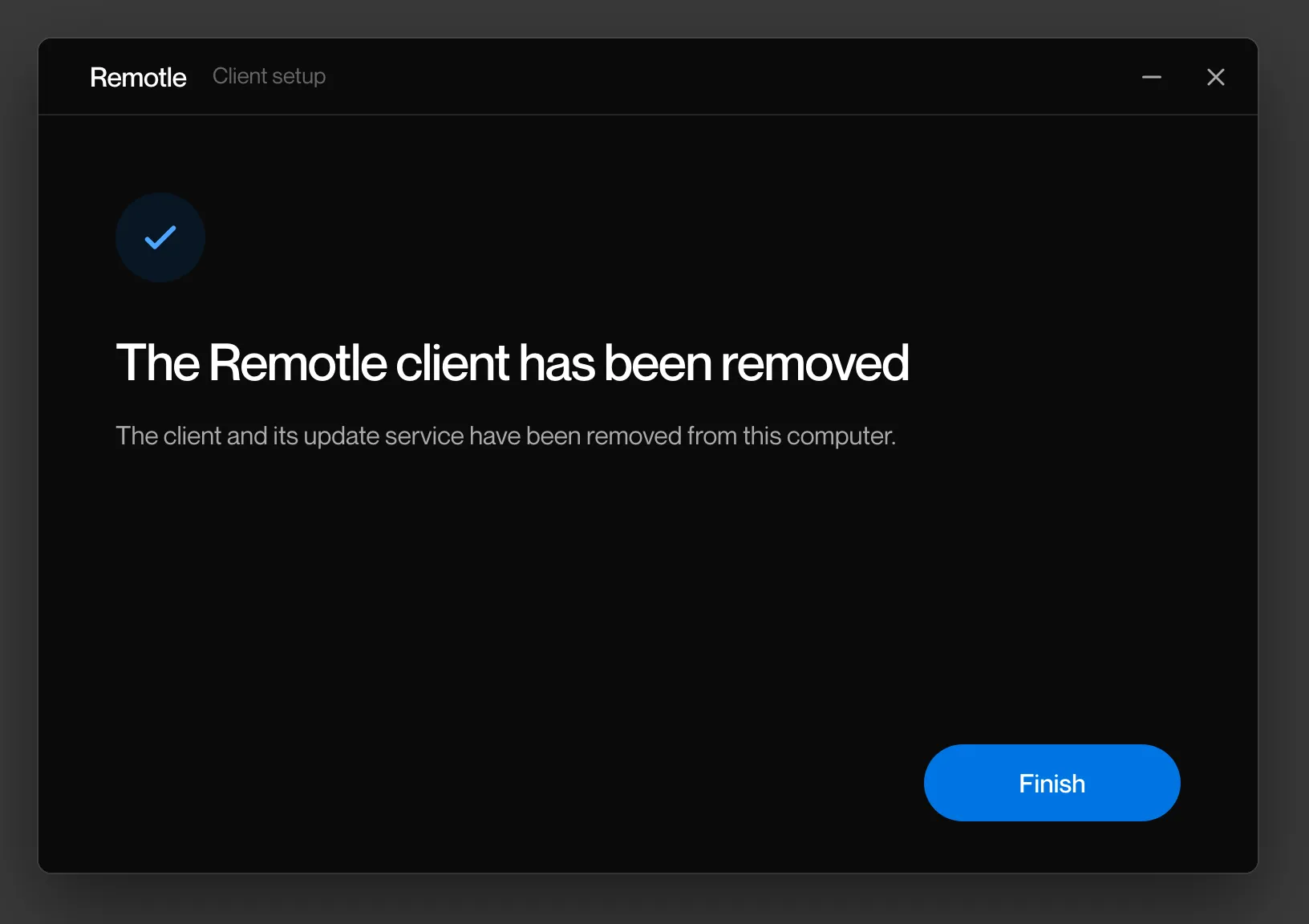
Click Finish.
-
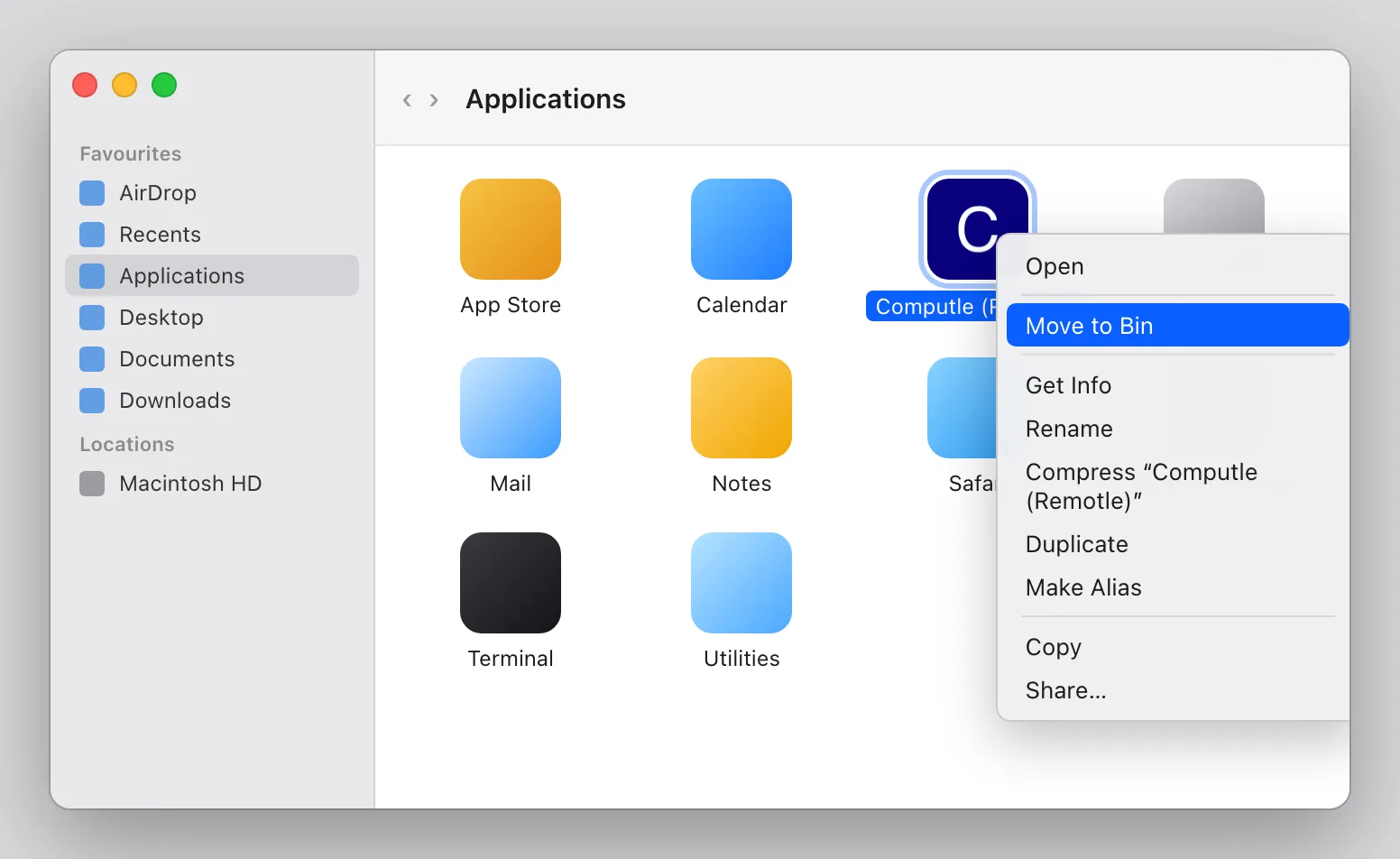
Open Applications in the Finder.
-
Right-click Computle (Remotle) and click Move to Bin.
Dragging the app to the Bin does the same.
-
Empty the Bin.
Logs stay in ~/Library/Logs/Computle/. Delete that folder too if you want nothing left.
-
Open a terminal and remove the package.
Terminal window sudo apt remove computle-streamaptstops and removes the update service, the USB sharing helper and kiosk terminal support.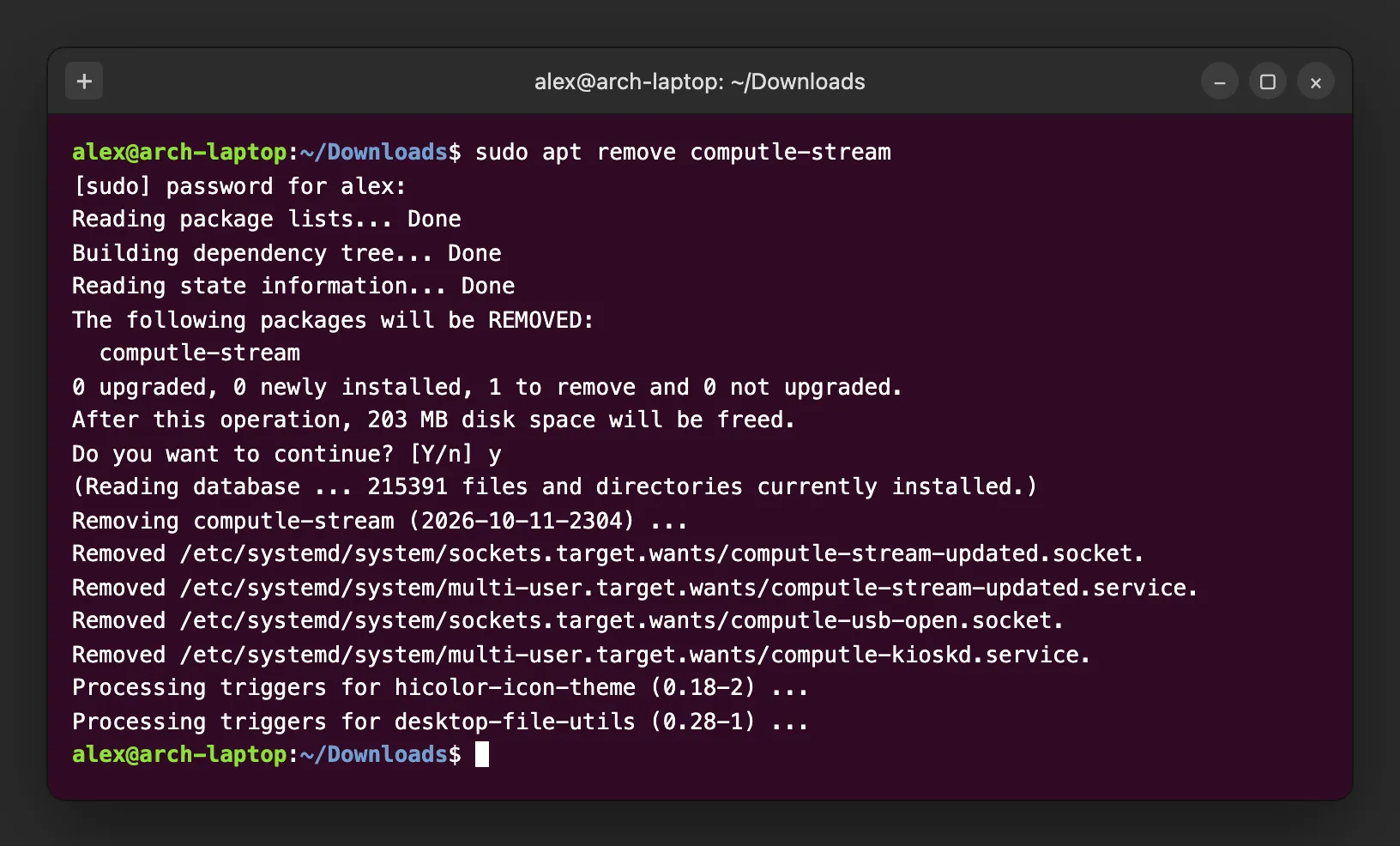
Touch and hold the Computle icon on the Home Screen, tap Remove App, then Delete App.