Sign In and Connect
Connecting
This page is for end users connecting to a workstation from the machine list.
Connect
Section titled “Connect”-
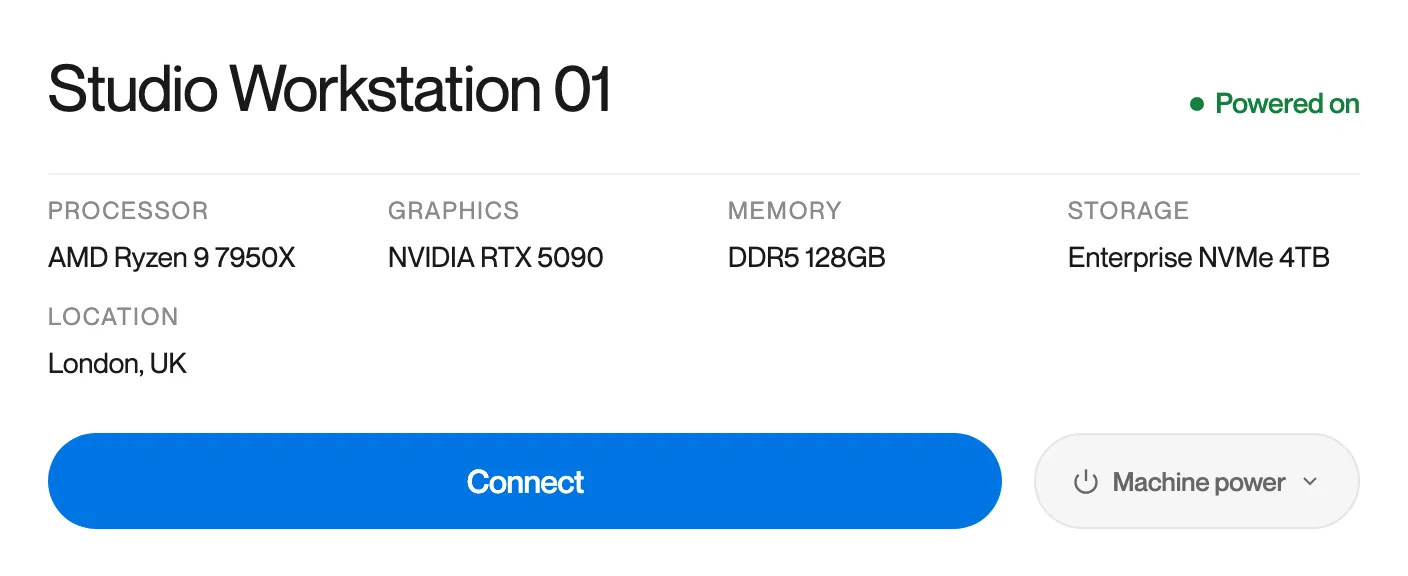
Click Connect on your workstation.
On a workstation that is Powered off the button reads Power on and connect. On one that is In use by you it reads Reconnect.
-
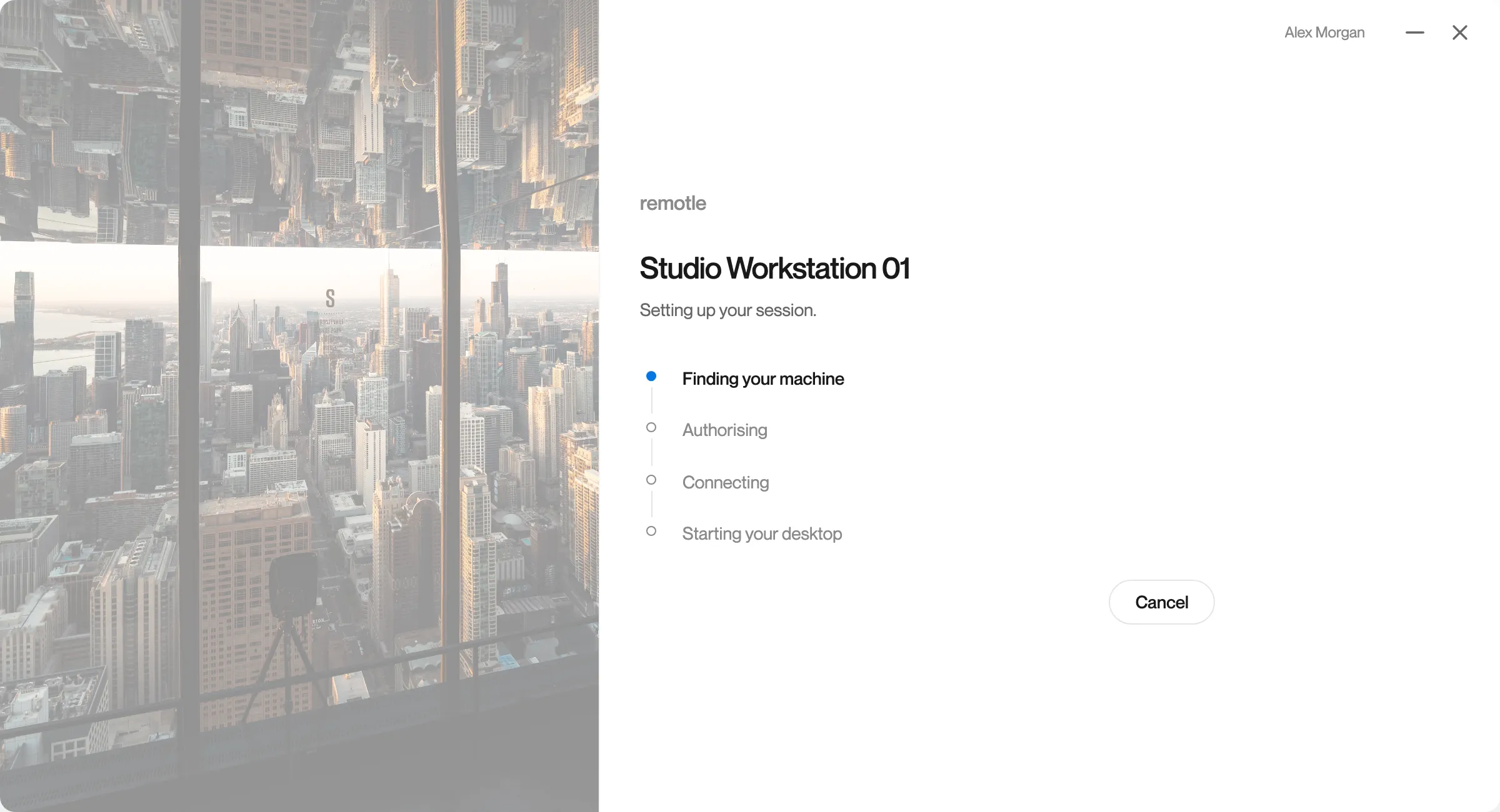
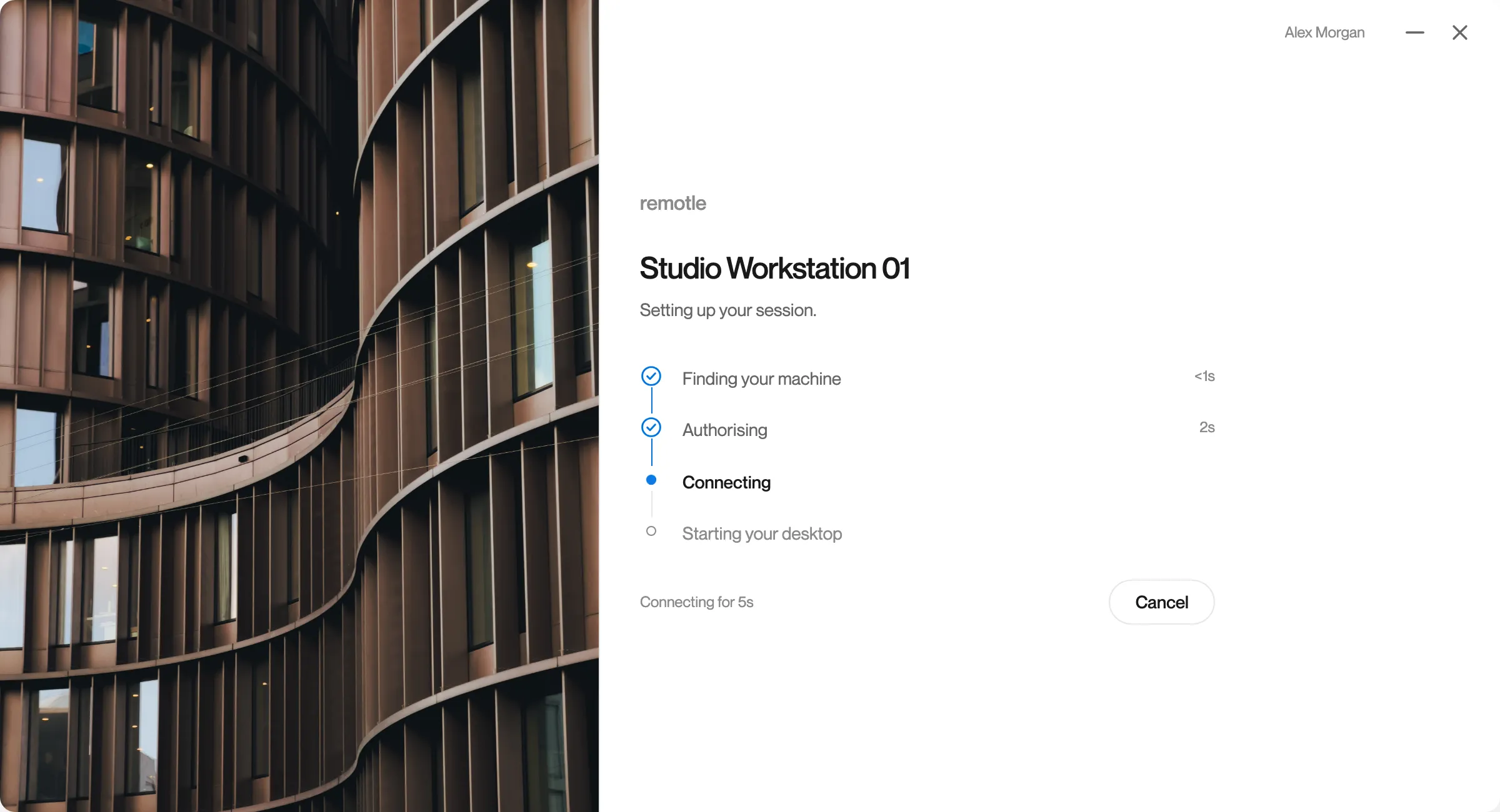
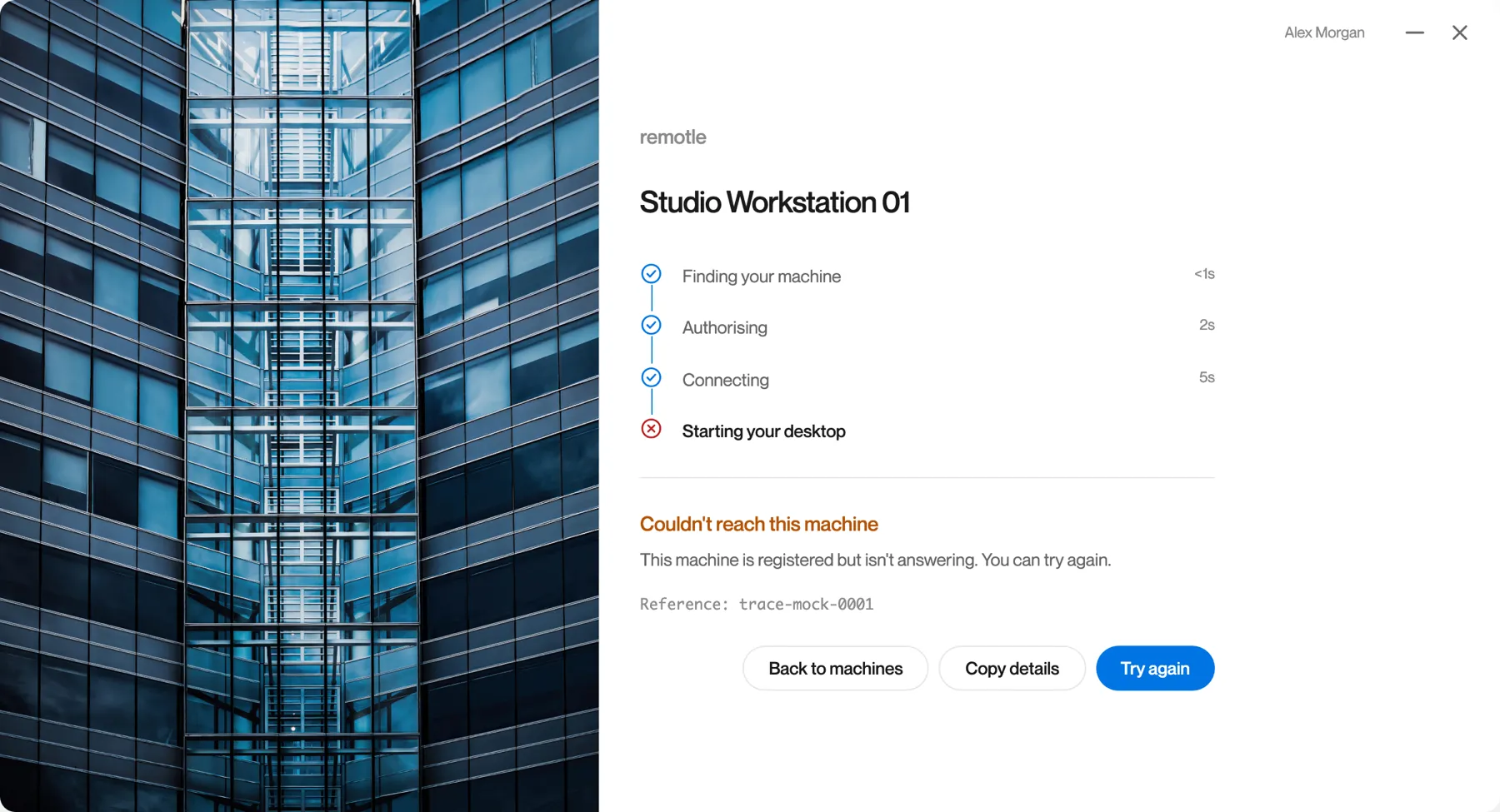
Finding your machine.
Remotle asks Computle where your workstation is. This usually takes under a second.
-
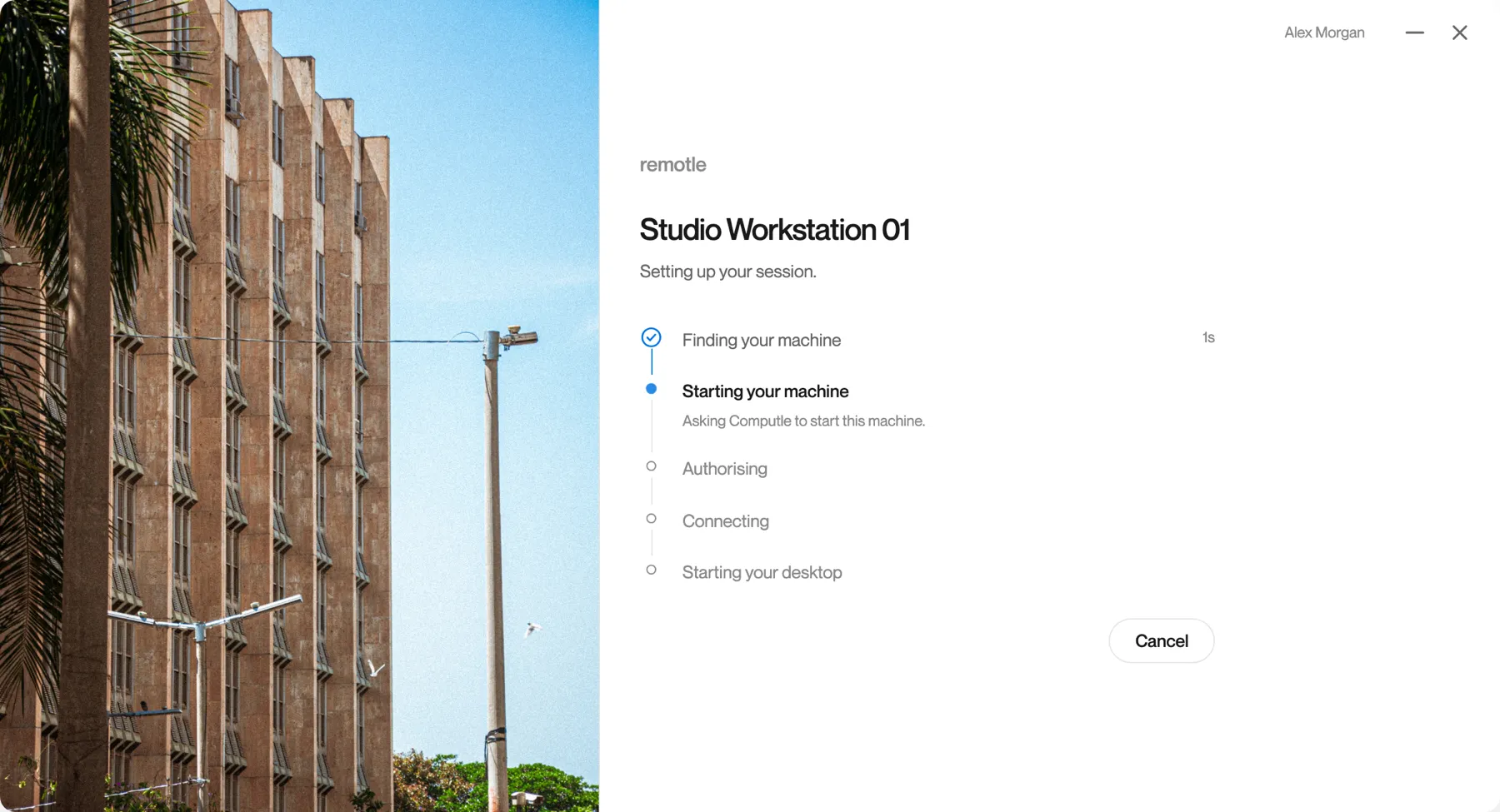
Starting your machine, if it was switched off.
Remotle asks Computle to start the workstation and counts the seconds. This usually takes a minute or two. A workstation that is already on skips this step.
-
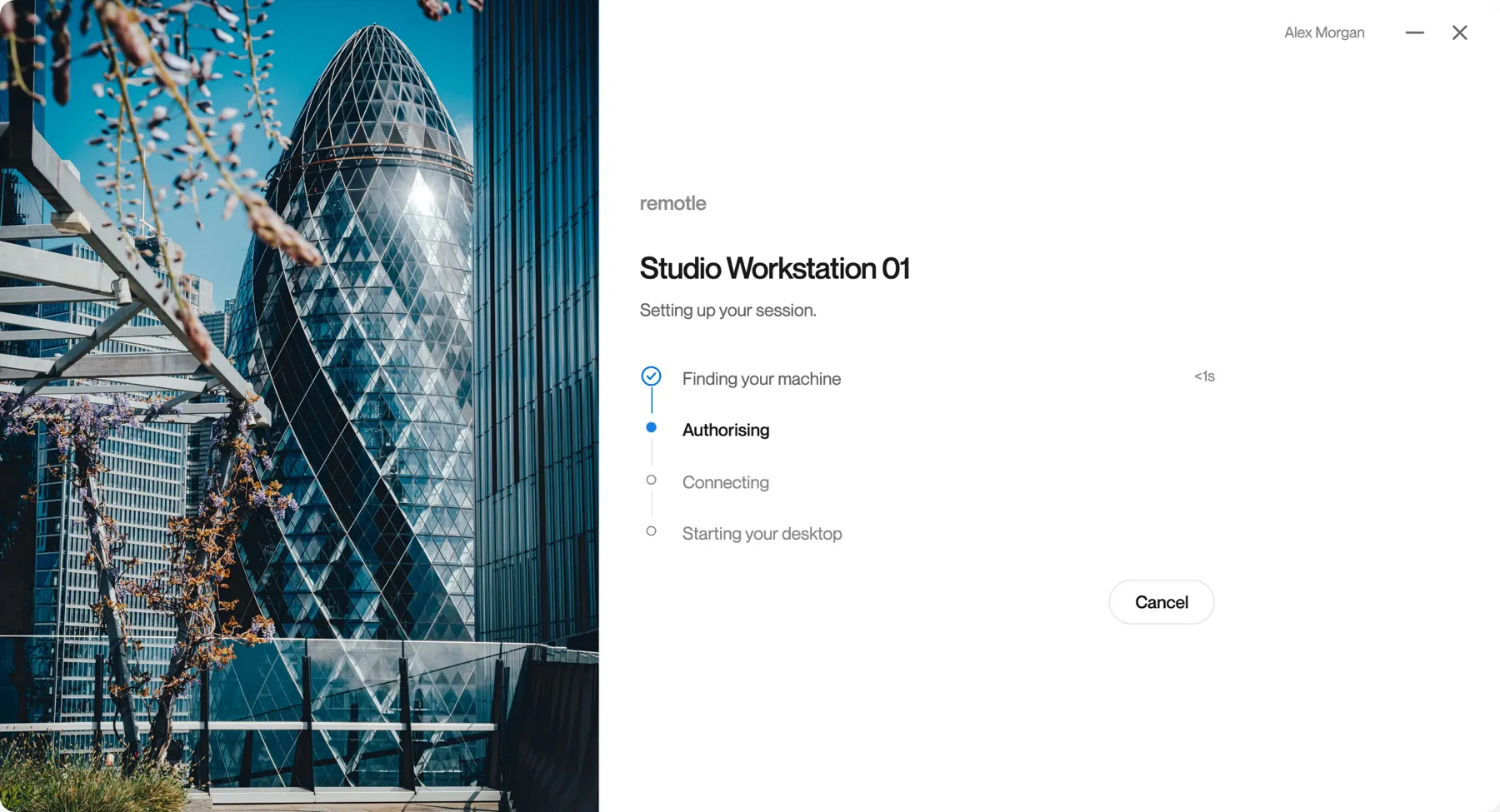
Authorising.
Computle checks that this workstation is assigned to you and issues the session.
-
Connecting.
Remotle opens the connection to your workstation. The time each finished step took is shown on the right. After 5 seconds the screen also shows how long you have been connecting.
-
Starting your desktop.
The workstation starts streaming its desktop to you.
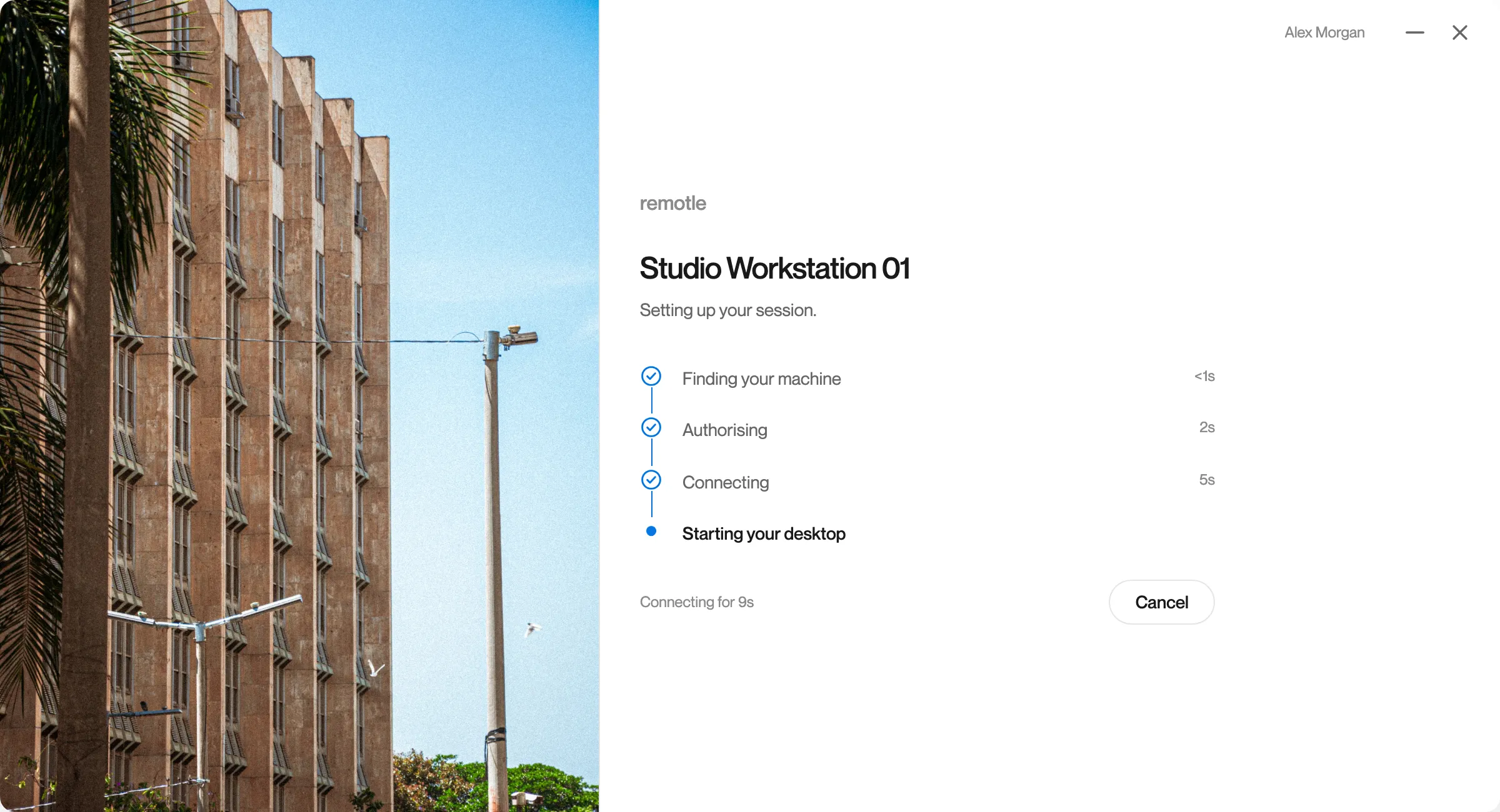
Click Cancel at any step to stop and return to your machines.
-
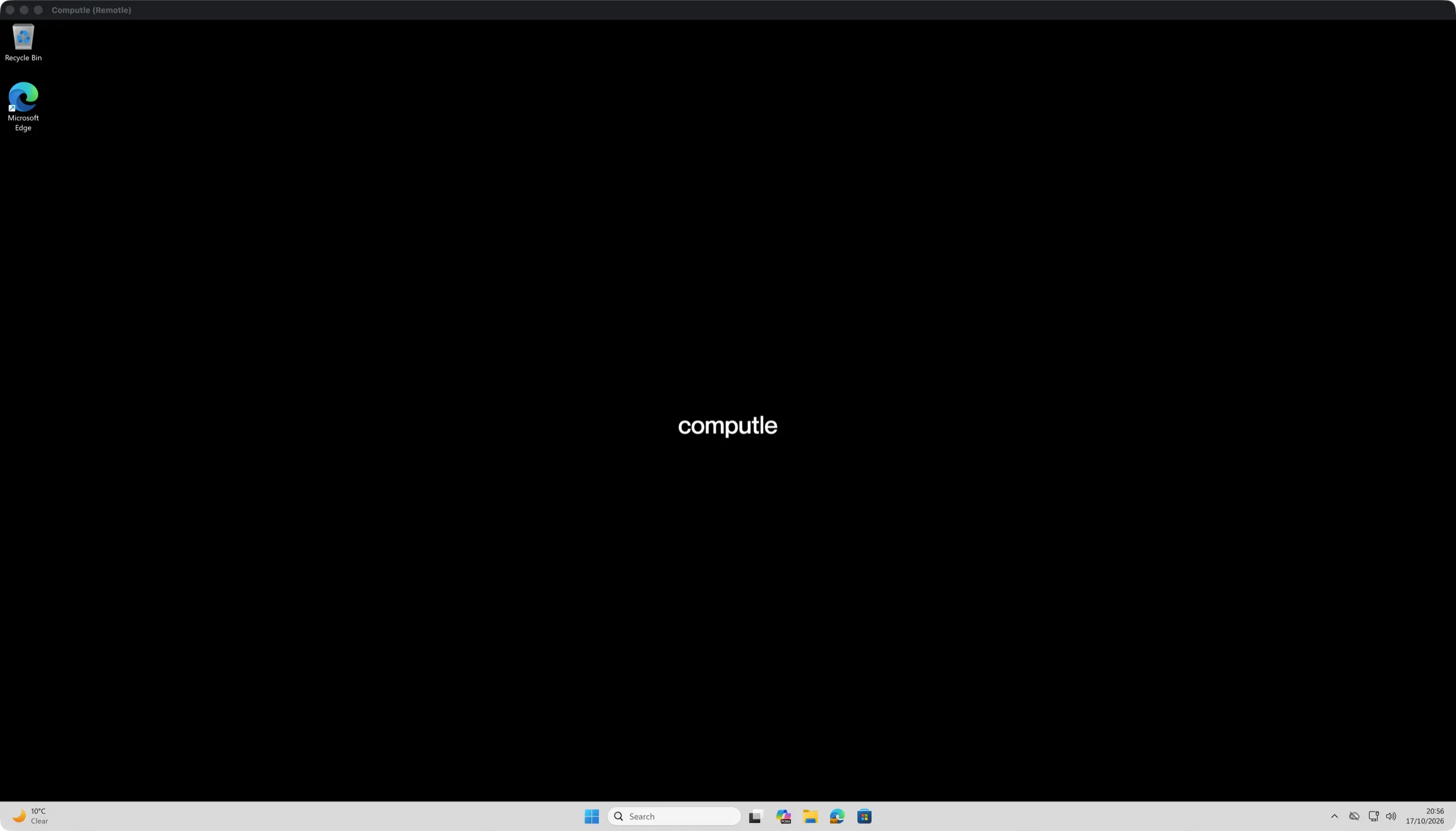
Your workstation desktop opens.
When your administrator has turned on silent sign-in, a Signing in step appears and Windows signs you in with your Microsoft Entra ID account by itself: no Windows password is typed or handled, and the sign-in is used once. Microsoft 365 apps, Teams, OneDrive and Edge in the desktop then sign you in without asking. Otherwise, sign in to Windows as you would at the workstation. See Single Sign-On.
-
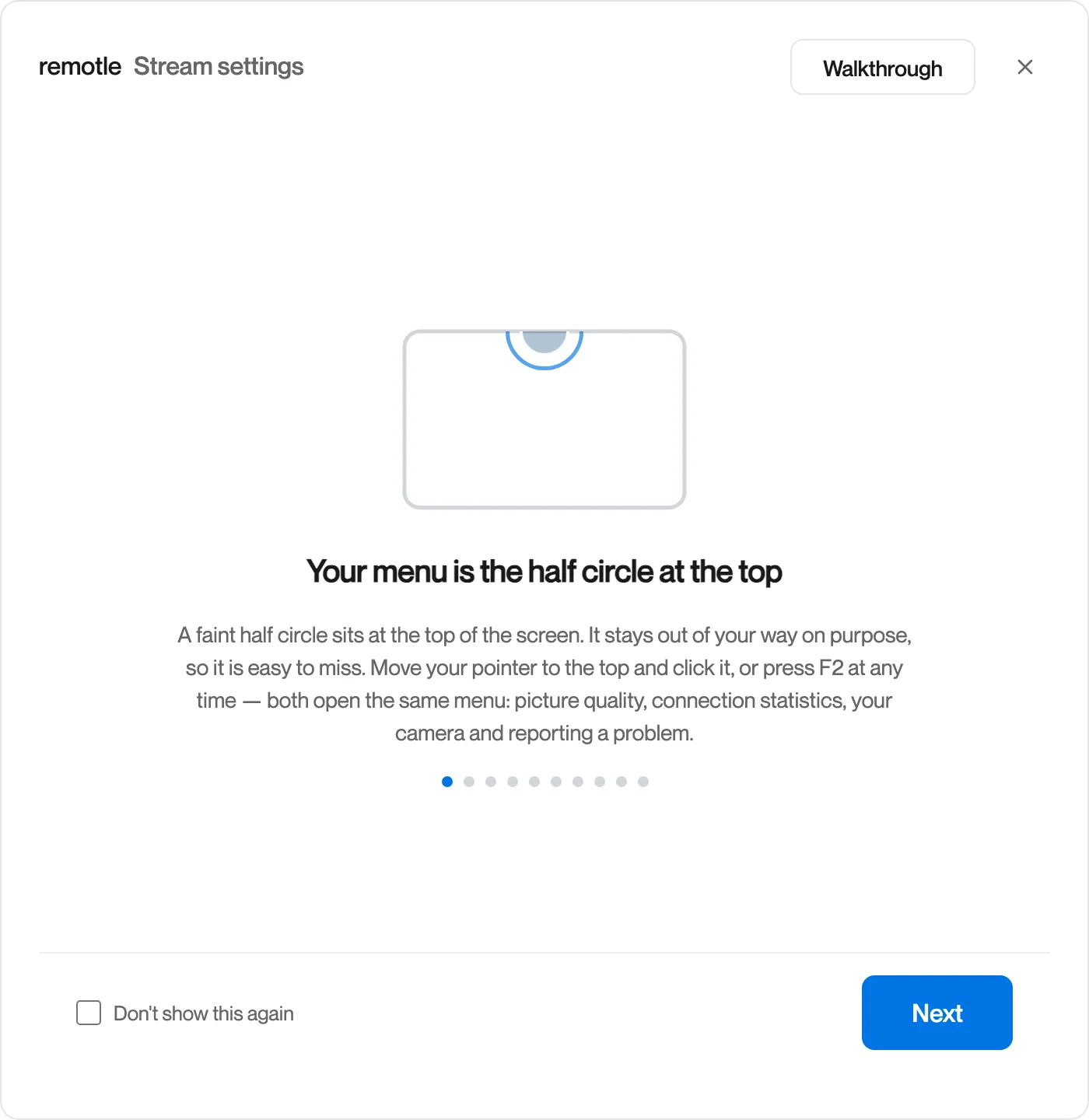
Read the walkthrough.
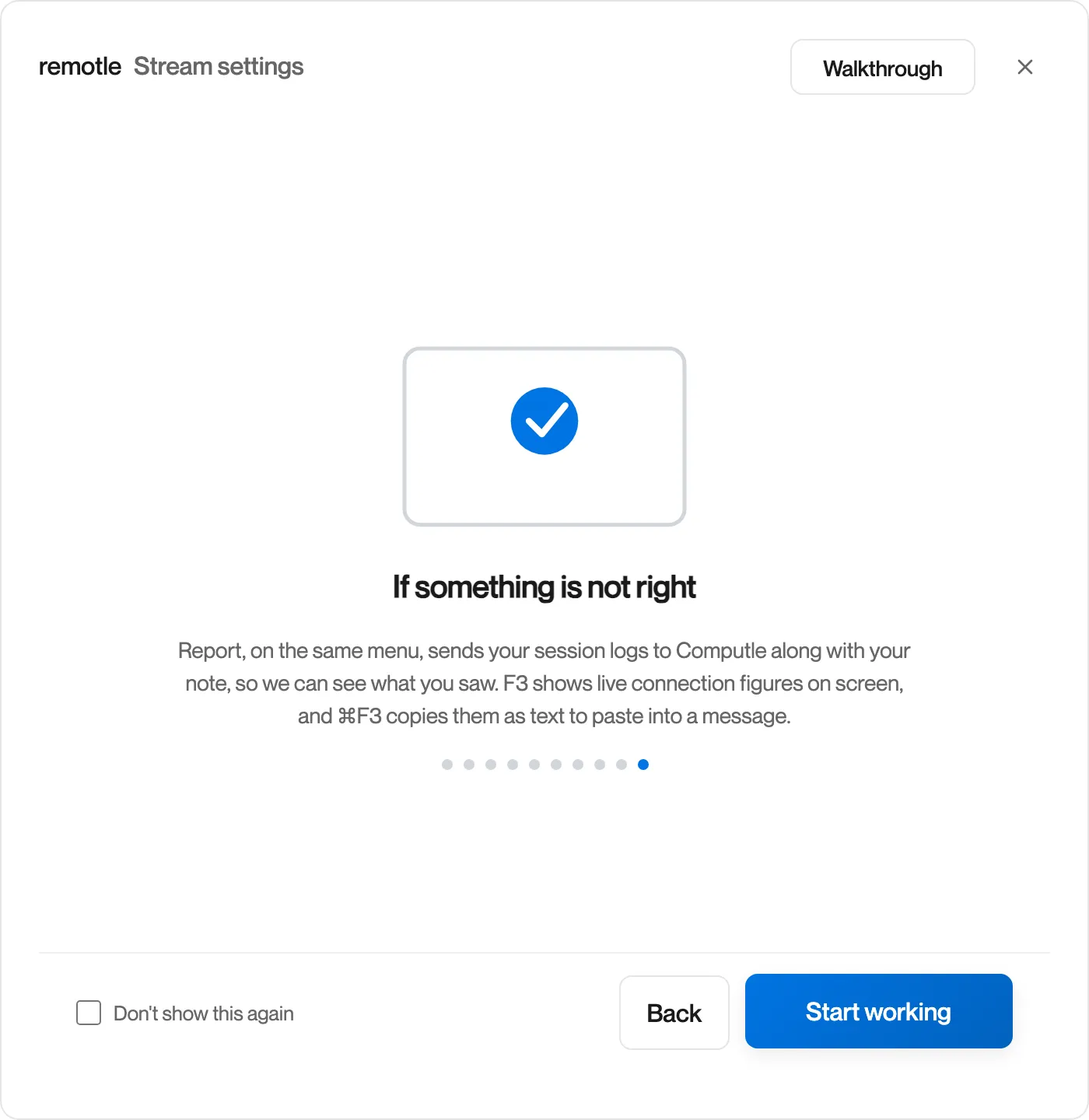
The first time you connect from a device, a short walkthrough explains the session menu. Click Next to read each step and Start working to close it. Tick Don’t show this again to skip it on this device. You can read it again at any time from the Walkthrough button on the session menu. See The Session Menu.
If the connection does not complete
Section titled “If the connection does not complete”The step that failed is marked, and the message explains what happened. Most messages offer Try again. Copy details copies the message and a reference for support. Back to machines returns to your list.
| Message | What to do |
|---|---|
| Couldn’t reach this machine | The workstation is registered but not answering. Try again. If it continues, ask your administrator to check the workstation. |
| Machine is off | The workstation is switched off. Click Power on and connect on its card, or ask your administrator. |
| Machine not assigned | The workstation is not assigned to your account. Contact your administrator. |
| Please sign in again | Your sign-in has expired. Remotle signs you in again by itself. |
| Couldn’t reach Computle | Check your network connection and try again. |
| Update required | This version of Remotle is too old to connect. Install the update and try again. See Updates. |
| Too many attempts | Wait a moment and try again. |
| This machine could not be verified | Do not enter credentials. Contact support with the reference. |
Every message is listed in Connection Messages.