Kiosk Terminals
Kiosk Settings
The Kiosk sign-in, Kiosk power and Kiosk updates cards on the Kiosk tab of Client settings set the policy for every terminal in your organisation. The pencil in the terminals table overrides power or updates for one terminal.
Sign-in methods
Section titled “Sign-in methods”The Kiosk sign-in card sets which sign-in methods terminals offer. At least one must be on. Click Save after changing it; terminals pick up the change at their next check-in, within a minute.
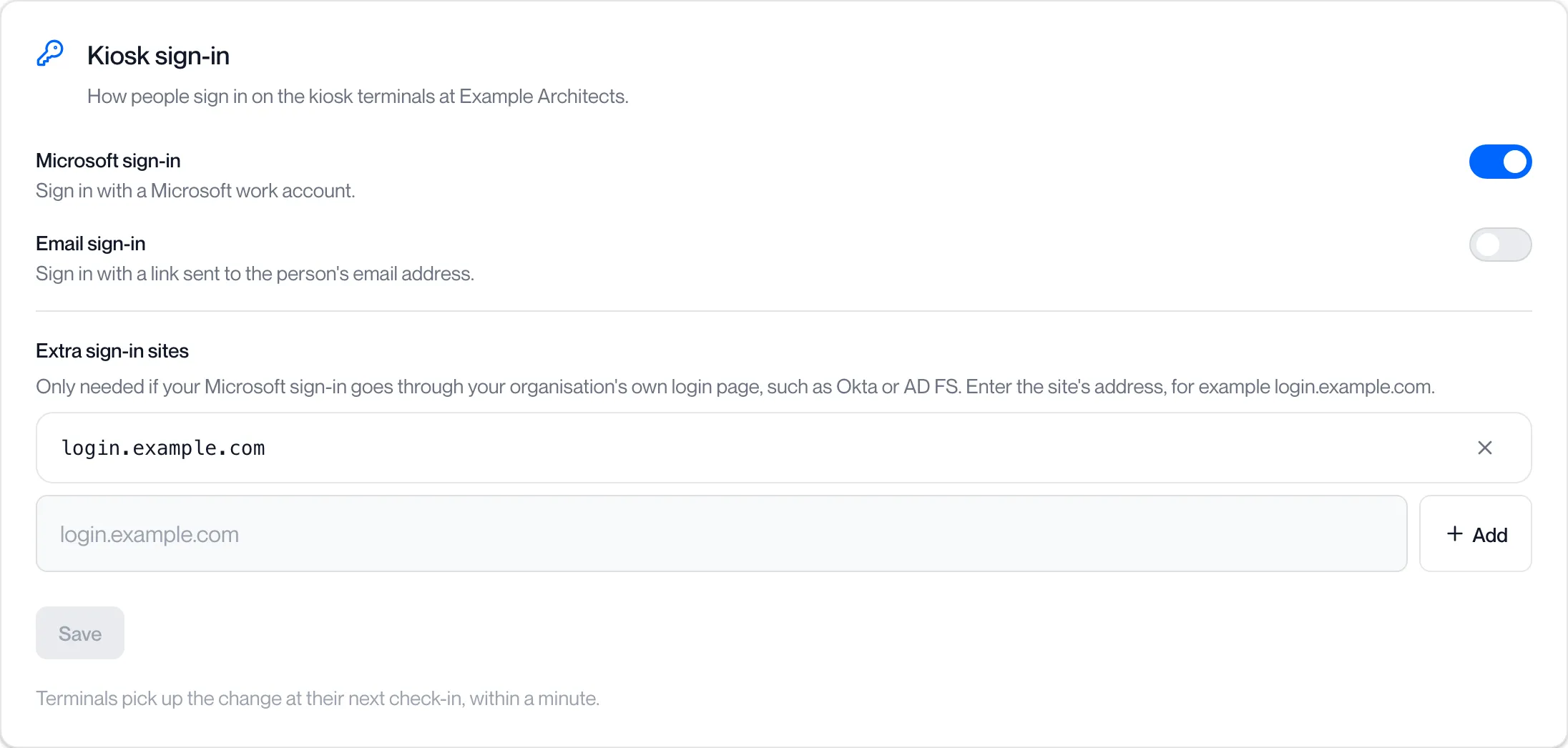
| Method | Signs in with | Default |
|---|---|---|
| Microsoft sign-in | A Microsoft work account. | On |
| Email sign-in | A link sent to the person’s email address. | Off |
| Extra sign-in sites | Up to 10 site addresses, such as login.example.com. Add one only if your Microsoft sign-in passes through your organisation’s own sign-in page. Enter the address alone, without https:// or a path. | None |
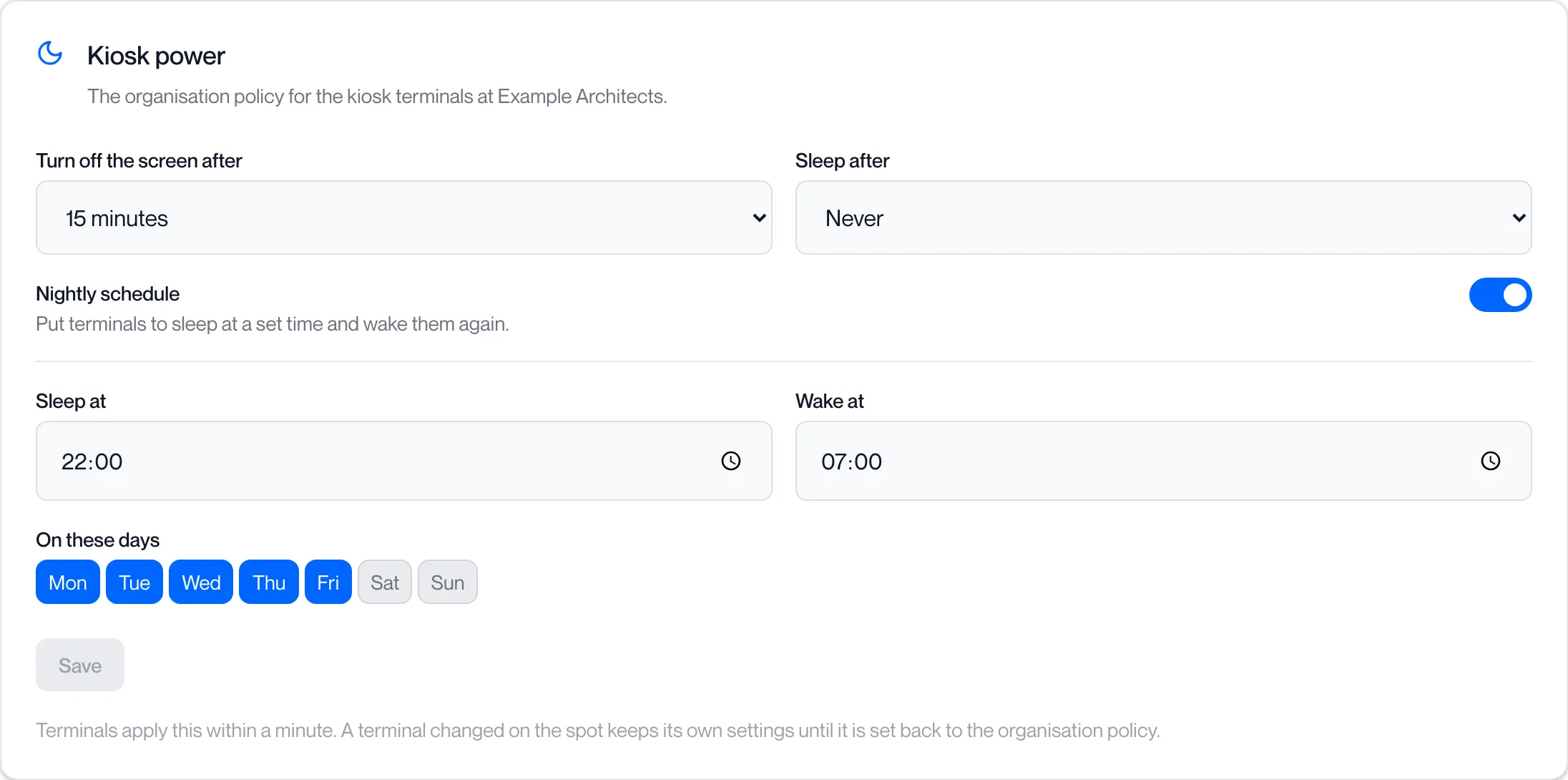
The Kiosk power card is the organisation’s power policy for every terminal. Terminals apply a change within a minute.
| Setting | Options | Default |
|---|---|---|
| Turn off the screen after | Never, 1, 2, 5, 10, 15, 30 or 60 minutes | 15 minutes |
| Sleep after | Never, 15 or 30 minutes, 1, 2 or 4 hours | Never |
| Nightly schedule | Off, or a Sleep at time, a Wake at time and the days it applies | Off (22:00 to 07:00, Monday to Friday when turned on) |
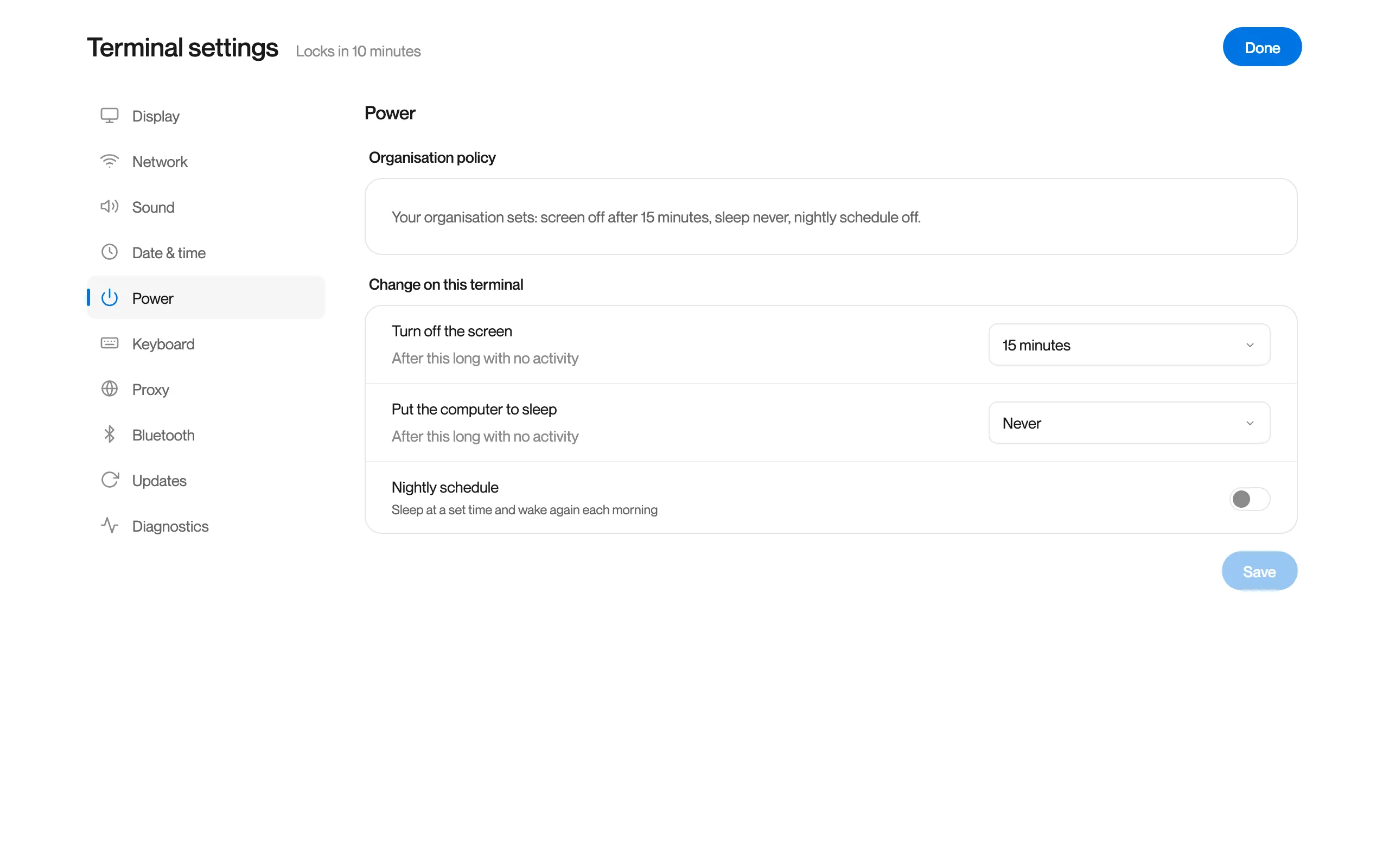
With the schedule on, the sleep and wake times must differ and at least one day must be chosen. A terminal that someone changed on the spot keeps its own settings until it is set back to the organisation policy at the terminal.
Updates
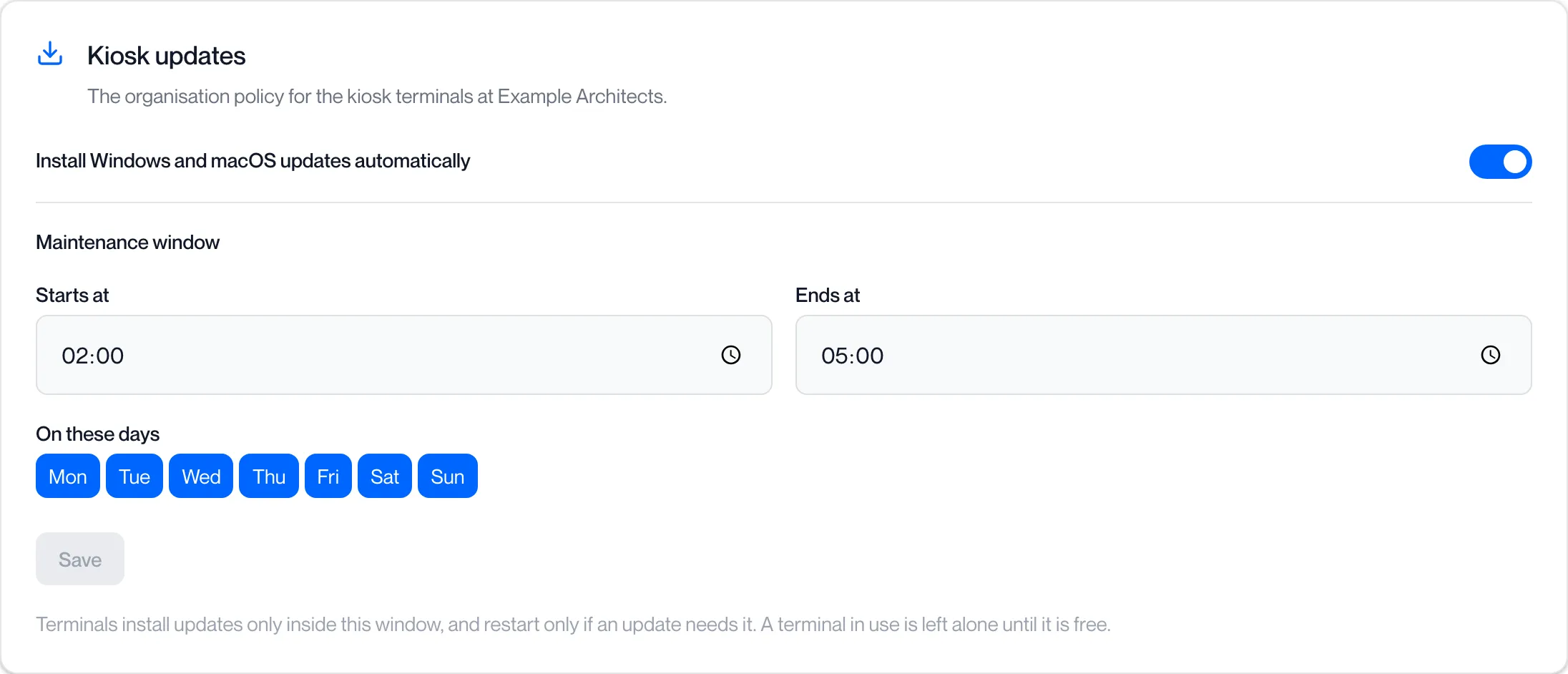
Section titled “Updates”The Kiosk updates card sets whether terminals install Windows and macOS updates themselves, and when.
| Setting | Options | Default |
|---|---|---|
| Install Windows and macOS updates automatically | On or Off | Off |
| Maintenance window | Starts at, Ends at and the days it applies | 02:00 to 05:00, every day |
Terminals install updates only inside the window, and restart only if an update needs it. A terminal in use is left alone until it is free. The Updates column in the terminals table reports each run:
| Shown as | Meaning |
|---|---|
| Updates installed | The last run installed updates. |
| Up to date | The last run found nothing to install. |
| Failed | The last run did not complete. |
| Postponed, terminal in use | The run waited because someone was signed in. |
| N waiting to install | Updates found and queued for the next window. |
| Restart needed | An update is waiting for a restart. |
| Last run: Not run yet | The terminal has not run an update check. |
Settings for one terminal
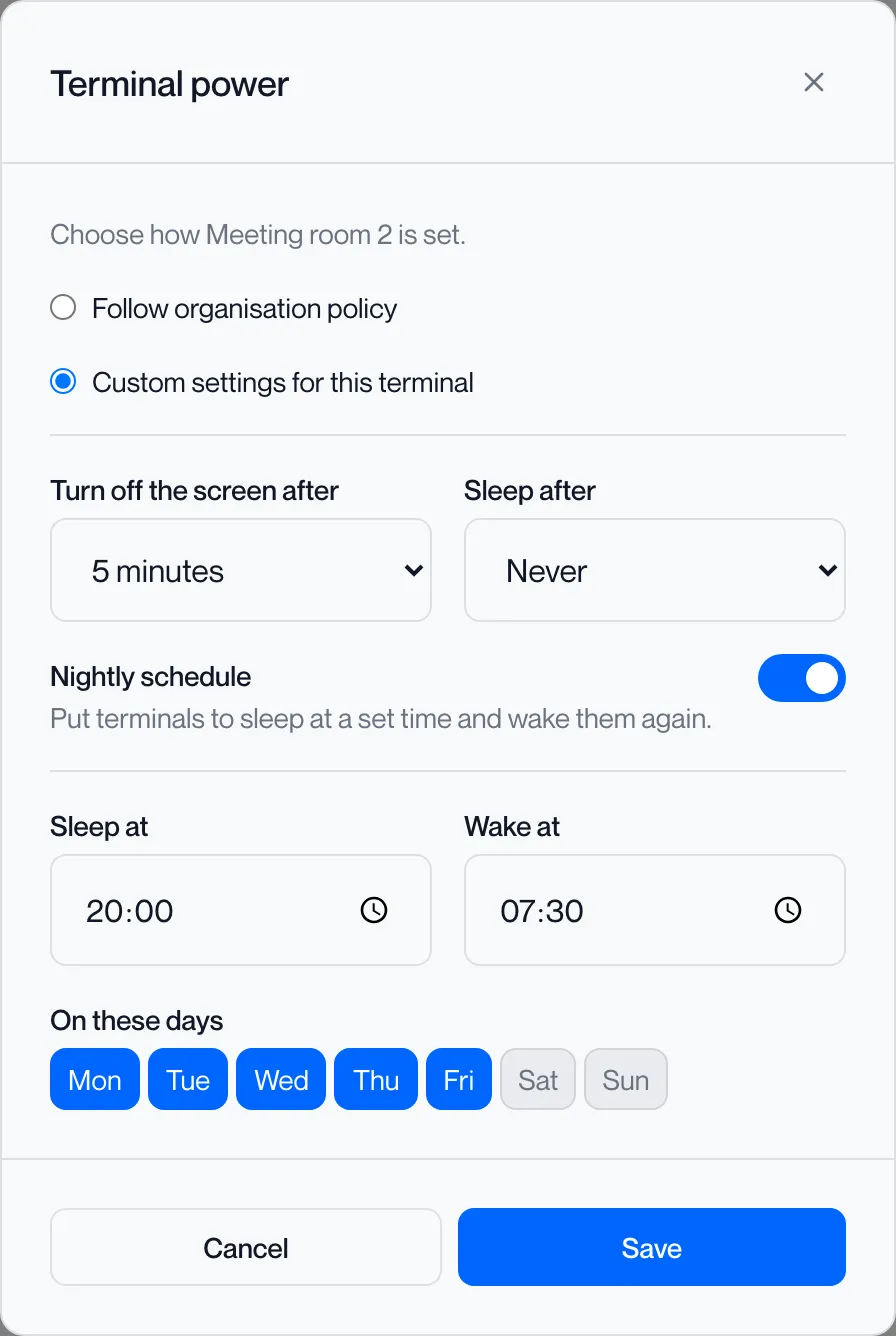
Section titled “Settings for one terminal”Click the pencil in the Power or Updates column of a terminal to override the organisation policy for it.
| Option | Effect |
|---|---|
| Follow organisation policy | The terminal uses the card above. The column reads Organisation. |
| Custom settings for this terminal | The same fields as the card, for this terminal only. The column reads Custom. |
Click Save. The portal shows “Terminal power settings updated” or “Terminal update settings updated”.
Questions
Section titled “Questions”Who can change a terminal’s power settings?
Section titled “Who can change a terminal’s power settings?”An administrator here, or someone at the terminal through Terminal settings. A terminal changed at the terminal shows “Changed on terminal” and keeps its own settings until it is set back there. See Managing Kiosk Terminals.