Single Sign-On
Questions
Does Single Sign-On store or send passwords?
Section titled “Does Single Sign-On store or send passwords?”No. It signs in with a single-use ticket from Microsoft Entra. No password is read, stored or sent.
Does it work with multifactor authentication?
Section titled “Does it work with multifactor authentication?”Your Conditional Access policies decide. See Conditional Access and multifactor authentication.
Can several users use one workstation?
Section titled “Can several users use one workstation?”Yes. Each sign-in is a ticket for that user, bound to a key on that user’s device. If someone else is signed in, the user is taken to their own desktop.
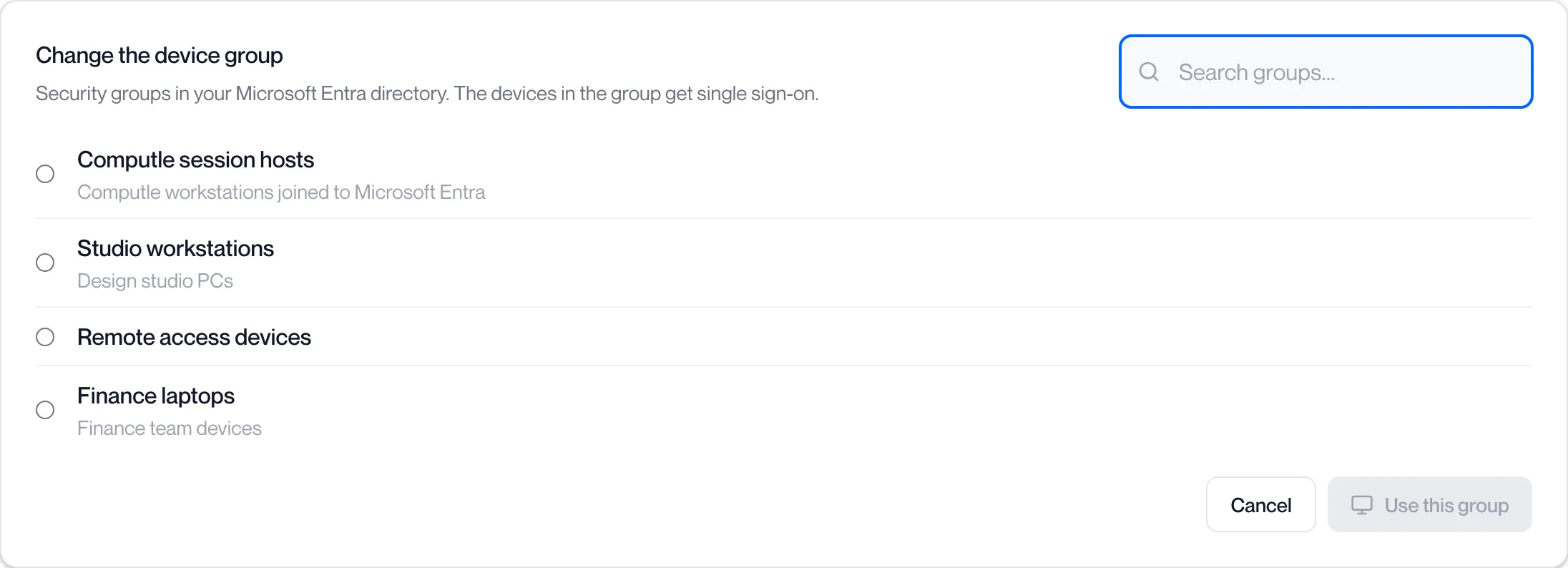
Should I use an existing security group, or create a Computle group?
Section titled “Should I use an existing security group, or create a Computle group?”Both work. You can change the group later with Change group on the Single Sign-On page. See The device group.
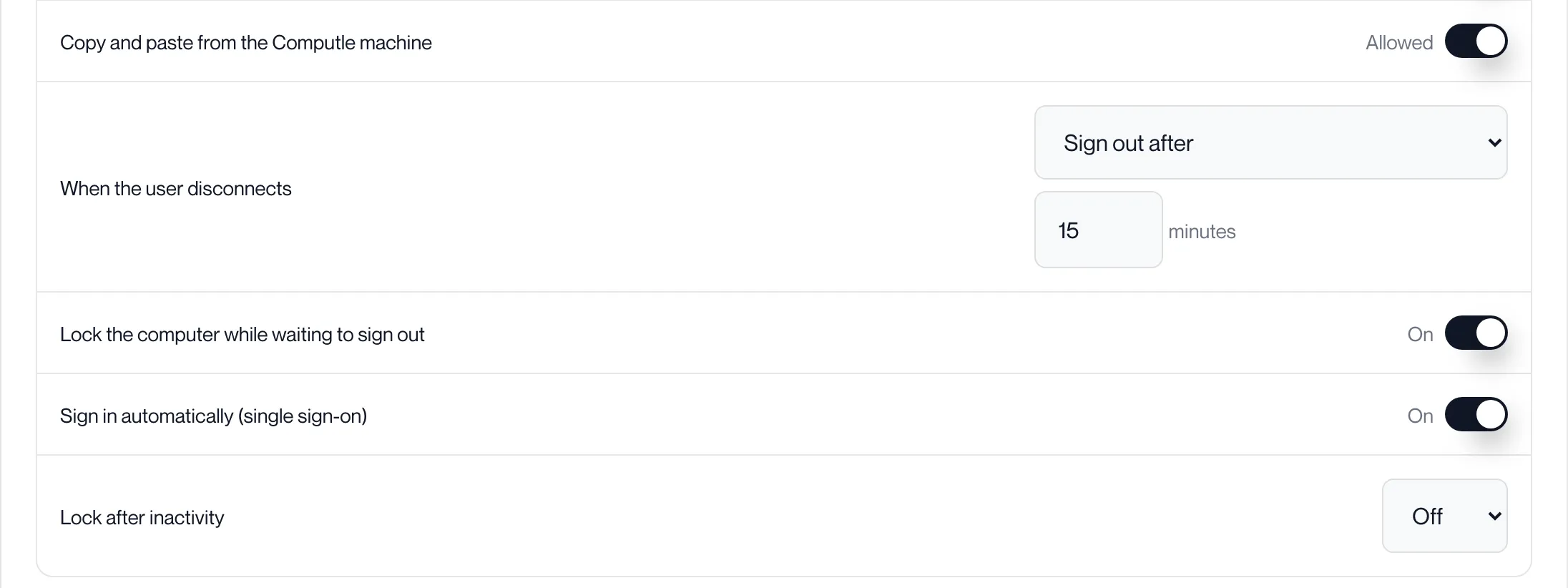
Can I turn it off for one person, or for everyone, without disconnecting?
Section titled “Can I turn it off for one person, or for everyone, without disconnecting?”Yes. Sign in automatically (single sign-on) under Client settings, Device features controls it for the organisation, and each per-user exception has its own Single sign-on setting. A user with it Off sees the Windows sign-in screen. See Device Features.
Will turning on Single Sign-On affect users who connect with Computle Client v3?
Section titled “Will turning on Single Sign-On affect users who connect with Computle Client v3?”No. A Computle Client v3 connection never triggers Single Sign-On, and those users sign in with their password as today.
Can Single Sign-On lock users out?
Section titled “Can Single Sign-On lock users out?”No. Connect adds no sign-in method and removes none. If a Single Sign-On attempt fails, the normal Windows sign-in screen stays and the user signs in with their password.
Does it change how users sign in to Microsoft 365 on their own devices?
Section titled “Does it change how users sign in to Microsoft 365 on their own devices?”No. Nothing about users’ sign-in methods changes. A user’s own laptop or phone signs in exactly as before.
Will users see a Microsoft sign-in window when they connect?
Section titled “Will users see a Microsoft sign-in window when they connect?”Normally not. The Remotle app obtains the sign-in ticket from the Microsoft sign-in the user already completed in the app, and renews it silently afterwards. The user clicks Connect and the connecting screen runs through to their desktop.
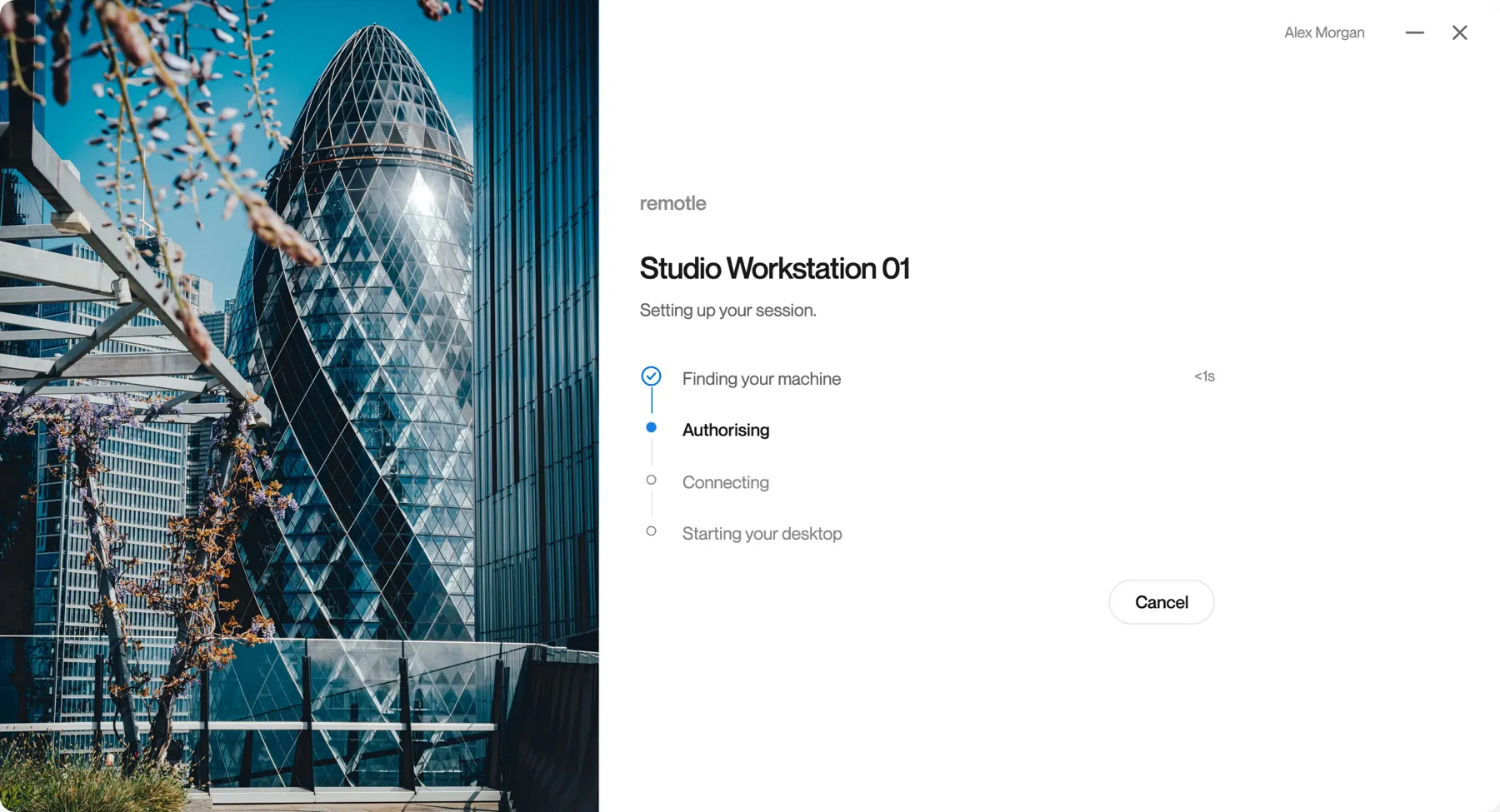
A Microsoft window appears only if your organisation’s policy asks the user to sign in again, for example under a Conditional Access policy, and then it opens in their normal browser on their own computer, so sign-in tools such as Duo Desktop work as they do everywhere else. It never opens on the workstation.
Does the user get a Primary Refresh Token (PRT)?
Section titled “Does the user get a Primary Refresh Token (PRT)?”Yes. Microsoft Entra issues a PRT for the user on the workstation as part of the sign-in, the same as a password sign-in at the workstation. Microsoft 365 apps, Edge and other Entra applications in the desktop sign in with it without asking. dsregcmd /status in the user’s session shows AzureAdPrt : YES. The PRT stays on the workstation and is protected by its TPM; the Remotle app never sees or holds it.
Does it change anything on the workstation?
Section titled “Does it change anything on the workstation?”No. The Remotle host already includes the Computle Credential Provider. It shows nothing unless a Single Sign-On connection is signing someone in, and does not hide other sign-in options.
How do I see whether a workstation is ready?
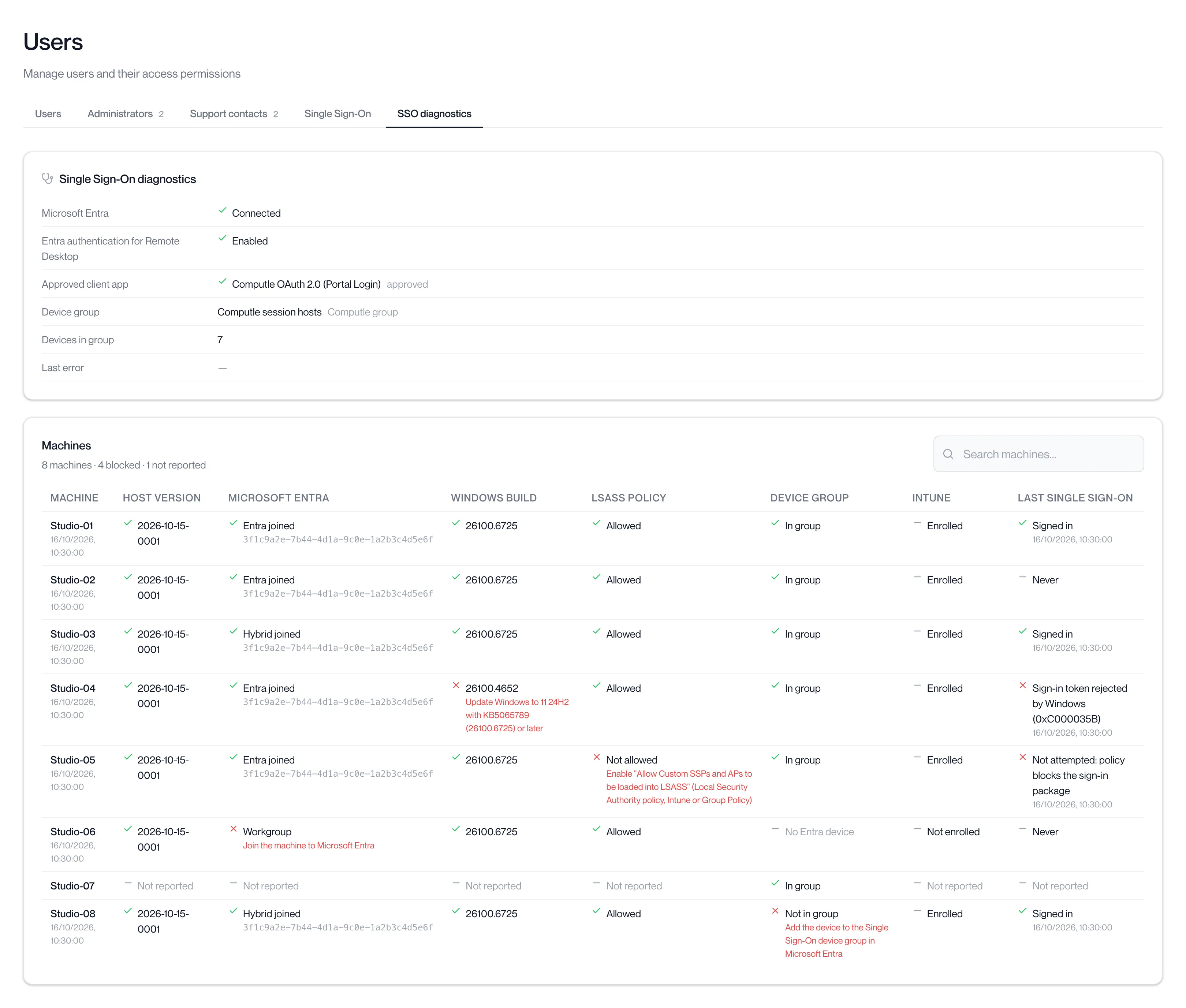
Section titled “How do I see whether a workstation is ready?”Open Users, SSO diagnostics. Each workstation has a row with a pass or fail for every check and what to fix. See Troubleshooting.