Kiosk Terminals
Set Up a Kiosk Terminal
Enrolling pairs a computer with your organisation in the portal and restarts it into kiosk mode. Check Before you start first.
Enrol a terminal
Section titled “Enrol a terminal”-
On the computer, open Remotle and go to Settings, Kiosk.

-
Click Set up as kiosk terminal.
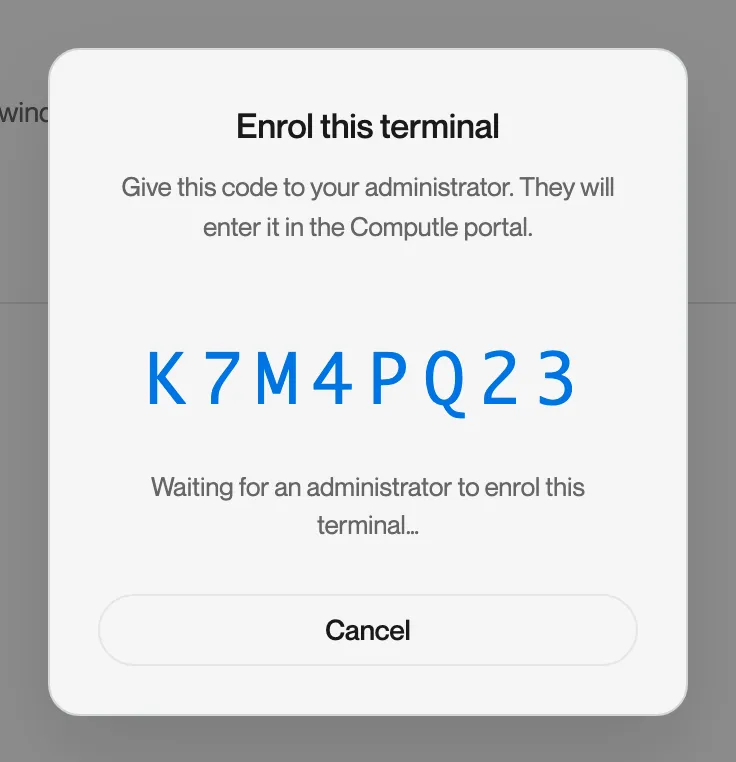
Remotle shows an 8-character code. The code never contains O, 0, I or 1, and it is valid for 15 minutes. Leave the dialog open; it waits for the portal.
-
In the portal, open Client settings, Kiosk.
-
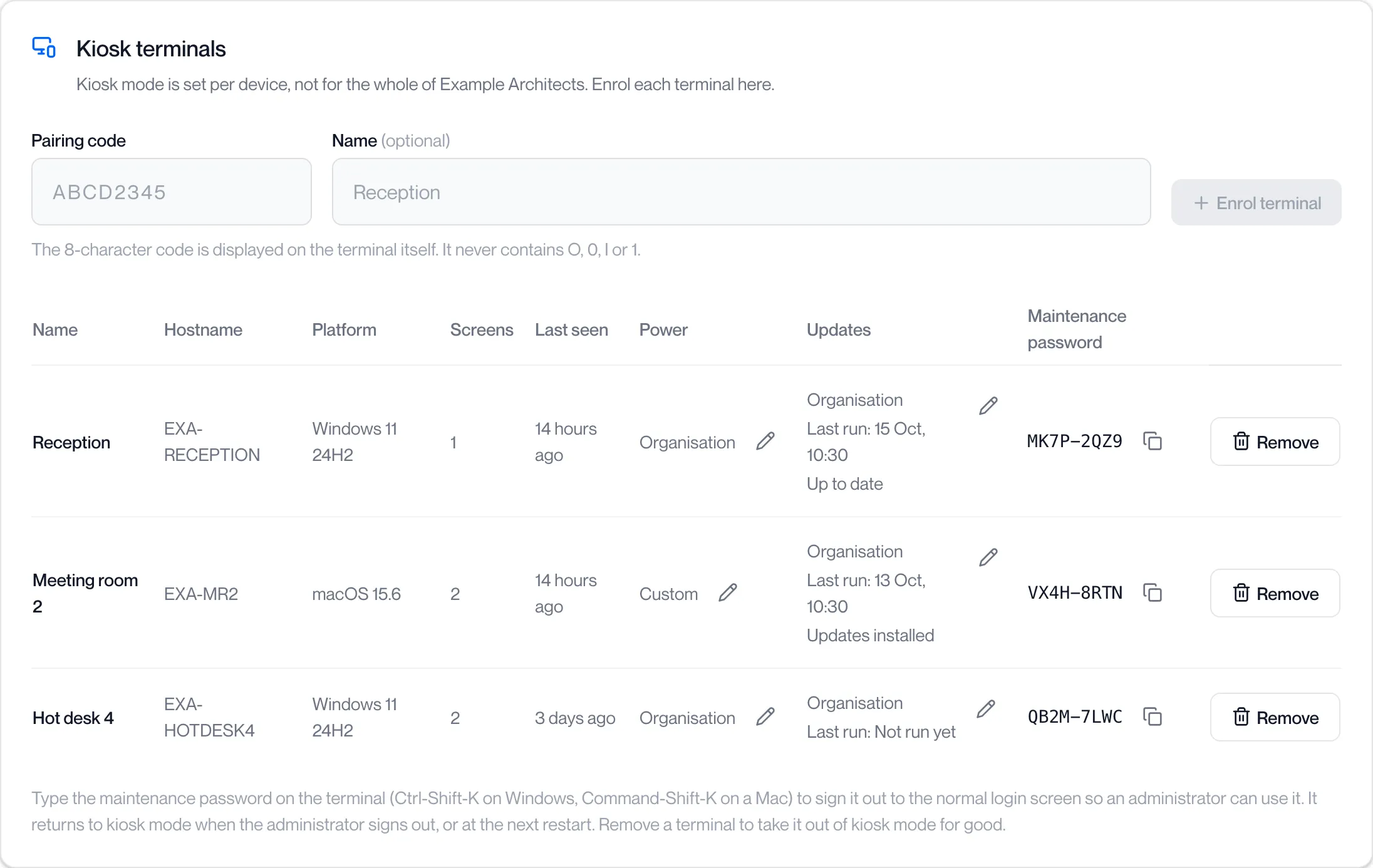
Enter the code under Pairing code, and a name such as Reception under Name.
The name is optional and can be up to 60 characters. Lower-case letters are accepted and shown in capitals.
-
Click Enrol terminal.
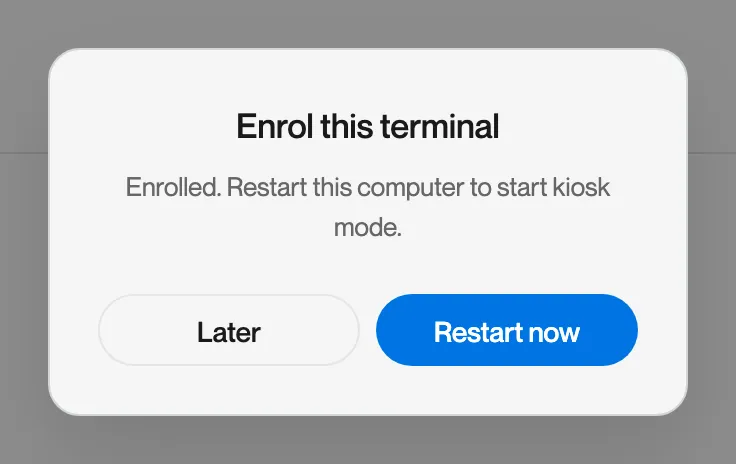
The portal shows “Reception enrolled” and adds the terminal to the table. On the computer the dialog changes to “Enrolled. Setting up this computer…” and then “Enrolled. Restart this computer to start kiosk mode.”
-
Click Restart now.
The computer restarts into kiosk mode and shows the Remotle sign-in screen. If you click Later, the Kiosk card reads “This computer is a kiosk terminal. Restart to start kiosk mode.” until you restart.

The terminals table
Section titled “The terminals table”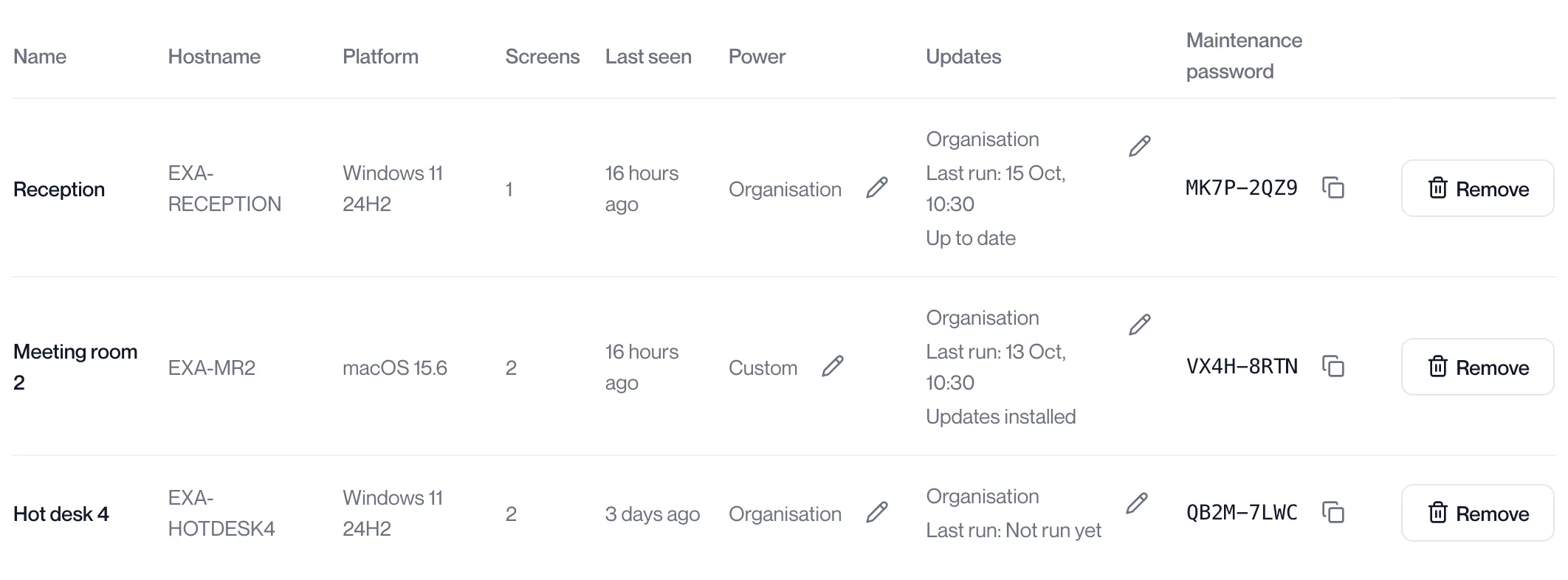
| Column | What it shows |
|---|---|
| Name | The name you gave the terminal, or “Unnamed terminal”. |
| Hostname | The computer’s name on your network. |
| Platform | Windows or macOS, with the version the terminal reported. |
| Screens | How many screens the terminal has. |
| Last seen | How long ago the terminal last checked in. Hover for the date. |
| Power | Organisation when the terminal follows the Kiosk power card, Custom when it has its own settings, Changed on terminal when someone changed power settings at the terminal. The pencil opens the terminal’s power settings. A warning “This terminal cannot wake itself; check wake timers in its BIOS” appears when the terminal cannot wake for the nightly schedule. |
| Updates | Organisation or Custom, then the last update run and its result. “Restart needed” appears when an installed update is waiting for a restart. The pencil opens the terminal’s update settings. |
| Maintenance password | The password that unlocks the terminal for maintenance. The copy icon copies it. |
| Remove | Takes the terminal out of kiosk mode. See Remove a terminal. |
Enrolment messages
Section titled “Enrolment messages”| Message | What to do |
|---|---|
| Enter the 8-character code shown on the terminal | The code is incomplete. |
| That code was not recognised | Check the code against the terminal’s screen. |
| That code has expired. Generate a new one on the terminal. | More than 15 minutes have passed. Start again on the computer. |
| That device is already enrolled | No action needed. |
| A user account named ComputleKiosk already exists on this computer | Remove that account, then enrol again. |
| This computer already signs in automatically to another account | Turn that off, then enrol again. |
| FileVault is on | Turn off FileVault, then enrol again. |
| This computer can only be enrolled from a signed-in Windows or Mac account at the computer itself | Sign in at the computer and enrol again. |
| Kiosk terminal support is not installed on this computer | Reinstall Remotle with kiosk terminal support ticked. |
| Could not reach Computle | Check the computer’s network connection and try again. |
Questions
Section titled “Questions”The code on the terminal keeps expiring before I enter it.
Section titled “The code on the terminal keeps expiring before I enter it.”A code lasts 15 minutes. Open the portal first, then generate the code at the terminal.