Installing the Host
Silent install
This page is for the administrator who deploys the Remotle host to Windows workstations with a management tool or a script. The installers are described on Installing on Windows.
Silent install with the setup program
Section titled “Silent install with the setup program”-
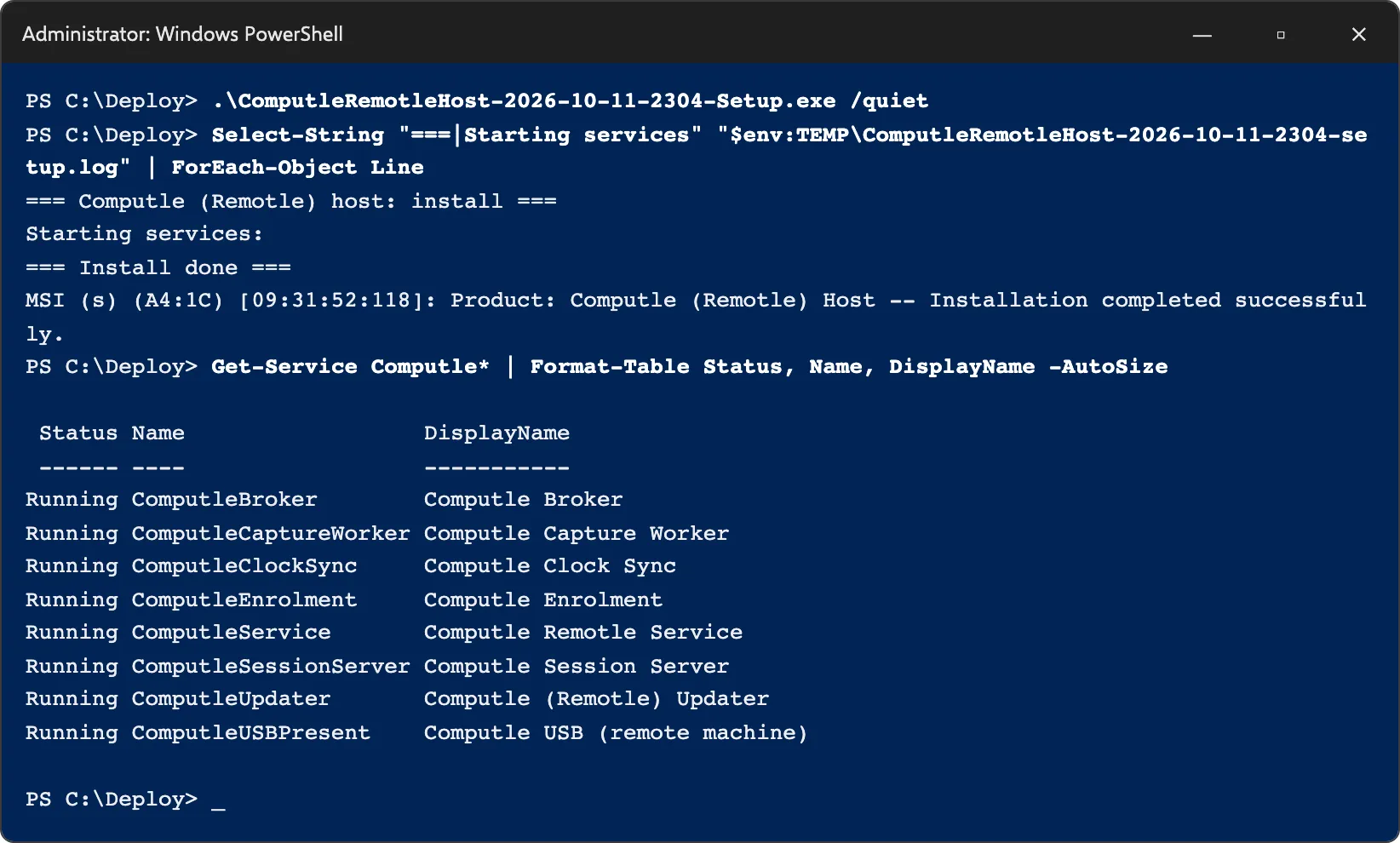
Run the setup program with
/quietfrom an administrator prompt, or as SYSTEM from your management tool.ComputleRemotleHost-<version>-Setup.exe /quietNothing is shown. The setup program writes its log to
%TEMP%\ComputleRemotleHost-<version>-setup.log, in the profile of the account that ran it. -
Check the services.
Get-Service Computle*All eight services read Running.
| Switch | Action |
|---|---|
/quiet | Install without a window. Running it again on the same version repairs the install. |
/uninstall | Remove the host. Combine with /quiet for no window. |
Silent install with the MSI
Section titled “Silent install with the MSI”-
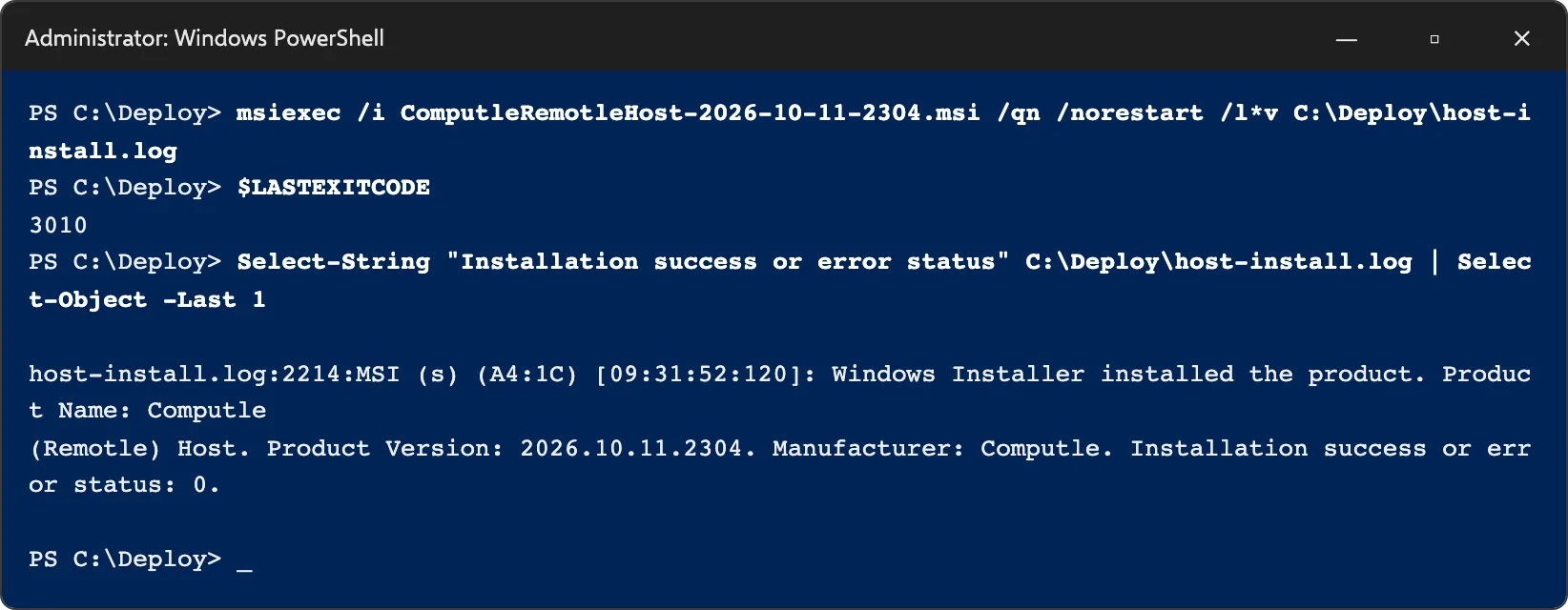
Run
msiexecwith/qn,/norestartand a log path.msiexec /i ComputleRemotleHost-<version>.msi /qn /norestart /l*v C:\Deploy\host-install.logThe MSI writes a log only when
/l*vis given. -
Check the exit code.
Code Meaning 0Installed 3010Installed. A restart is needed to finish; see Why does setup sometimes ask for a restart? Anything else Not installed. The log has the reason. The MSI never forces a restart.
Silent uninstall
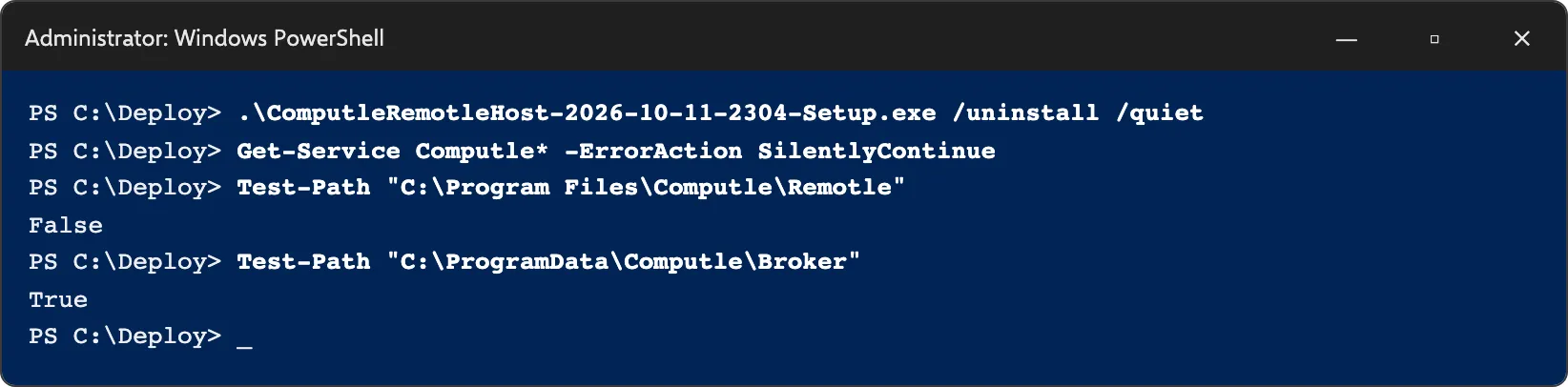
Section titled “Silent uninstall”ComputleRemotleHost-<version>-Setup.exe /uninstall /quietThe services, drivers and program folder are removed. The workstation’s certificate under C:\ProgramData\Computle\Broker\ stays, so a later install needs no new enrolment. See Upgrade, repair and uninstall.
Related
Section titled “Related”- Installing the Host
- Installing on Windows
- What the installer does
- Upgrade, repair and uninstall
- Installing on Linux, for a silent install on Ubuntu and Debian
Questions
Section titled “Questions”Which account should run the install?
Section titled “Which account should run the install?”An administrator, or SYSTEM. Intune and Configuration Manager run installers as SYSTEM, which works. The setup program’s log then lands in the SYSTEM account’s temporary folder, C:\Windows\Temp.
Can I pass settings to the installer?
Section titled “Can I pass settings to the installer?”No. Set host settings after the install, with the registry values on Host Settings and Update settings. Group Policy Preferences or Intune can set them on many workstations.