Single Sign-On
What Connect Changes
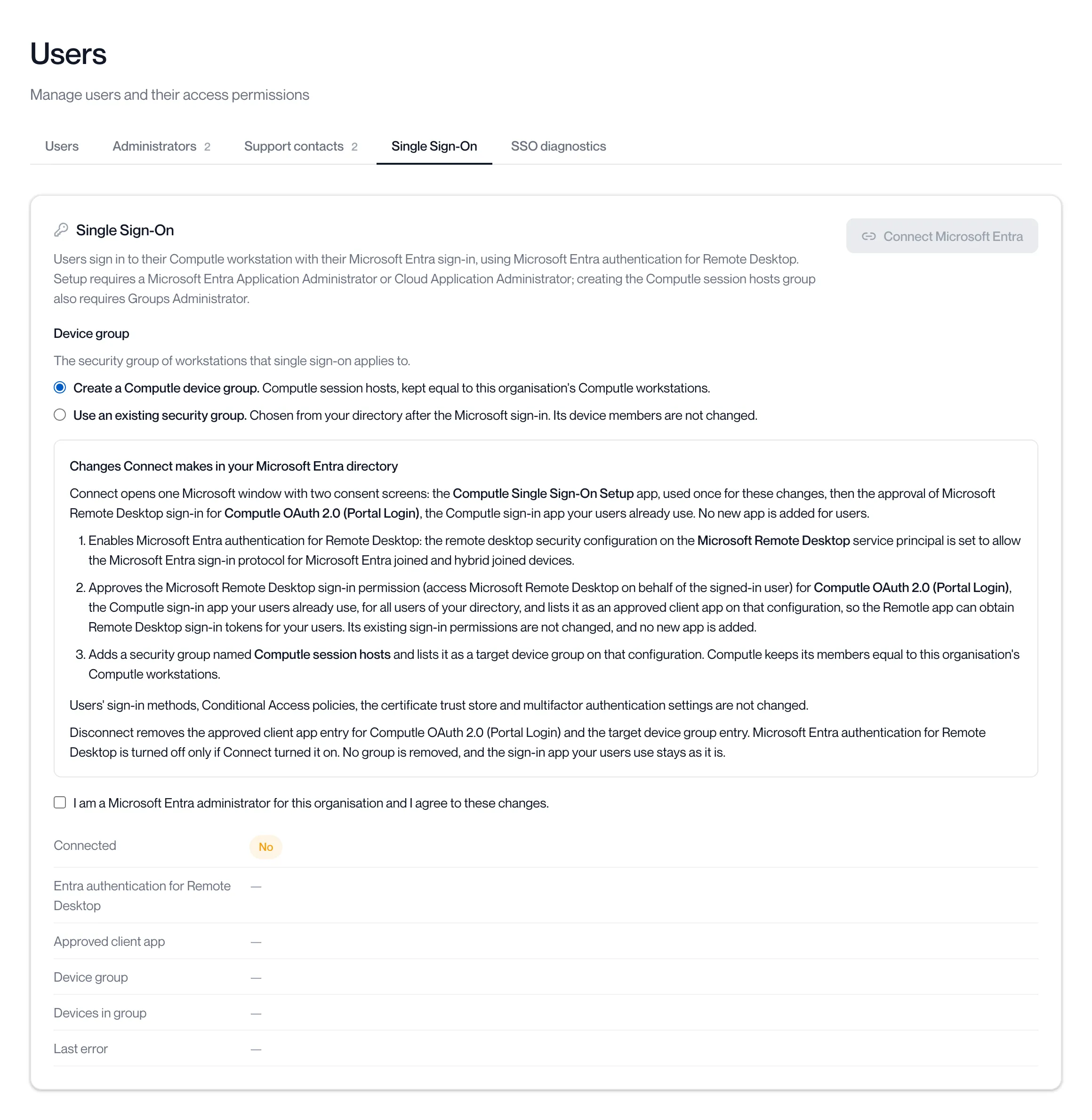
Connect opens one Microsoft window with two consent screens. The first is for the Computle Single Sign-On Setup application: the administrator signs in and grants it delegated permissions, Computle uses that sign-in once to make the changes below, then discards it. The second approves the Microsoft Remote Desktop sign-in permission for the Computle sign-in application your users already use, Computle OAuth 2.0 (Portal Login), for all users of your directory. No new application is added for users. Nothing keeps administrator rights in your directory afterwards, and Computle holds no credential in it.
The portal shows the same list under Changes Connect makes in your Microsoft Entra directory before you agree to it.
1. The Remote Desktop sign-in permission for the Computle sign-in application
Section titled “1. The Remote Desktop sign-in permission for the Computle sign-in application”Computle OAuth 2.0 (Portal Login) is the application every Remotle app and the Computle portal already sign your users in with. It is registered by Computle (verified publisher Computle LTD), is the same for every organisation, and is already in your directory as an enterprise application if any of your users has signed in. It holds no application permissions and no credential; it is a public client. Connect adds no application for users. It asks the administrator to approve one delegated permission for it, for all users:
| Permission | What it allows |
|---|---|
Microsoft Remote Desktop, sign in (user_impersonation) | Obtain a sign-in ticket for a workstation on behalf of the signed-in user. |
The permissions the application already has for signing users in are not requested again and are not changed.
Microsoft names the permission “Microsoft Remote Desktop” because that is the name of Microsoft’s sign-in service for remote desktops; Remotle never uses the Remote Desktop protocol.
2. Microsoft Entra authentication for Remote Desktop
Section titled “2. Microsoft Entra authentication for Remote Desktop”On the Microsoft Remote Desktop service principal in your directory (added if it is not there yet), Connect:
| Enables | Microsoft Entra authentication for Remote Desktop, if it is not already on. |
| Approves | Computle OAuth 2.0 (Portal Login) as a client application, so Microsoft Entra issues it sign-in tickets for your workstations. |
| Targets | The device group below, so your users are not asked to allow each connection. |
3. The device group
Section titled “3. The device group”A security group of the workstations Single Sign-On applies to, either:
- Computle session hosts, a security group Connect creates. Computle keeps its members equal to your Computle workstations that are joined to Microsoft Entra.
- An existing security group you choose from your directory after the Microsoft sign-in. Computle reads it and never changes its members.
The Setup application’s permissions
Section titled “The Setup application’s permissions”The Computle Single Sign-On Setup application asks for these delegated Microsoft Graph permissions, used once with the administrator’s sign-in and discarded:
| Permission | Used for |
|---|---|
User.Read | Record who agreed to the changes. |
Application.ReadWrite.All | Add the Microsoft Remote Desktop enterprise application to your directory if it is not there, and the Computle sign-in application if no user has signed in yet. |
Application-RemoteDesktopConfig.ReadWrite.All | The remote desktop configuration on the Microsoft Remote Desktop service principal. |
Group.ReadWrite.All | Create the Computle session hosts group and its members, or read the group you choose. |
AppRoleAssignment.ReadWrite.All | Requested with the others; not used by Connect. |
What Connect does not change
Section titled “What Connect does not change”| Users’ sign-in methods | No authentication method is added, enabled or changed. No certificate authority is added. Sign-in on users’ own devices is unchanged. |
| Conditional Access | No policy is read or written. |
| Multifactor authentication | No MFA setting, authentication strength or third-party MFA configuration is read or written. |
| Other applications and users | Nothing else in your directory is read or written. |
| Application permissions | None are granted. Computle holds no credential in your directory. |