Single Sign-On
Set Up and Manage
This page is for the administrator who connects Single Sign-On and looks after it afterwards.
Connect
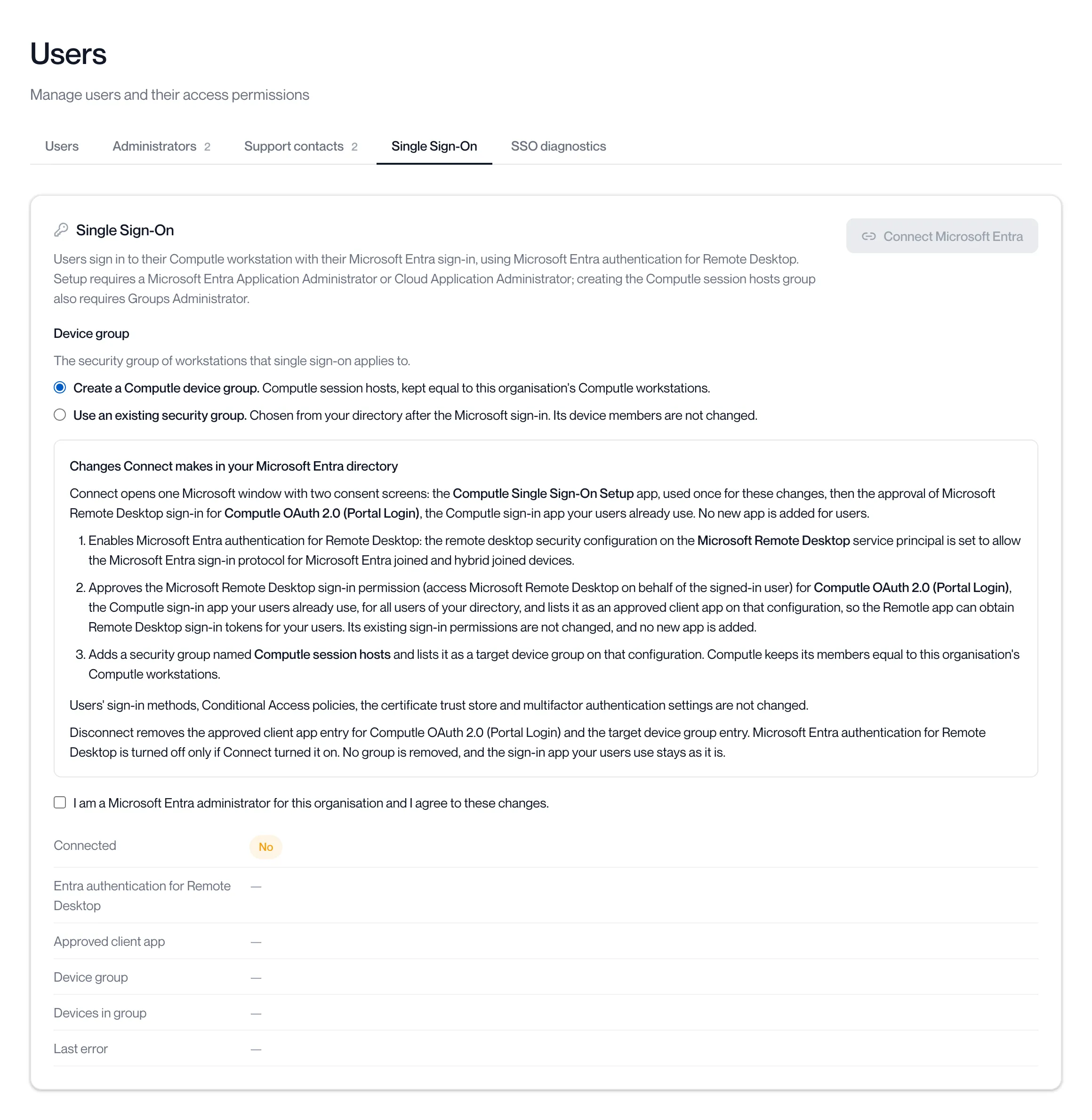
Section titled “Connect”Open Users, Single Sign-On in the Computle portal.
-
Choose the device group.
Create a Computle device group makes Computle session hosts and keeps it current. Use an existing security group lets you pick one of your own after the Microsoft sign-in.
-
Read the list of changes and agree to it.
The page lists what Connect changes in your directory; the same list is on What Connect Changes. Tick I am a Microsoft Entra administrator for this organisation and I agree to these changes.

-
Click Connect Microsoft Entra.
The button is available once a device group is chosen and the agreement is ticked.

A Microsoft window opens. Allow pop-ups for the portal if your browser blocks it; the portal says “The browser blocked the sign-in window. Allow pop-ups for this site and try again.” While the window is open, the button shows a spinner.

-
Sign in with the administrator account and accept both consent screens.
The Microsoft window shows two consent screens in turn, then closes.
-
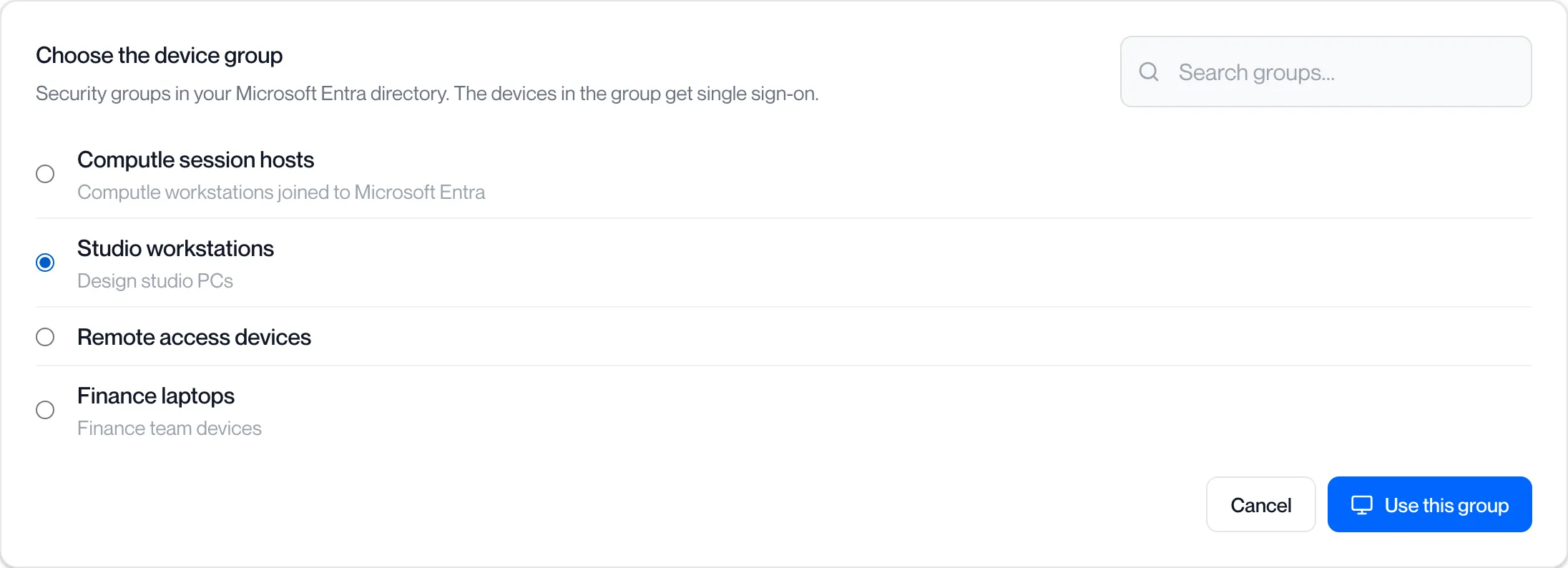
If you chose an existing group, pick it when the portal asks.
The portal lists the security groups in your directory. Type to search, choose one and click Use this group.
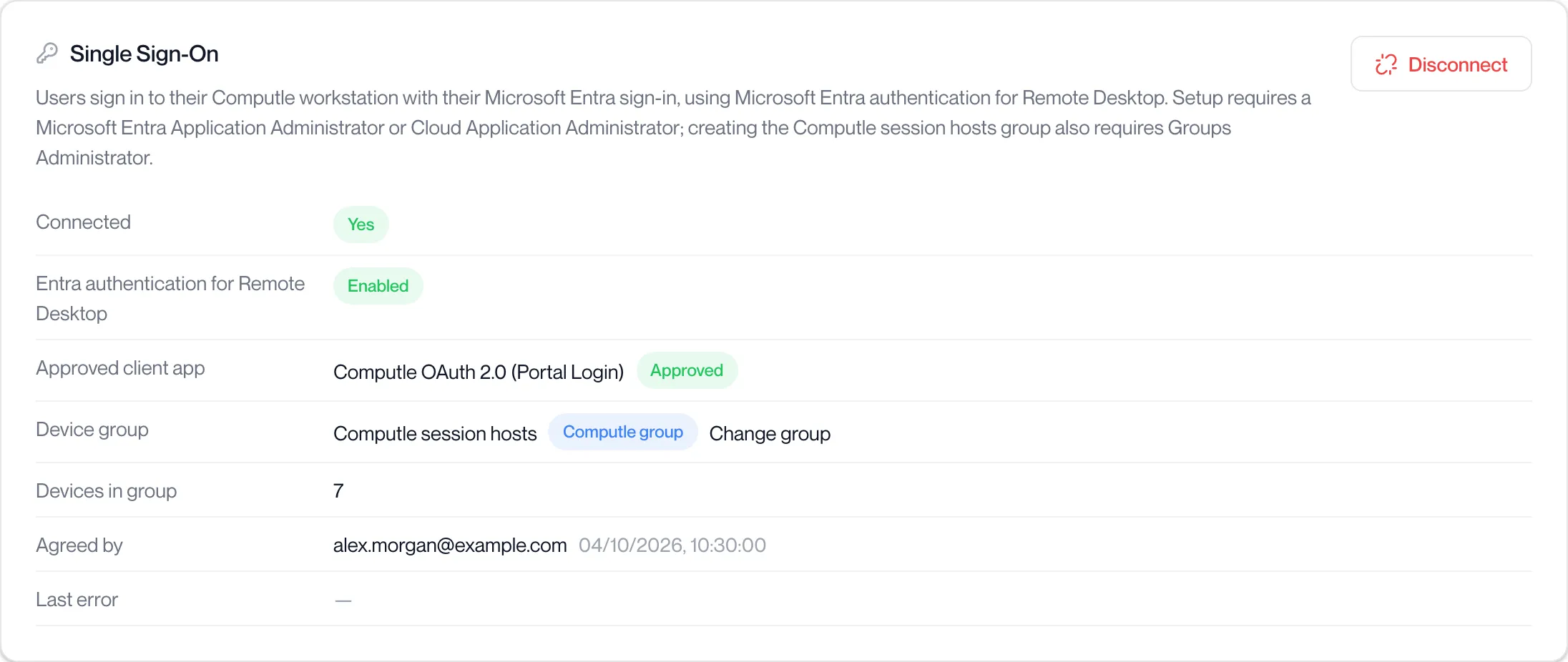
The page then shows the connection: whether Microsoft Entra authentication for Remote Desktop is on, the approved client application, the device group and the number of devices in it, and who agreed to the changes. The portal shows “Microsoft Entra connected”.
The sign-in must be completed within ten minutes. If it expires, the portal says “The sign-in expired before it completed. Start the connection again.”
The device group
Section titled “The device group”Single Sign-On applies to the workstations in the device group. A workstation outside it gets the normal Windows sign-in screen.
| Computle session hosts | Existing security group | |
|---|---|---|
| Members | Your Computle workstations that are joined to Microsoft Entra. Computle adds a workstation when it is set up and removes it when it is retired. | Controlled by you in Microsoft Entra. |
| Changes by Computle | Membership only. | None. |
| Change later | Click Change group on the Single Sign-On page to move to one of your own groups. The Computle group stays in your directory for you to keep or delete. | The same. |
The group must be a security group. Nested groups are not included.
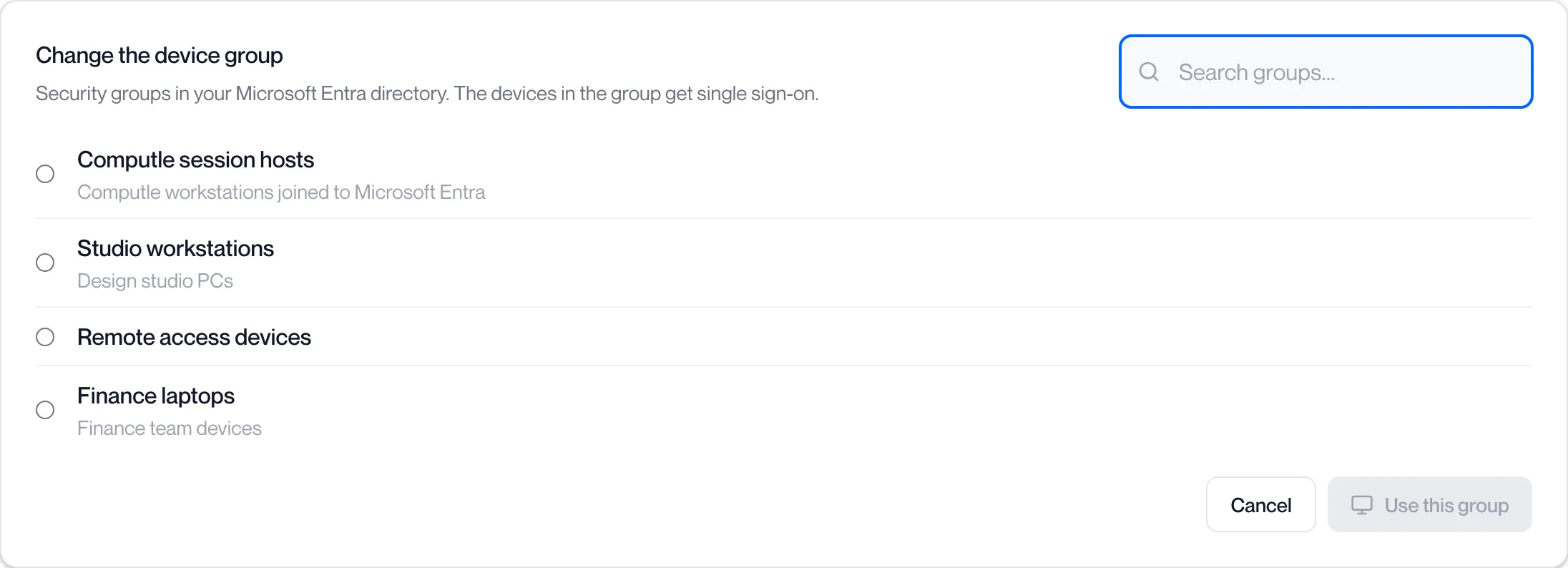
Click Change group next to the device group to pick another security group from your directory. The portal confirms with “Device group is now …”.
Computle updates the Computle session hosts group when one of your administrators signs in to the Computle portal with Microsoft, because Computle keeps no standing access to your directory. A workstation joined to Microsoft Entra in the meantime gets the normal Windows sign-in screen until the next update.
Conditional Access and multifactor authentication
Section titled “Conditional Access and multifactor authentication”Your Conditional Access policies apply to the sign-in as they do to any Microsoft Entra sign-in. The sign-in is to the Microsoft Remote Desktop resource, from the Remotle app on the user’s device, for the user’s account.
If a policy requires interaction, a Microsoft sign-in window opens in the user’s normal browser on their own computer. If a policy blocks the sign-in, or the user closes the window, the user sees the normal Windows sign-in screen and signs in with their password. Single Sign-On never changes a policy and never bypasses one.
Turn it off for one user
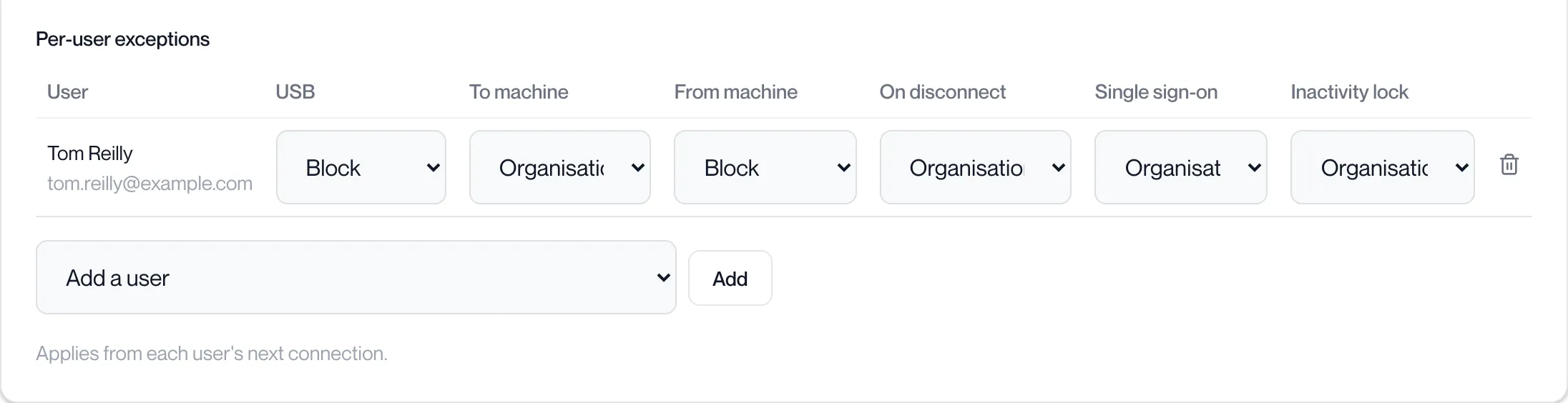
Section titled “Turn it off for one user”Single Sign-On can be switched off for a user without disconnecting. Open Client settings, Device features, add the user under Per-user exceptions and set Single sign-on to Off. They see the Windows sign-in screen from their next connection. See Device Features.
Disconnect
Section titled “Disconnect”Click Disconnect on the Single Sign-On page and confirm.
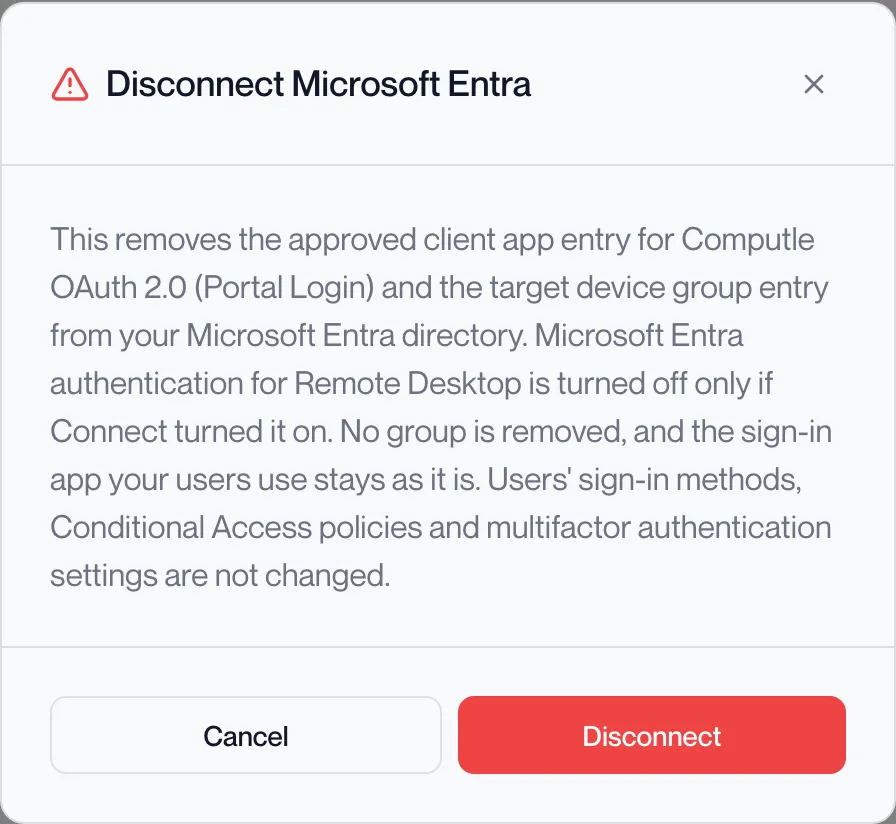
It removes what Connect created, in reverse order:
- The device group’s entry and the Computle OAuth 2.0 (Portal Login) approval on the remote desktop configuration. Microsoft Entra authentication for Remote Desktop is turned off only if Connect turned it on, and the configuration is deleted only if Connect created it.
- The Remote Desktop sign-in permission approved for Computle OAuth 2.0 (Portal Login). The application itself stays, as your users sign in with it.
No group is removed: a group you chose was never Computle’s, and the Computle session hosts group stays for you. The Microsoft Remote Desktop service principal stays. Users’ sign-in methods, Conditional Access policies and multifactor authentication settings are not touched.
Disconnect needs an administrator sign-in to make the changes in your directory, and asks for one if it has none. The portal shows “Microsoft Entra disconnected”.