Kiosk Terminals
Managing Kiosk Terminals
Once a terminal is enrolled, you look after it from the terminal itself for maintenance and from the terminals table to remove it.
Maintenance
Section titled “Maintenance”-
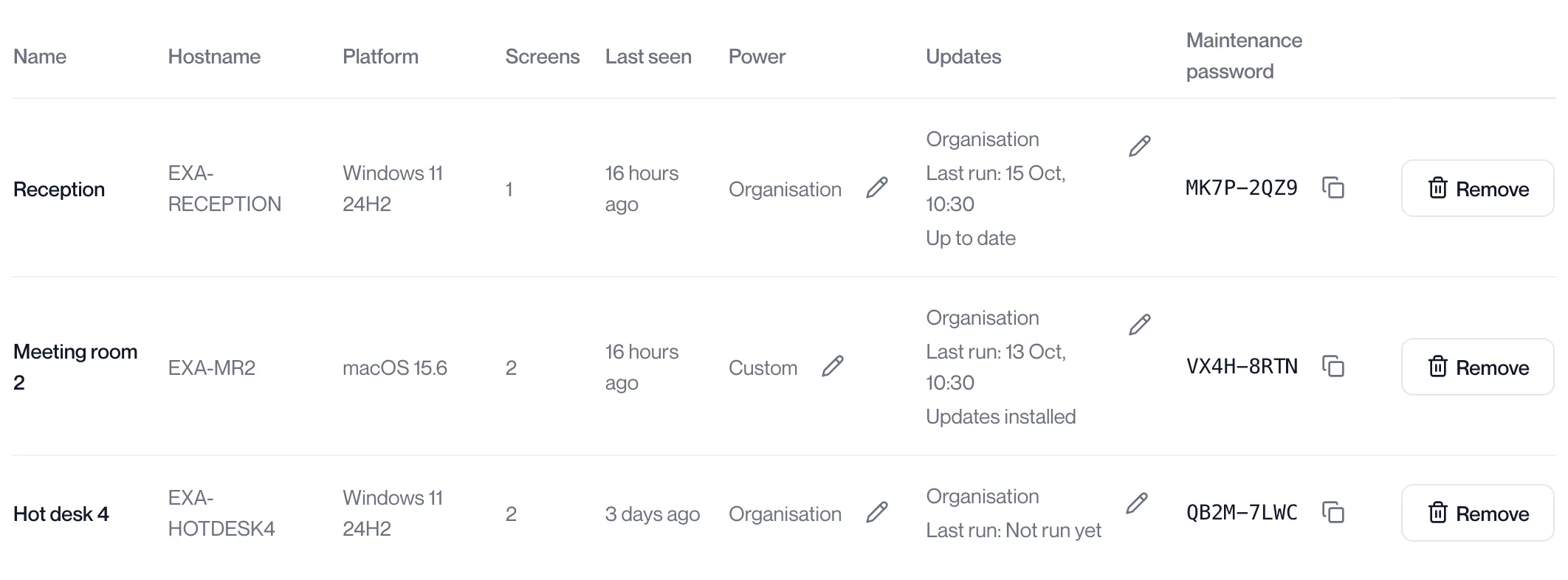
Copy the terminal’s maintenance password from the terminals table.
In the portal, open Client settings, Kiosk. Each terminal has its own password in the Maintenance password column. The copy icon copies it.
-
On the terminal, press Ctrl+Shift+K (Command+Shift+K on a Mac), or click the spanner in the top corner.
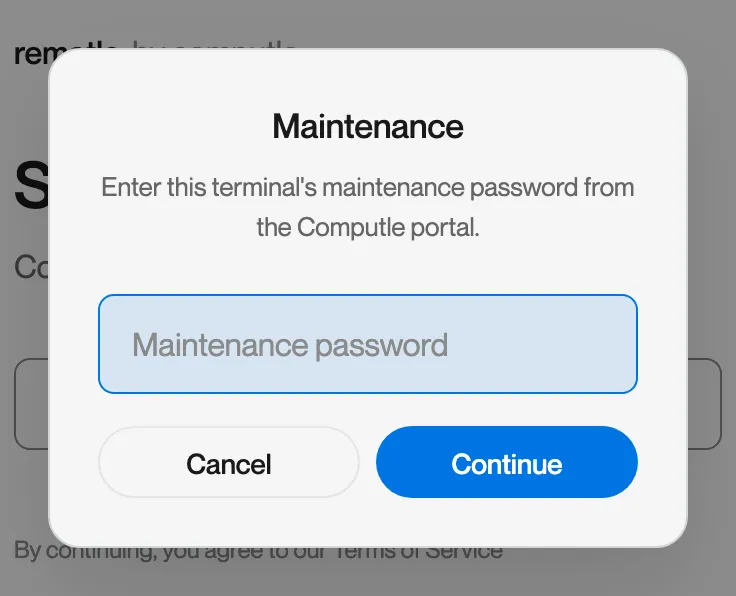
The Maintenance dialog asks for the password.
-
Enter the password and click Continue.
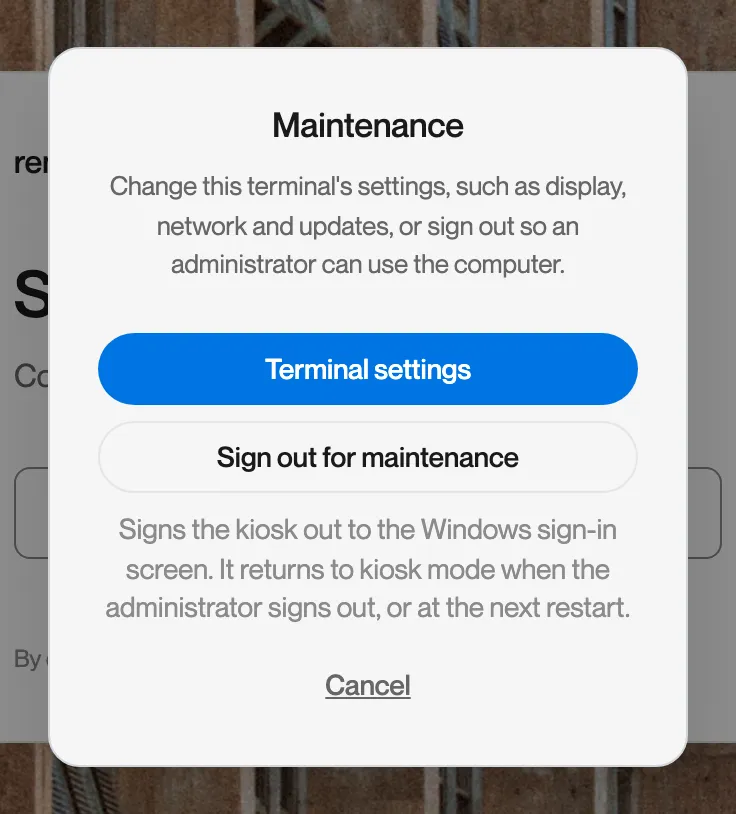
The dialog offers Terminal settings and Sign out for maintenance.
-
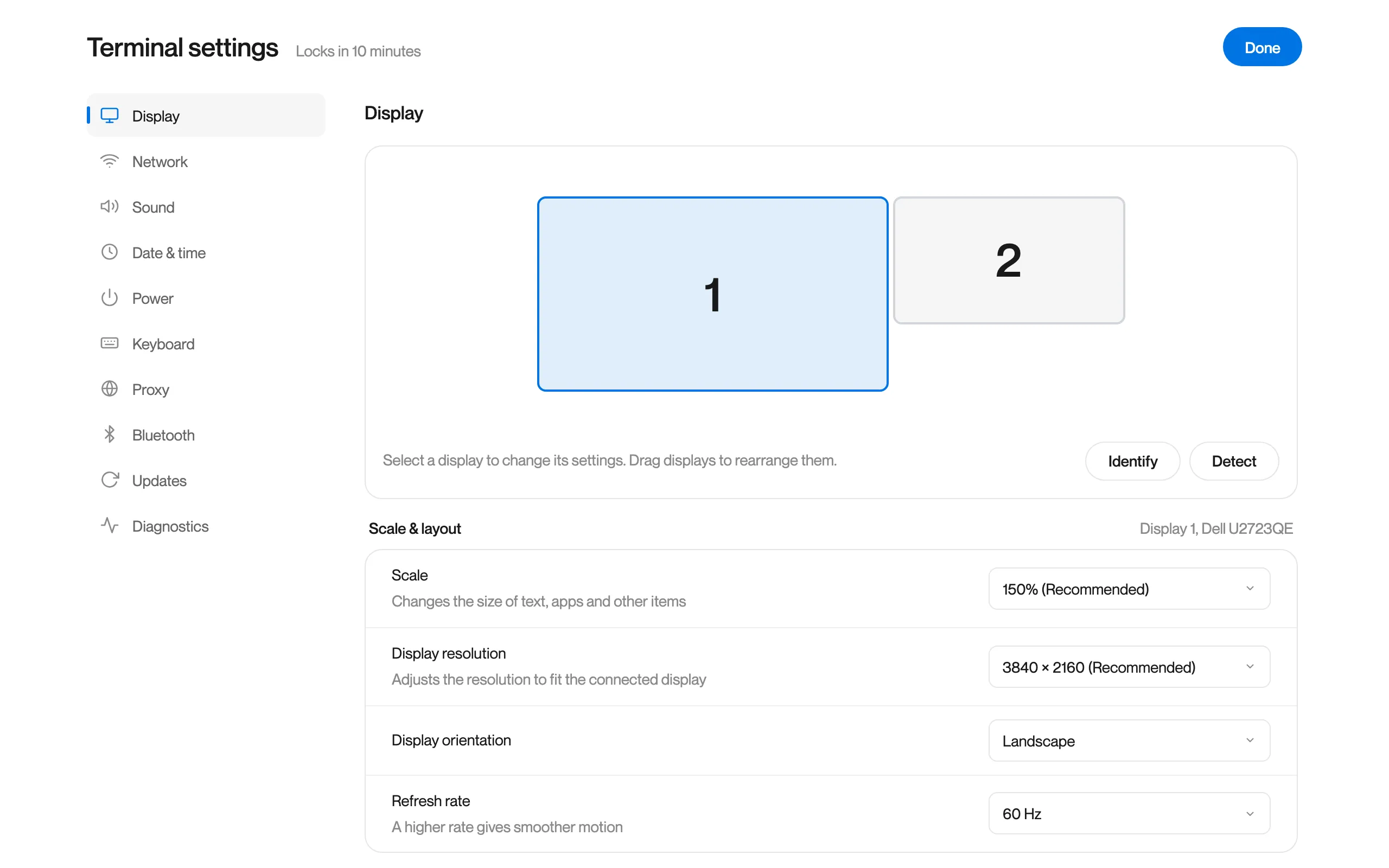
Click Terminal settings to change the terminal.
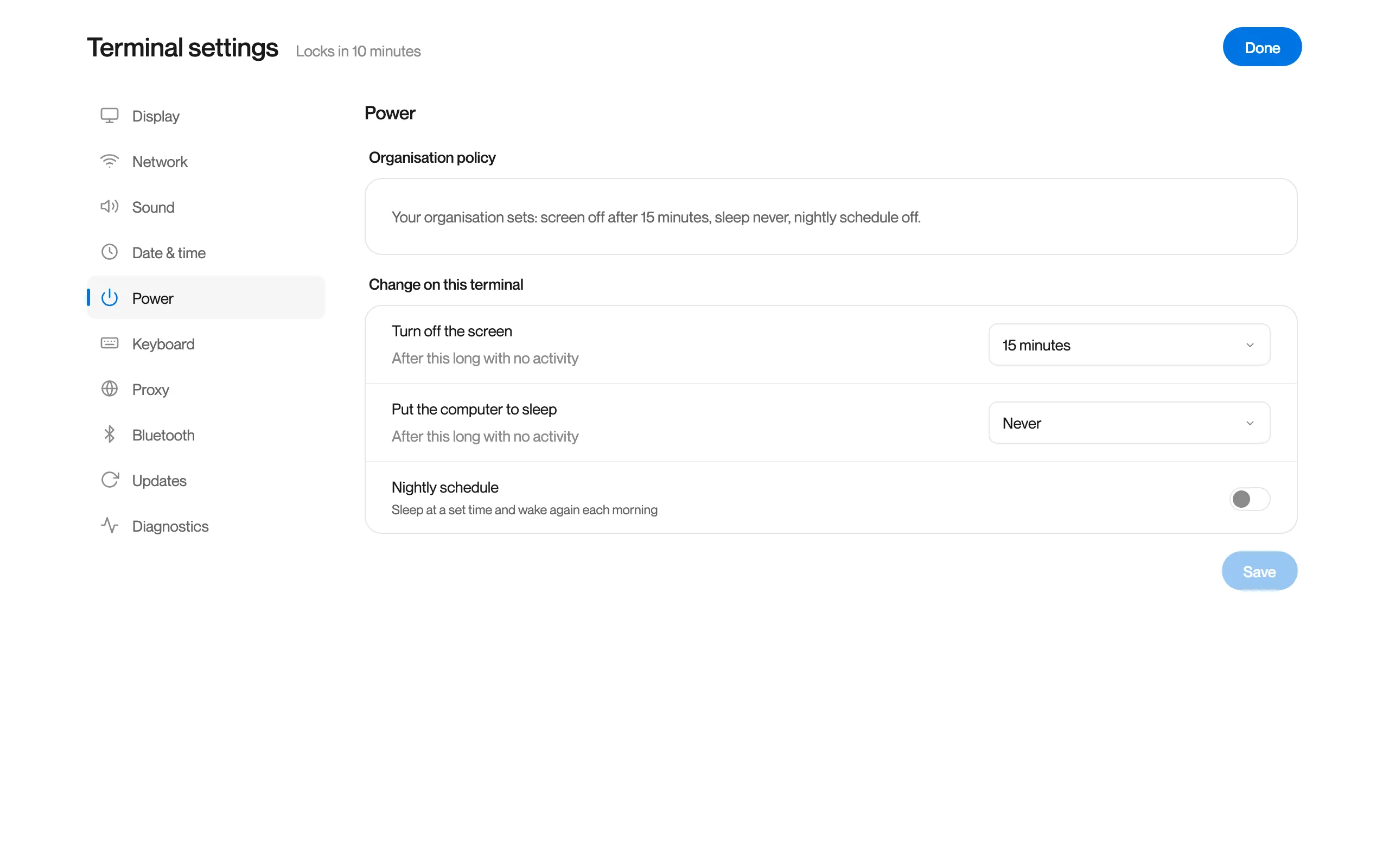
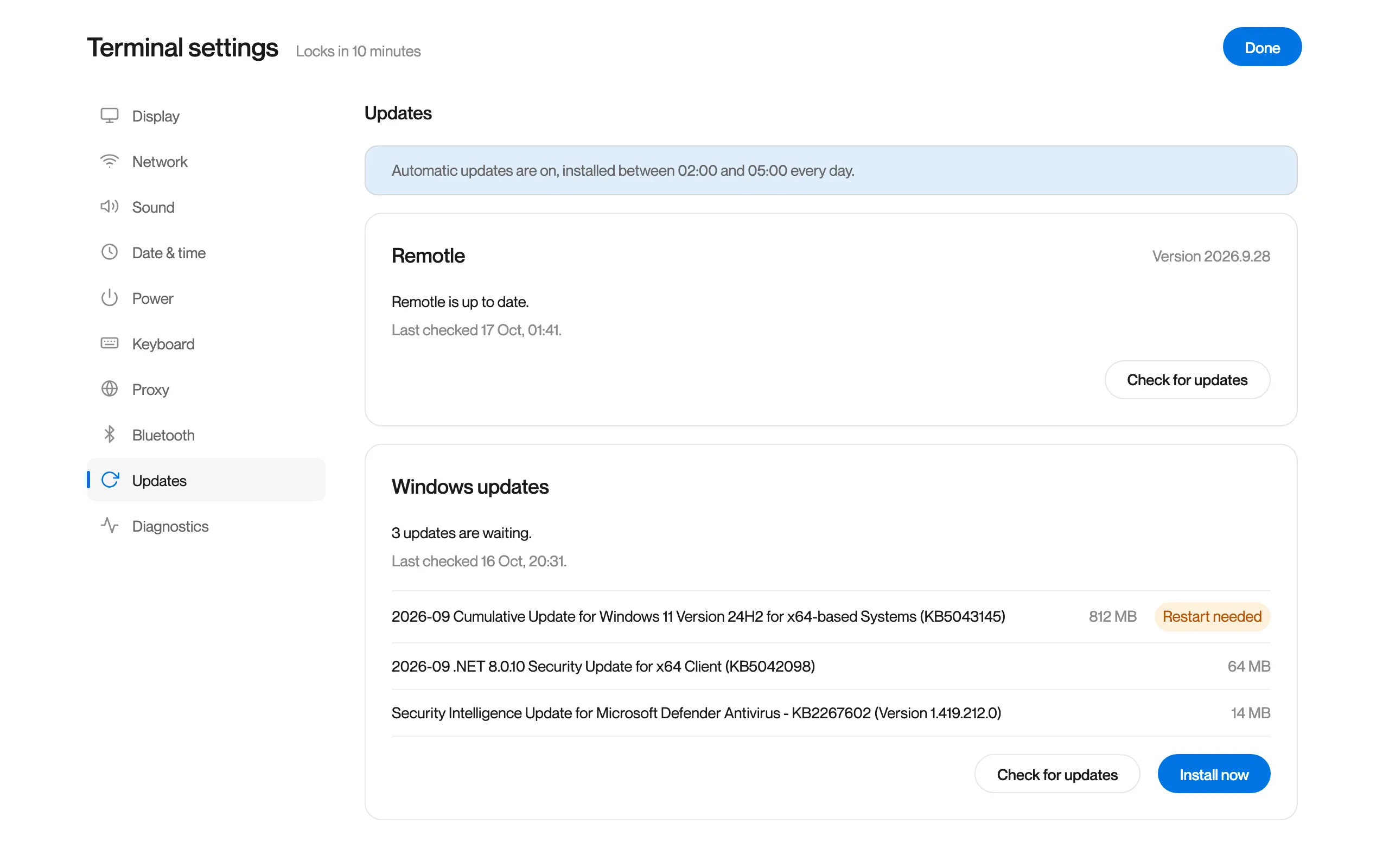
Display, network, sound, date and time, power, keyboard, proxy, Bluetooth, updates and diagnostics. The settings lock again after 10 minutes; the time left is shown beside the title. Click Done when you finish.
The Power section shows the organisation policy and lets you change it on this terminal. A terminal changed here shows “Changed on terminal” in the portal.
The Updates section shows the update window and the updates waiting, and lets you install them now.
-
Or click Sign out for maintenance to use the computer as an administrator.
The kiosk signs out to the normal Windows sign-in screen or Mac login window. The terminal returns to kiosk mode when the administrator signs out, or at the next restart.
If the terminal shows “Too many incorrect passwords”, wait five minutes and try again.
The terminal’s own details
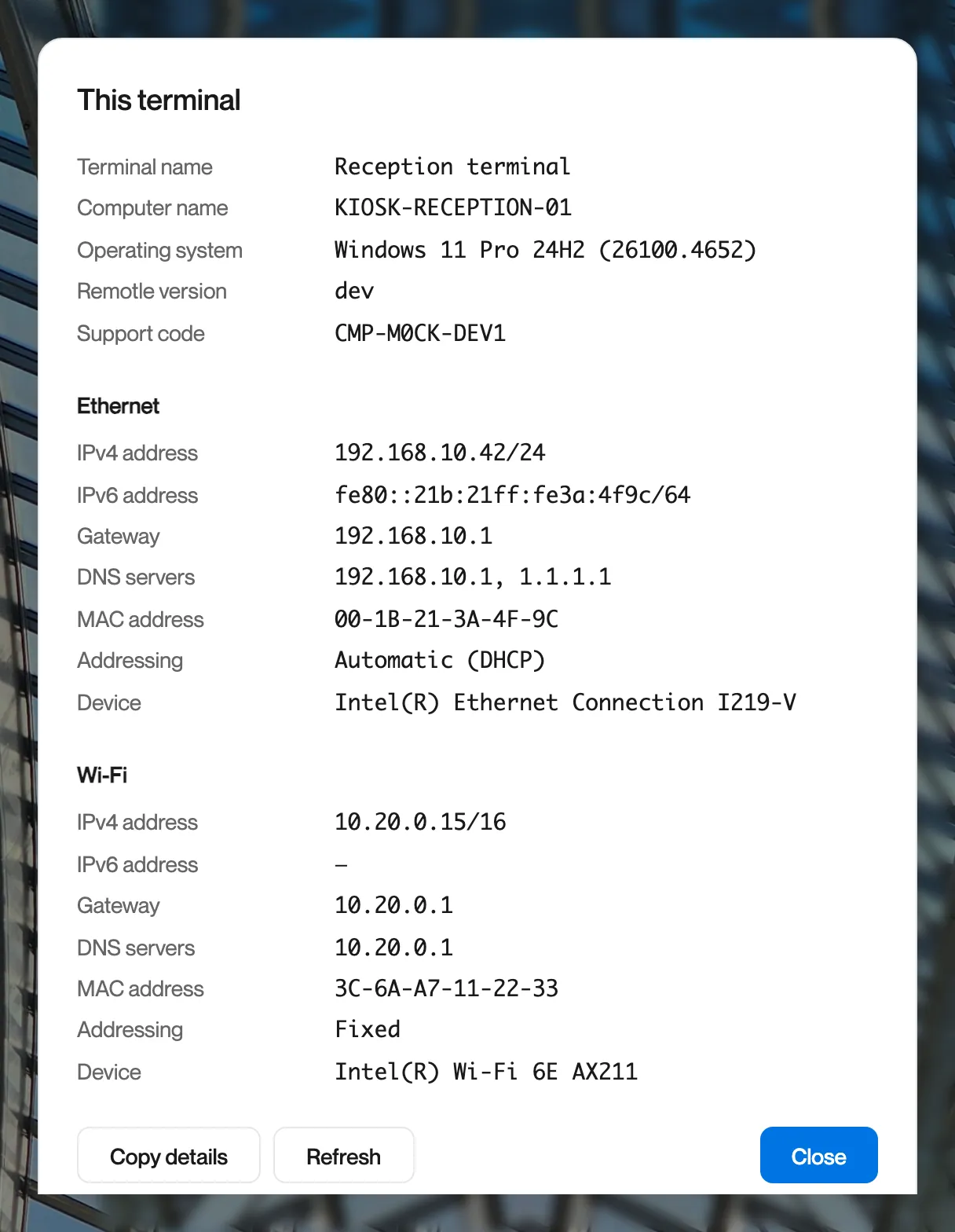
Section titled “The terminal’s own details”Click the info button in the top corner of the terminal to see its name, computer name, operating system, Remotle version, support code and network adapters, with the IP address, gateway, DNS servers and MAC address of each. Copy details copies them as text.
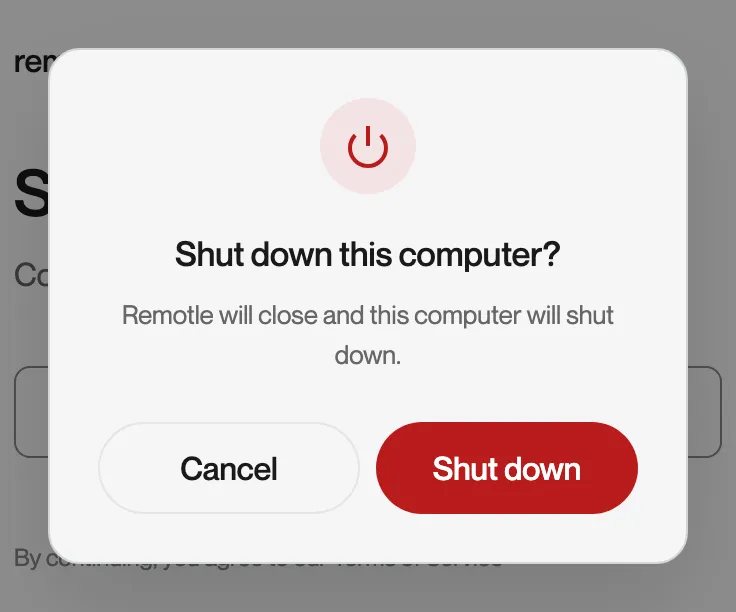
The shut down and restart buttons beside it ask for confirmation first.
Remove a terminal
Section titled “Remove a terminal”-
In the terminals table, click Remove on the terminal.
-
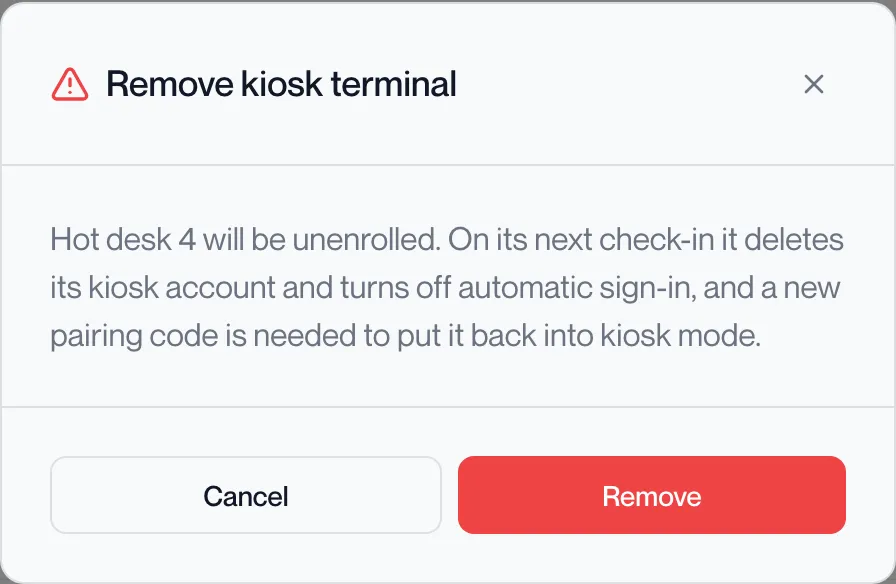
Read the confirmation and click Remove.
The portal shows “Terminal removed”.
This takes the terminal out of kiosk mode for good. At its next check-in the computer deletes the ComputleKiosk account and turns off automatic sign-in. To put it back into kiosk mode, enrol it again with a new pairing code.