Installing the Host
Installing on Windows
This page is for the person who installs the Remotle host on a Windows workstation by hand. You need administrator access to the workstation. For an install without a window, see Silent install.
Installers
Section titled “Installers”Computle supplies two installers for the same build. Both are signed by Computle Limited.
| File | Use |
|---|---|
ComputleRemotleHost-<version>-Setup.exe | Installing by hand, or silently with /quiet. Carries the MSI inside it and shows a setup window. |
ComputleRemotleHost-<version>.msi | Intune, Configuration Manager or a script |
<version> is the release, for example 2026-10-11-2304.
Install by hand
Section titled “Install by hand”-
Run the setup program as an administrator.
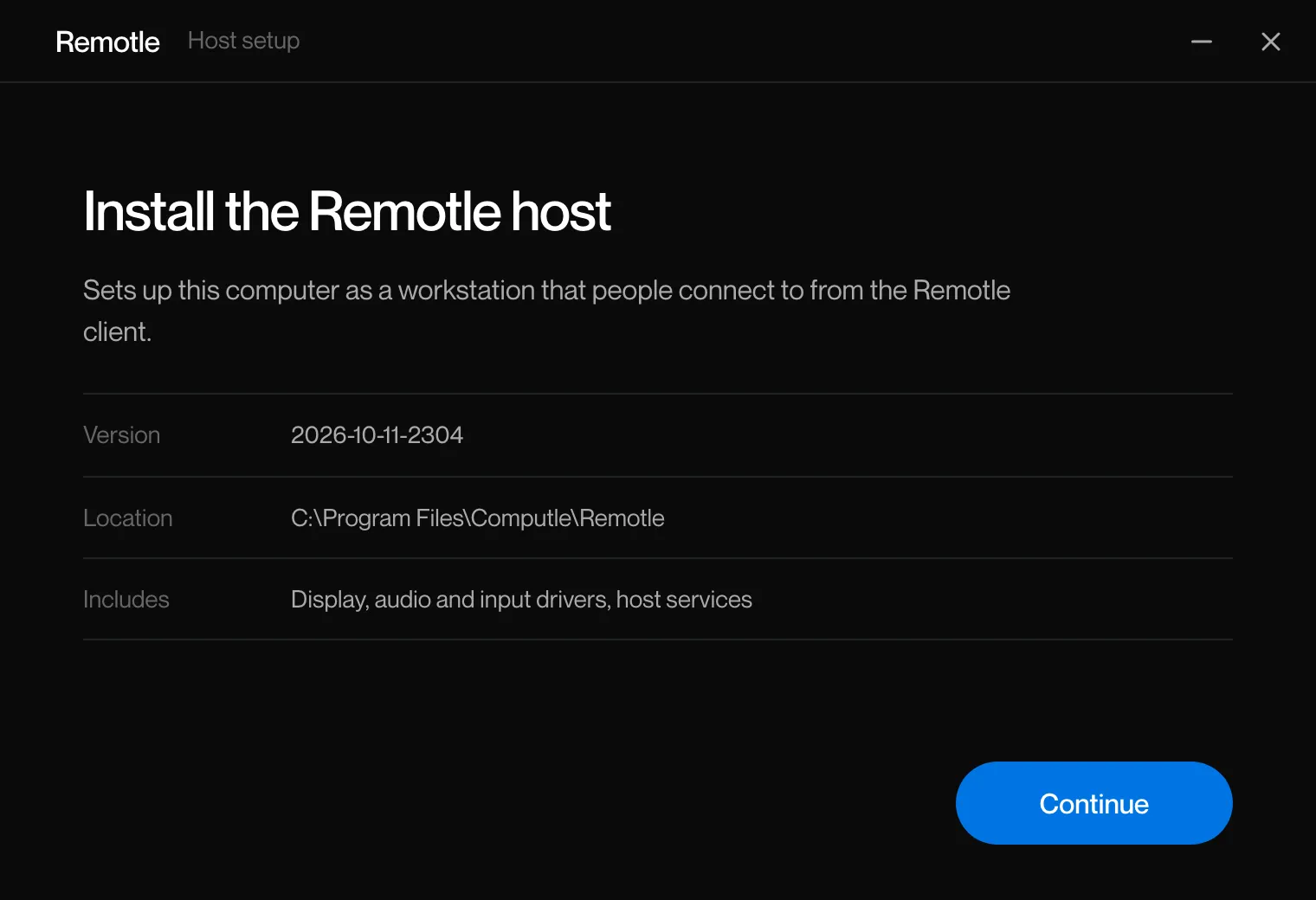
Windows asks for permission to make changes. Click Yes. The setup window opens, headed “Install the Remotle host”, with the version, the install location and what the package includes.
-
Click Continue.
-
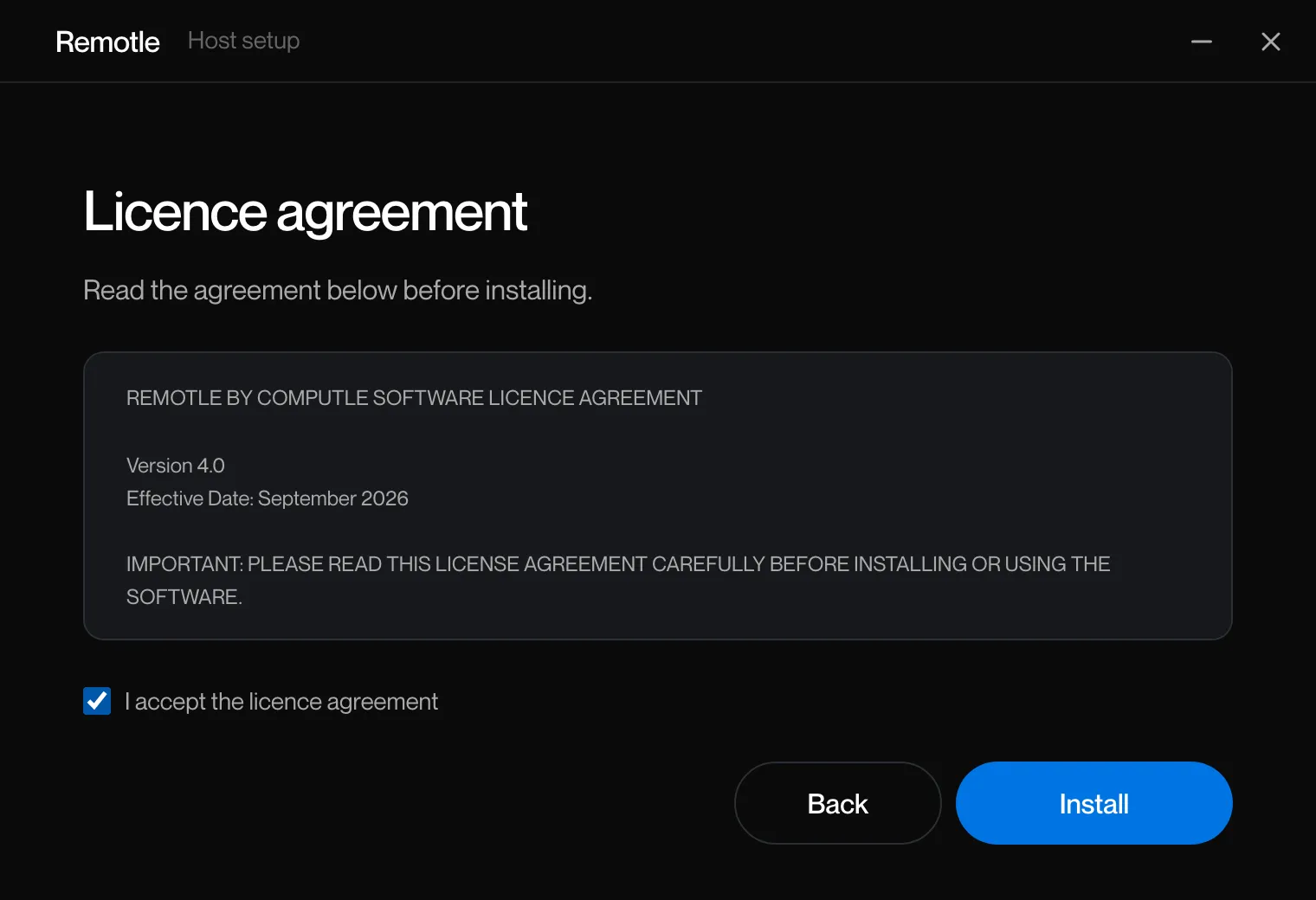
Read the licence agreement, tick “I accept the licence agreement” and click Install.
Install stays greyed out until the box is ticked. Back returns to the first page.
-
Wait while the host installs.
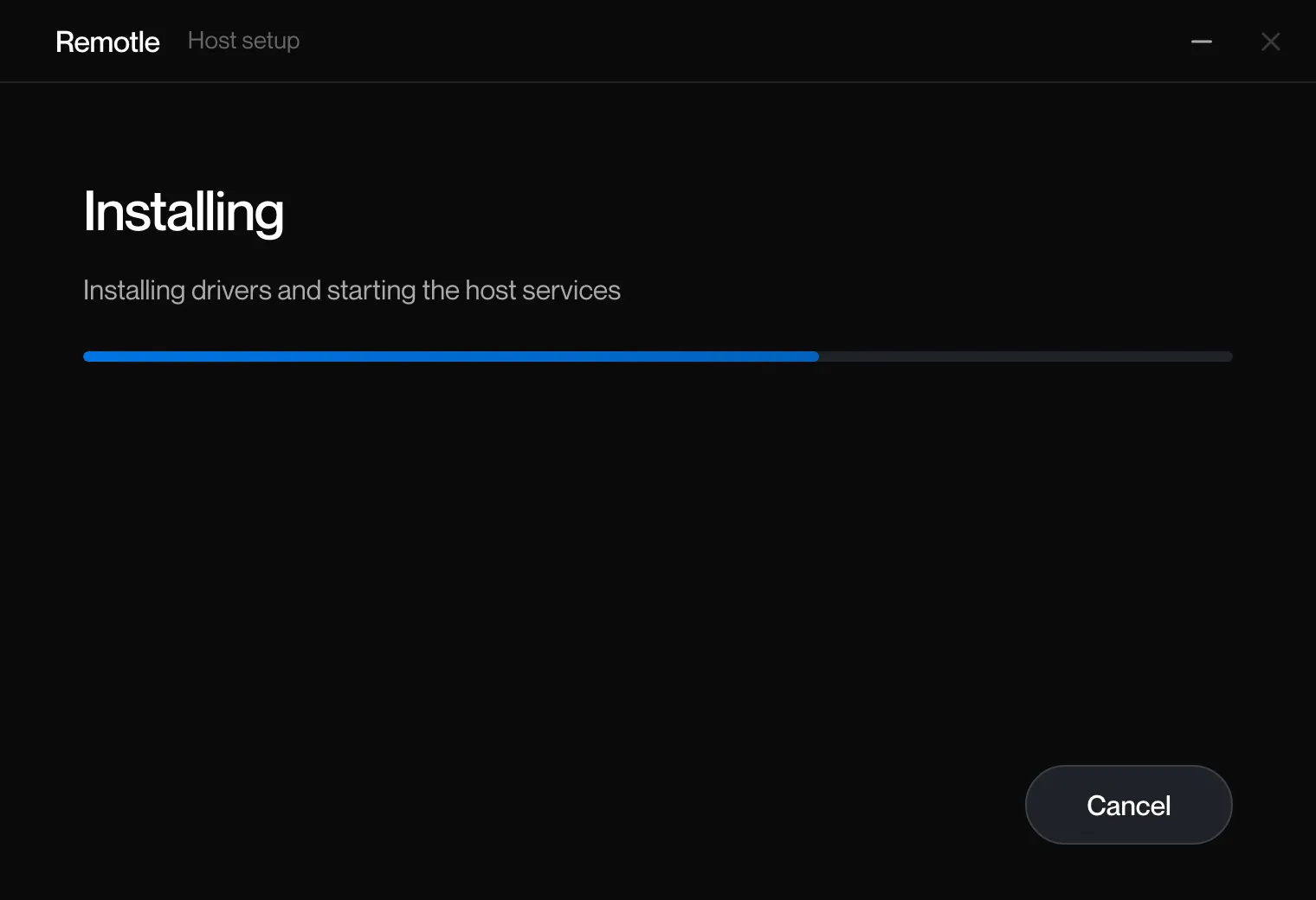
The progress page names each step as it runs: Stopping services, Copying files, Applying settings, Adding shortcuts, Installing drivers and starting the host services, Finishing. Cancel undoes the changes made so far.
-
Click Finish.
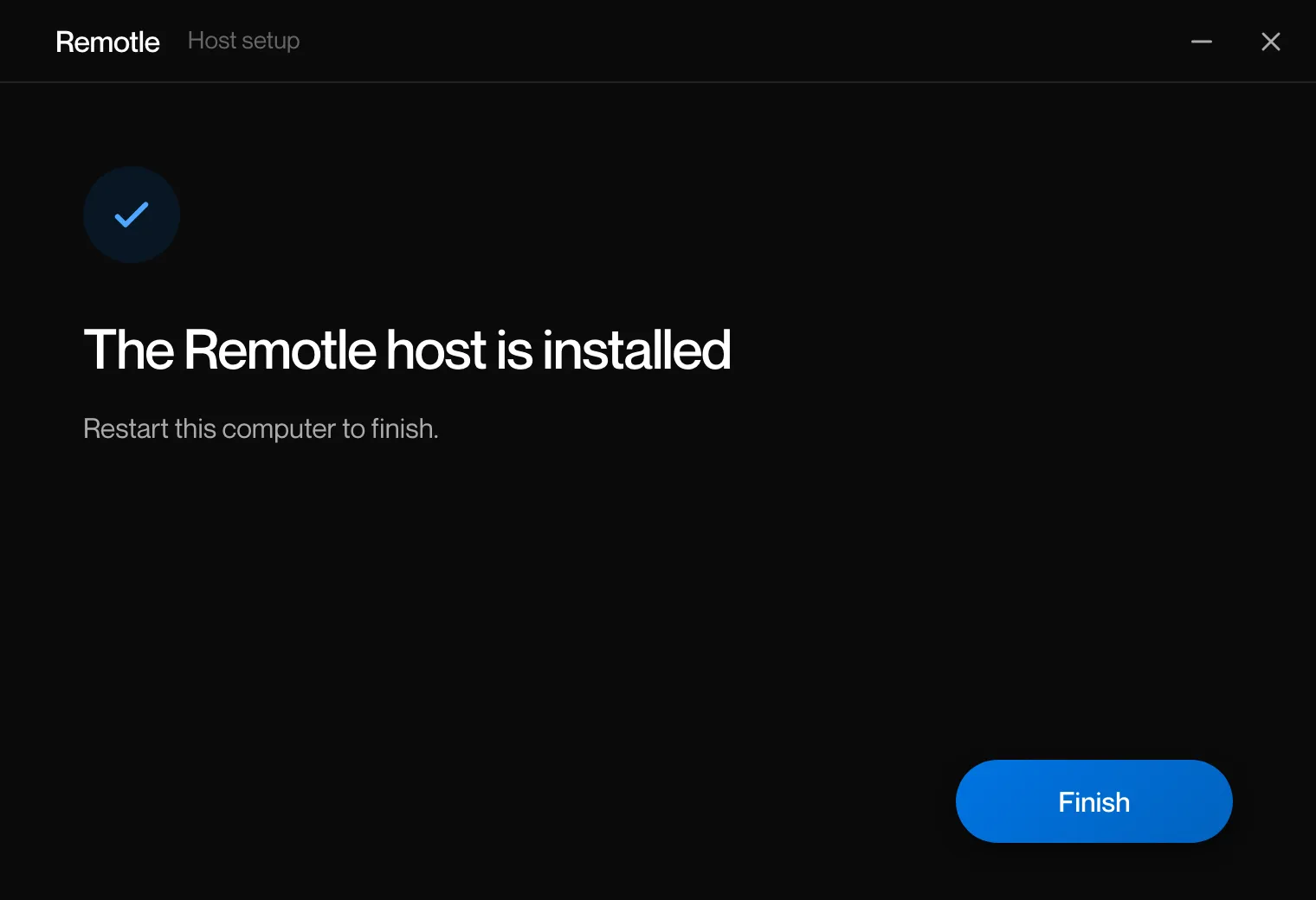
The last page says “The Remotle host is installed” and “The host services are running.”
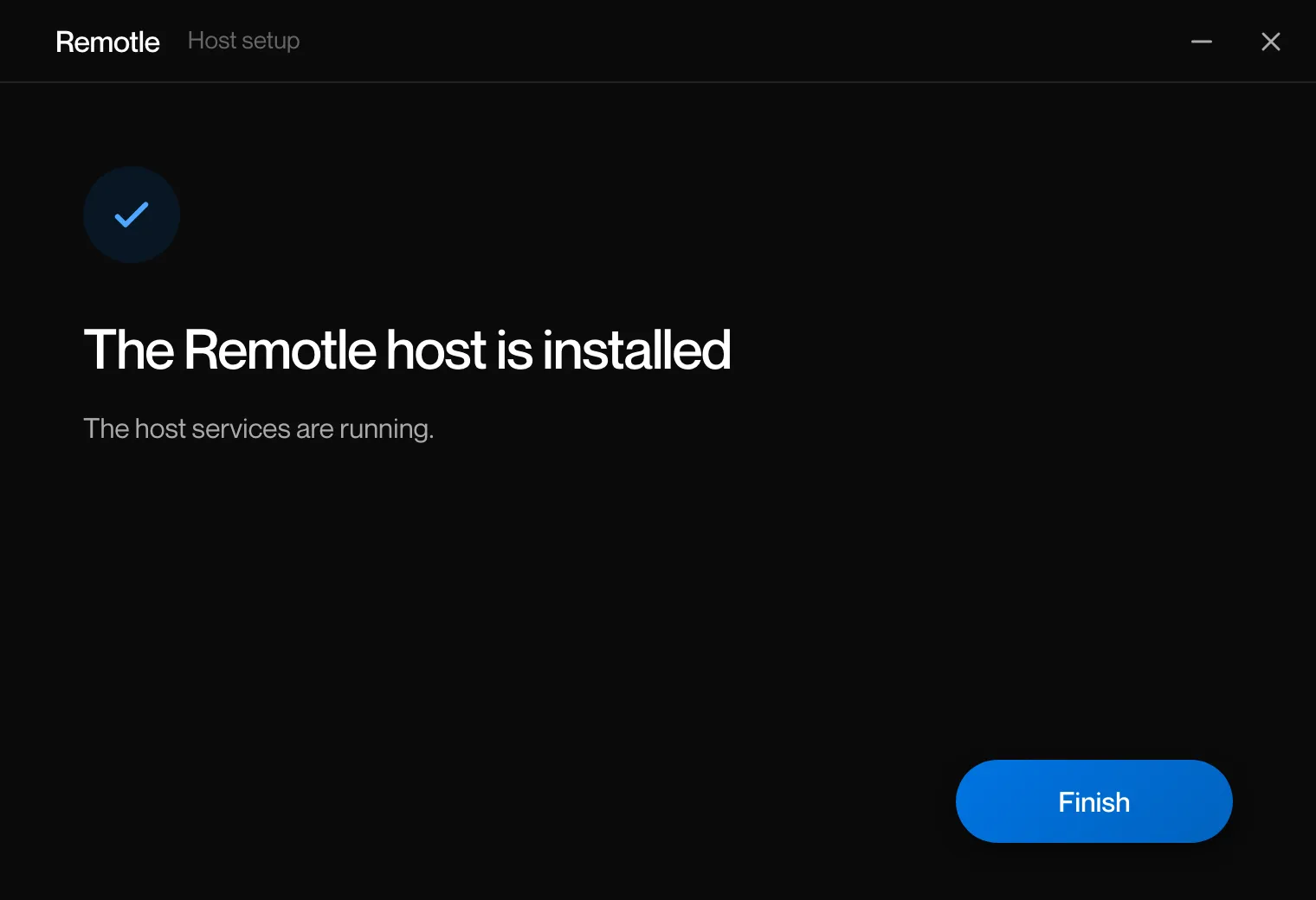
If it says “Restart this computer to finish.” instead, restart the workstation. A restart is needed when a camera component was already loaded by Windows and is replaced at the next start.
-
Check the host.
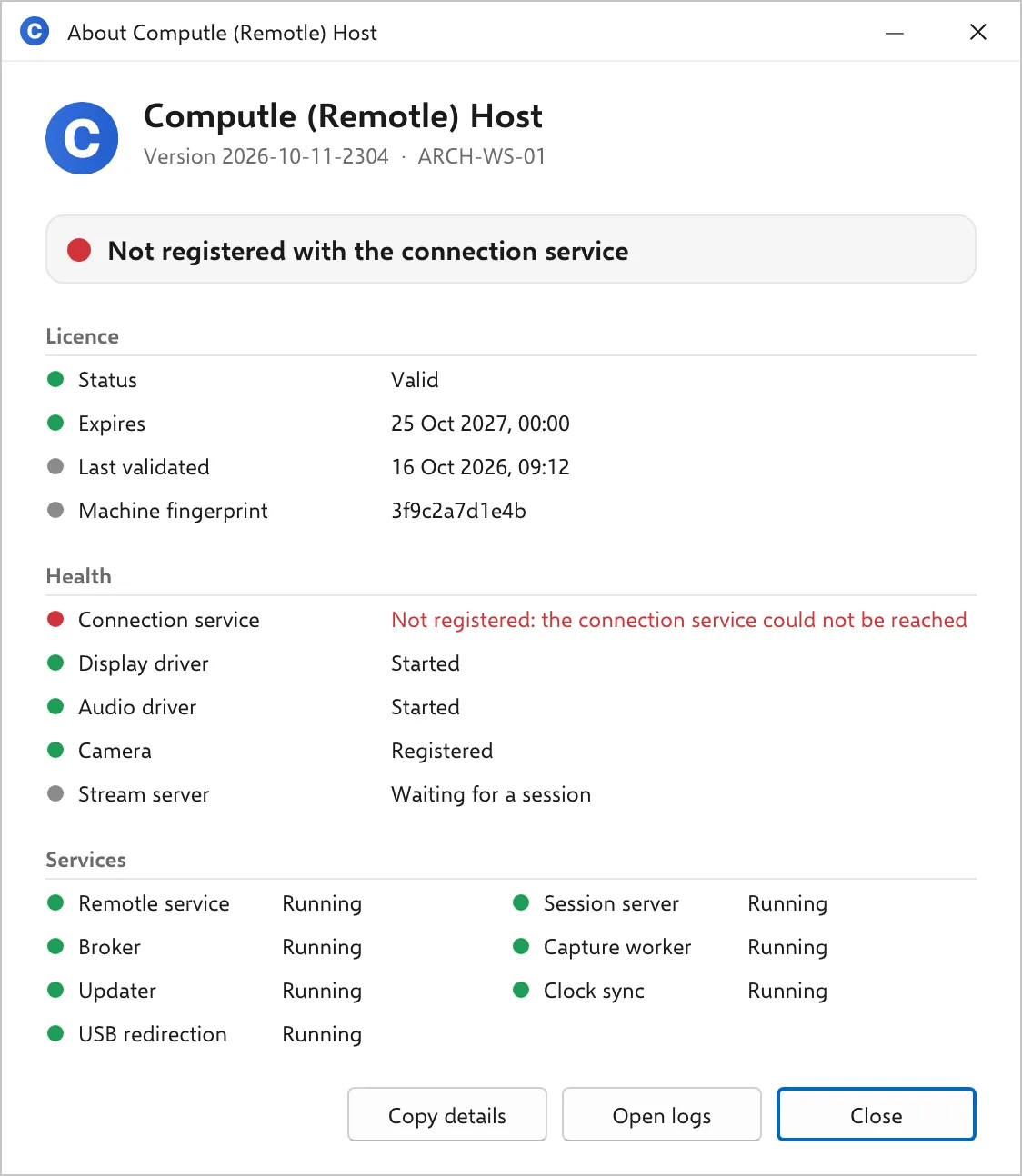
Open Start, Computle, Computle (Remotle) Host. The Host Status Window opens. Until the host is enrolled it reads “Not registered with the connection service”, which is expected at this point. The Services section shows every service running.
-
Enrol the host.
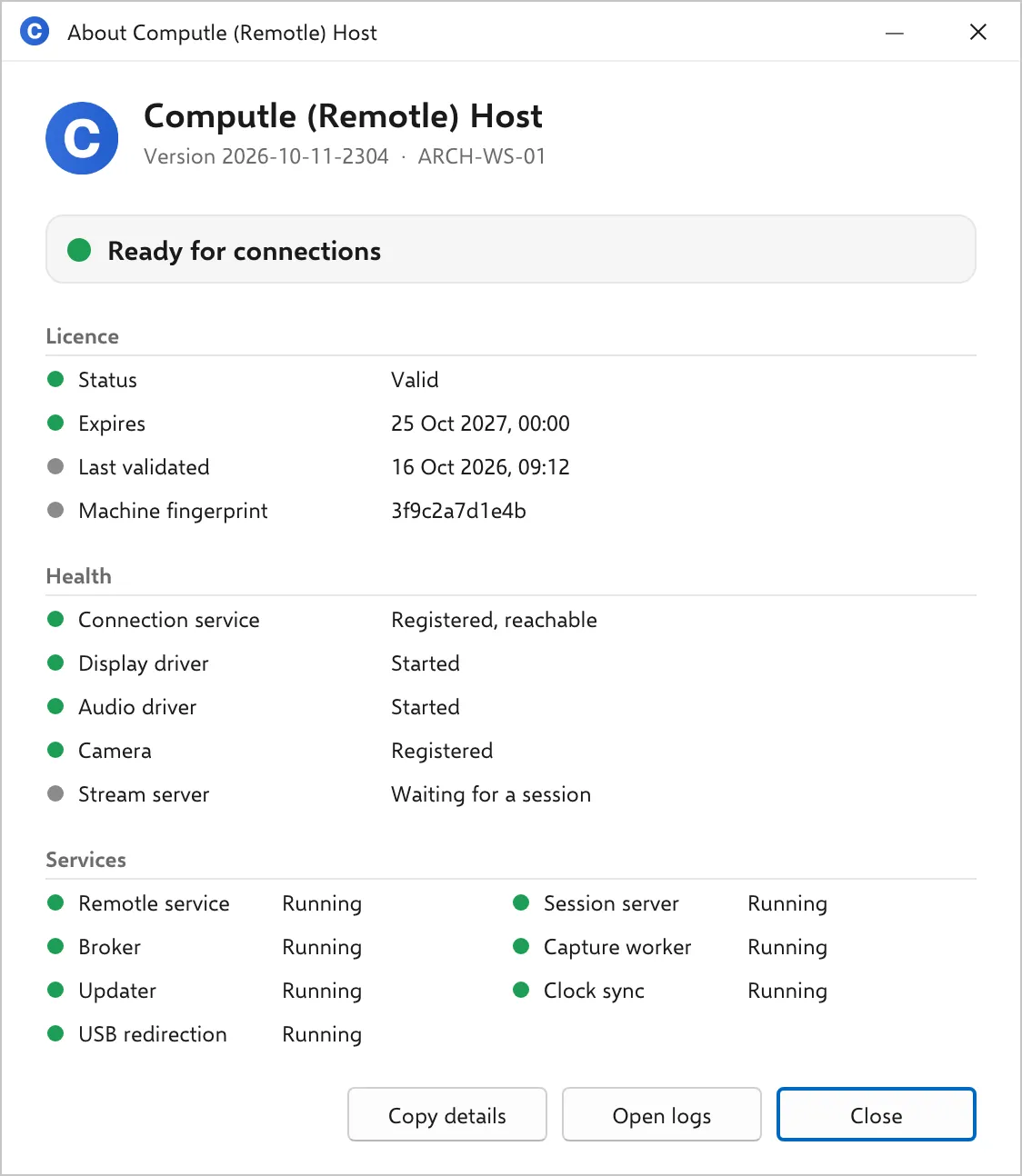
Once the host is enrolled, the banner turns green and reads “Ready for connections”.
If setup does not complete
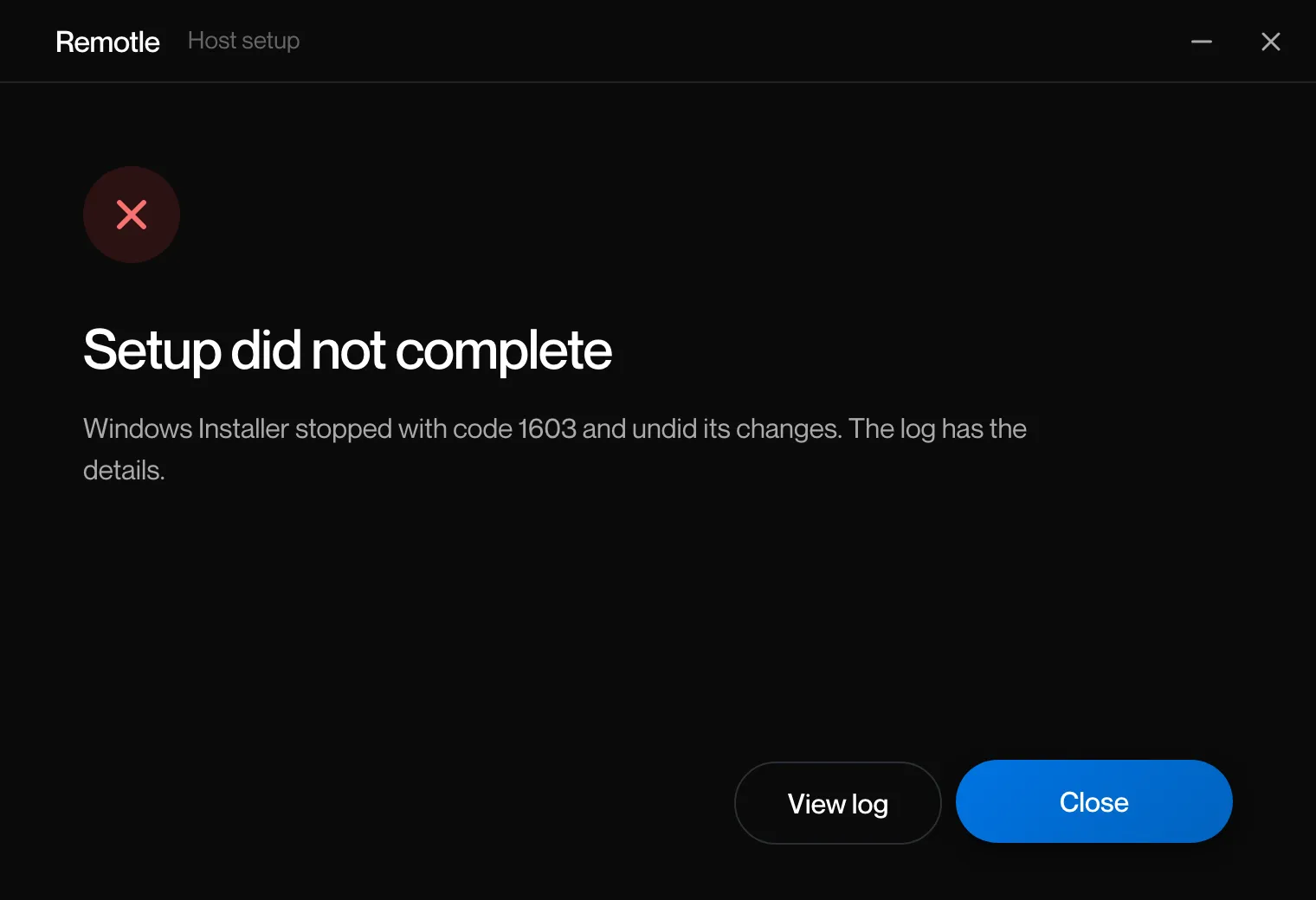
Section titled “If setup does not complete”The last page is headed “Setup did not complete” and shows the error, or “Windows Installer stopped with code N and undid its changes. The log has the details.” Click View log to open the setup log in Notepad. Nothing is left on the workstation from a failed install.
The log is %TEMP%\ComputleRemotleHost-<version>-setup.log. Send it to support with the workstation name.
Cancelling during the progress page ends with “Setup was cancelled” and “No changes were made to this computer.”
The setup window
Section titled “The setup window”| Page | Heading | What it shows |
|---|---|---|
| Welcome, new install | Install the Remotle host | “Sets up this computer as a workstation that people connect to from the Remotle client.” Version, Location (C:\Program Files\Computle\Remotle), Includes (Display, audio and input drivers, host services). Button: Continue. |
| Welcome, older version installed | Update the Remotle host | “A previous version is installed on this computer. Updating keeps its settings.” Button: Continue. |
| Welcome, same version installed | The Remotle host is installed | “Repair puts back anything missing. Uninstall removes the Remotle host from this computer.” Buttons: Uninstall, Repair. |
| Welcome, newer version installed | A newer version is installed | “This computer already has a newer version (N). Uninstall it first to install this one.” Button: Uninstall. |
| Licence agreement | Licence agreement | The agreement text, the acceptance tick box, Back and Install. |
| Progress | Installing, Updating, Repairing or Uninstalling | A progress bar and the current step. Cancel undoes the changes made so far. |
| Done, success | The Remotle host is installed, updated or repaired; The Remotle host has been removed | “The host services are running.”, or “Restart this computer to finish.” Button: Finish. |
| Done, cancelled | Setup was cancelled | “No changes were made to this computer.” Button: Close. |
| Done, failure | Setup did not complete | The error, or “Windows Installer stopped with code N and undid its changes. The log has the details.” Buttons: View log, Close. |
The pages for an older, same or newer version are shown on Upgrade, repair and uninstall.
Related
Section titled “Related”- Installing the Host
- Silent install
- What the installer does
- Upgrade, repair and uninstall
- Host Status Window
Questions
Section titled “Questions”Why does setup sometimes ask for a restart?
Section titled “Why does setup sometimes ask for a restart?”Windows keeps a camera component loaded once a program has used the camera. Setup registers the new copy and Windows switches to it at the next start. Everything else is in use straight away.
The setup window looks different from these pictures
Section titled “The setup window looks different from these pictures”The setup program draws its window with the Microsoft Edge WebView2 Runtime. Without it, the plain Windows Installer window is used instead, with the same steps.