Download and Install
Install on Windows
This page is for end users installing Remotle on their own Windows PC. To deploy Remotle to many PCs, see Deploying the Client.
Windows installers are signed by Computle Limited.
| Installer | Link | Use it when |
|---|---|---|
| Setup program | ComputleRemotleClient-Setup.exe | You are installing on your own PC. |
| MSI | ComputleRemotleClient.msi | Your IT team deploys it, or you prefer the Windows Installer. |
Install with the setup program
Section titled “Install with the setup program”-
Download ComputleRemotleClient-Setup.exe and open it.
Windows asks for permission to make changes. Click Yes. Remotle installs for every user of the PC.
-
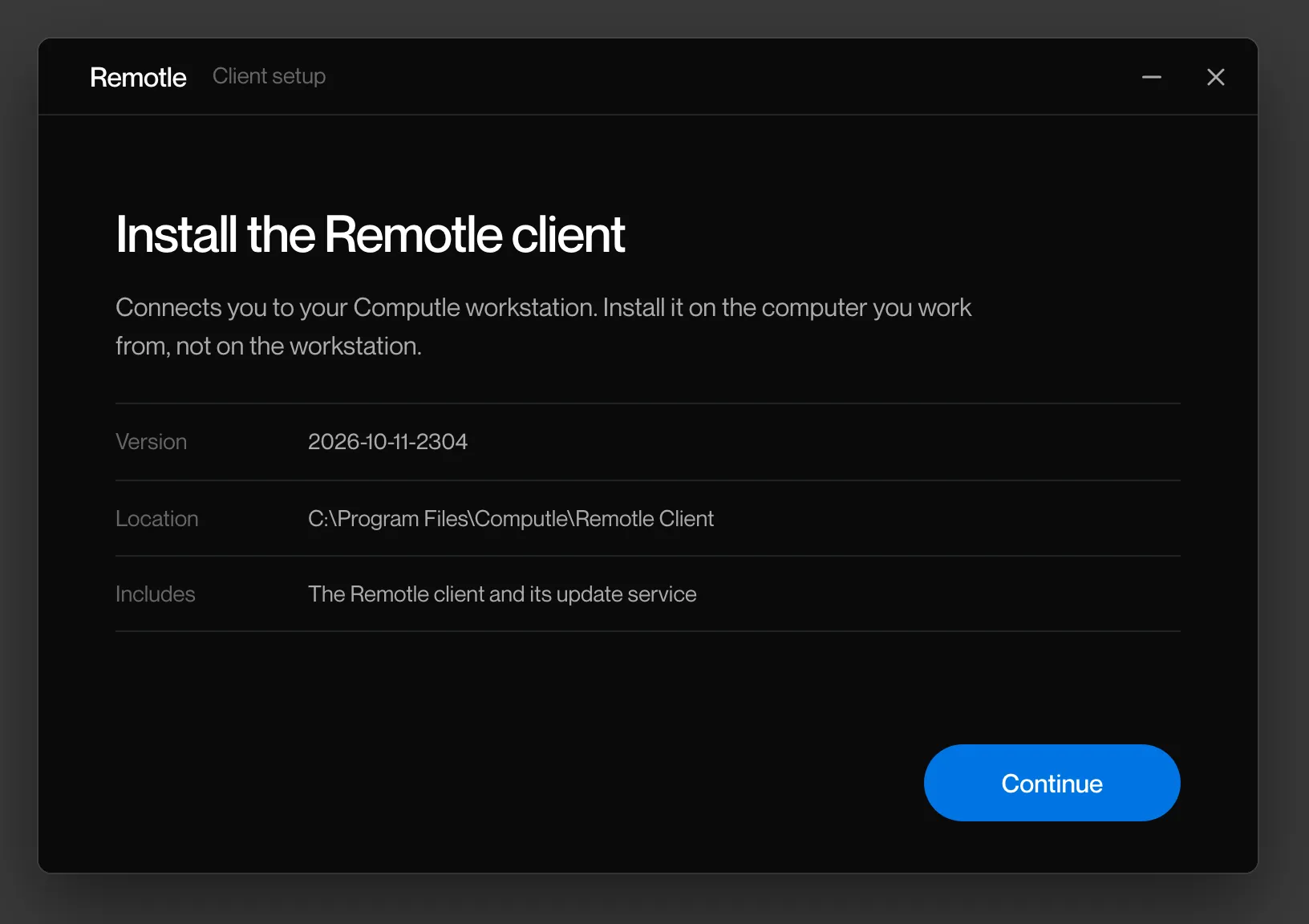
Read the first screen and click Continue.
Setup shows the version it will install, the install location and what it includes.
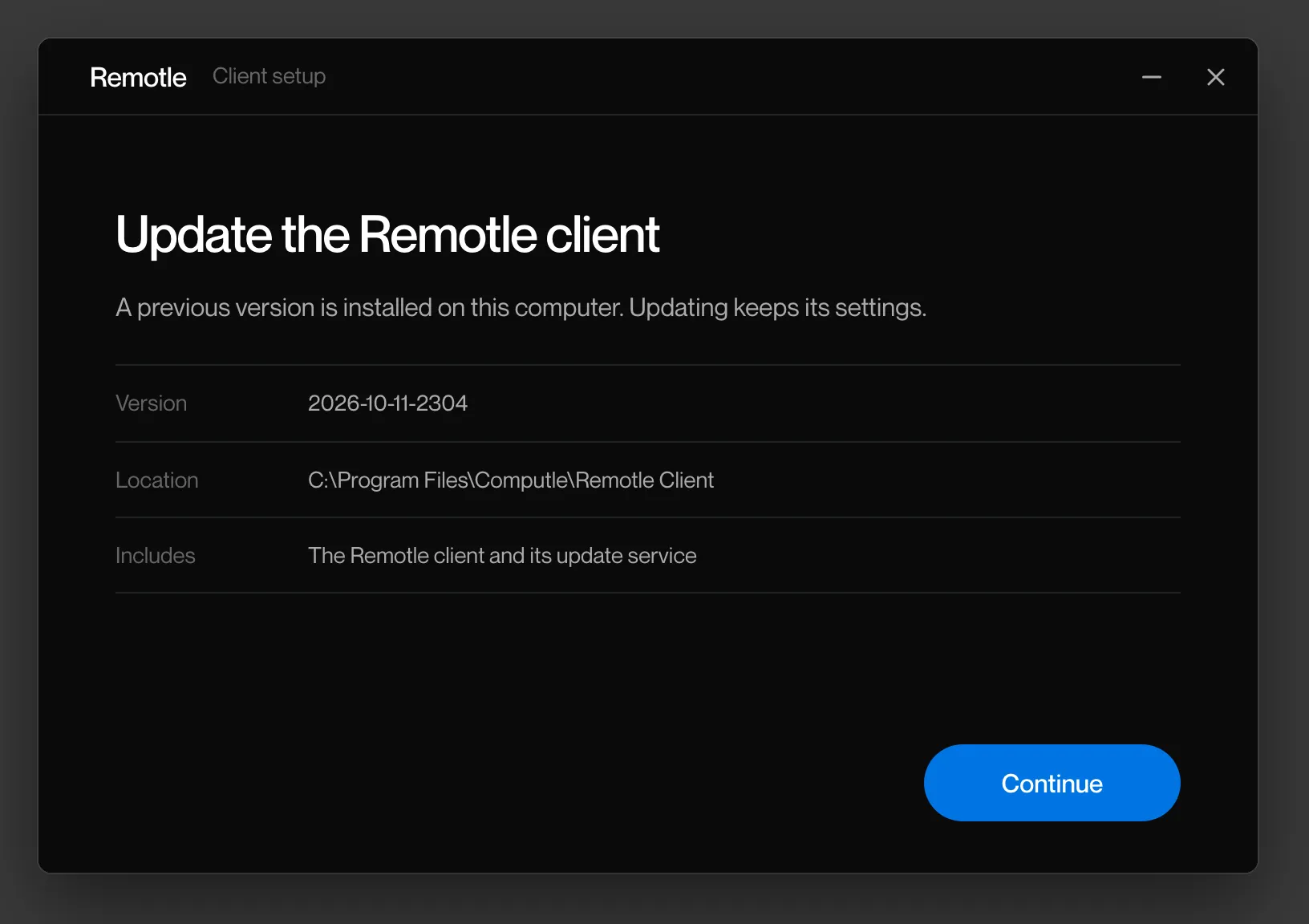
If an earlier version is already installed, the heading reads Update the Remotle client. Updating keeps its settings.
-
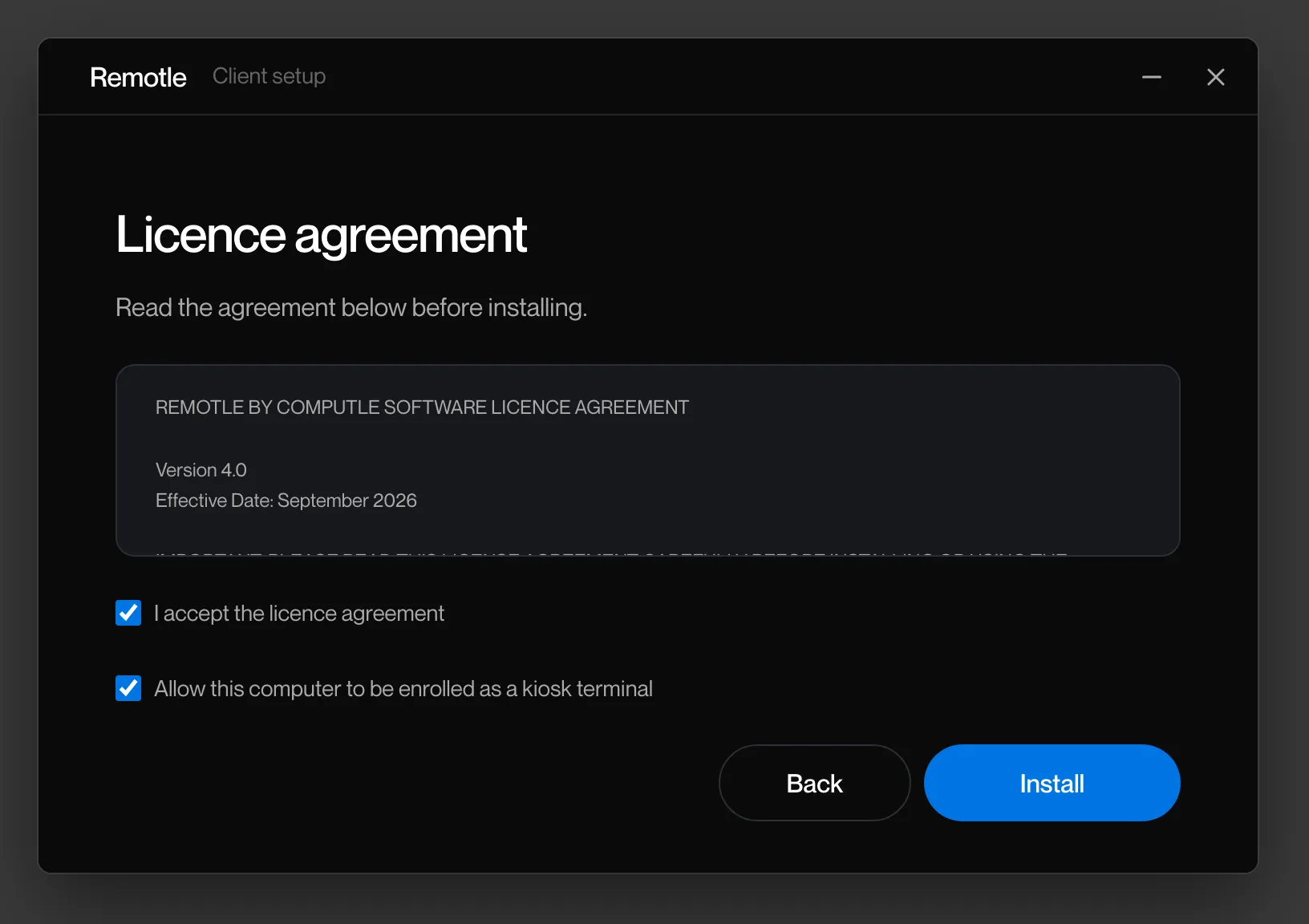
Accept the licence agreement and click Install.
Tick I accept the licence agreement. Allow this computer to be enrolled as a kiosk terminal is ticked by default. It lets your IT team enrol the PC from the Computle portal as a terminal that starts straight into Remotle. Nothing changes until it is enrolled. Untick it if this PC will only ever be your own.
-
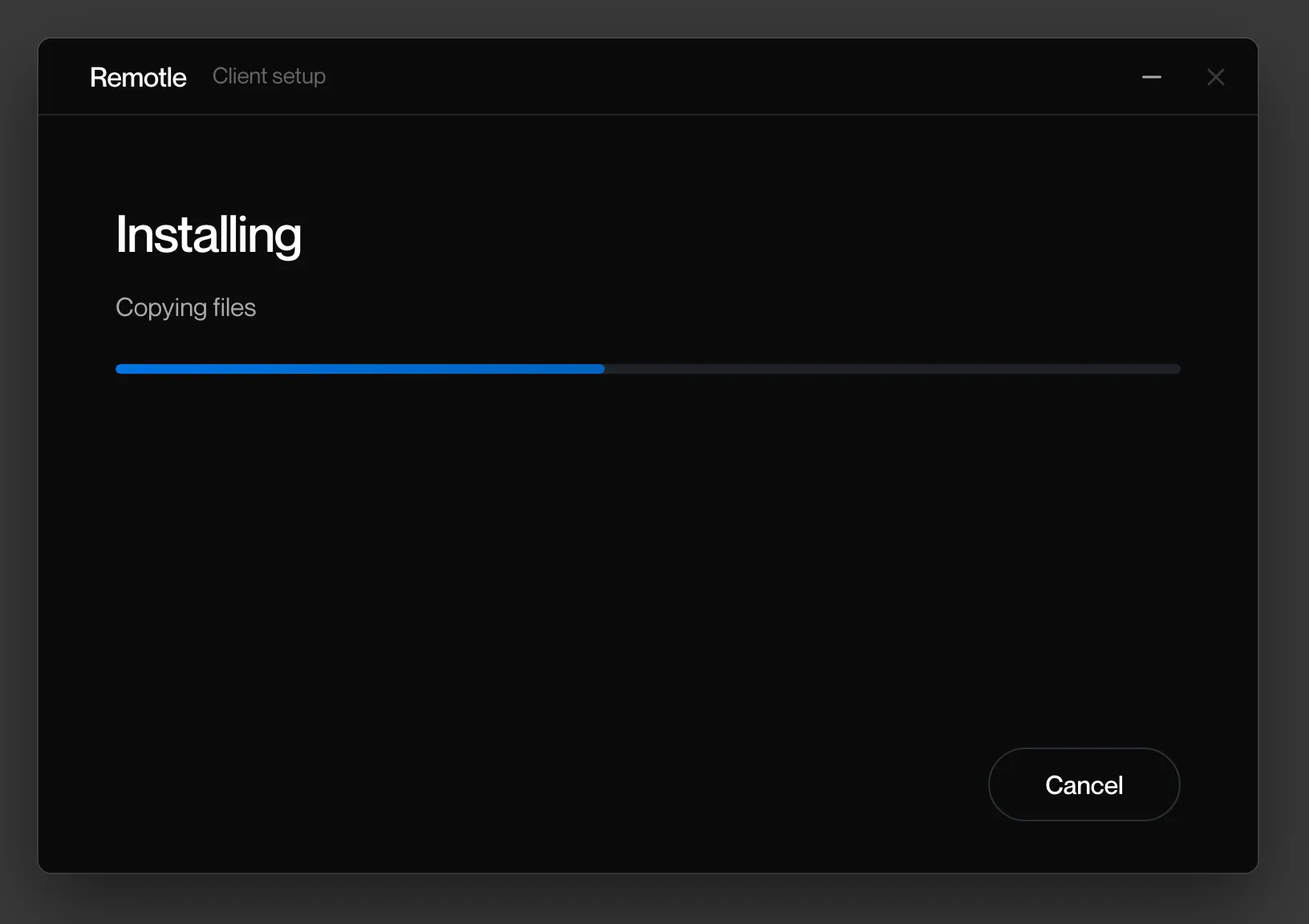
Wait while Setup installs.
Setup closes any earlier Computle client, copies the files and starts the update service. The line under Installing names each step.
-
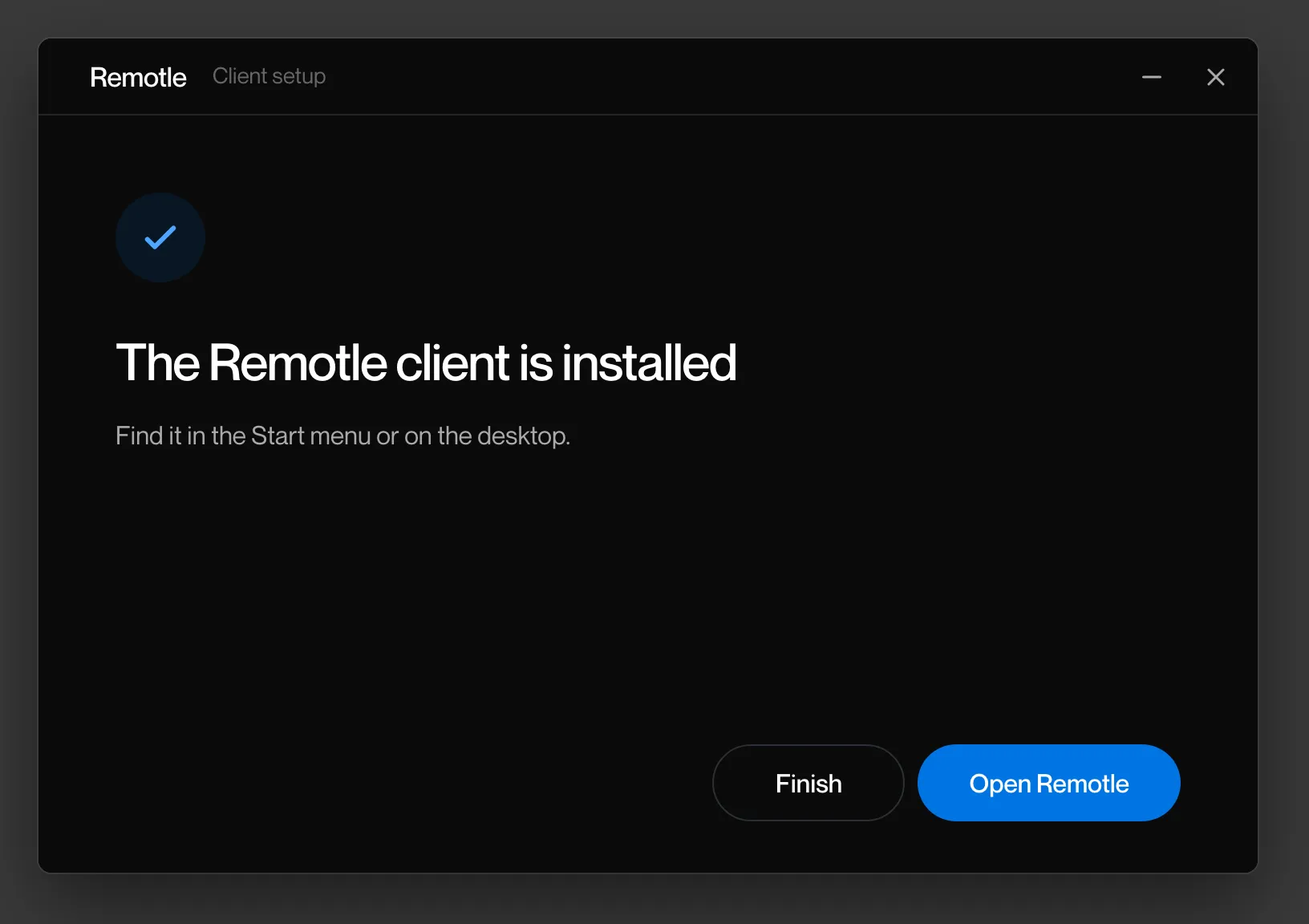
Click Open Remotle.
The Remotle client is installed. Find it in the Start menu or on the desktop. Open Remotle opens it now. Finish closes Setup.
-
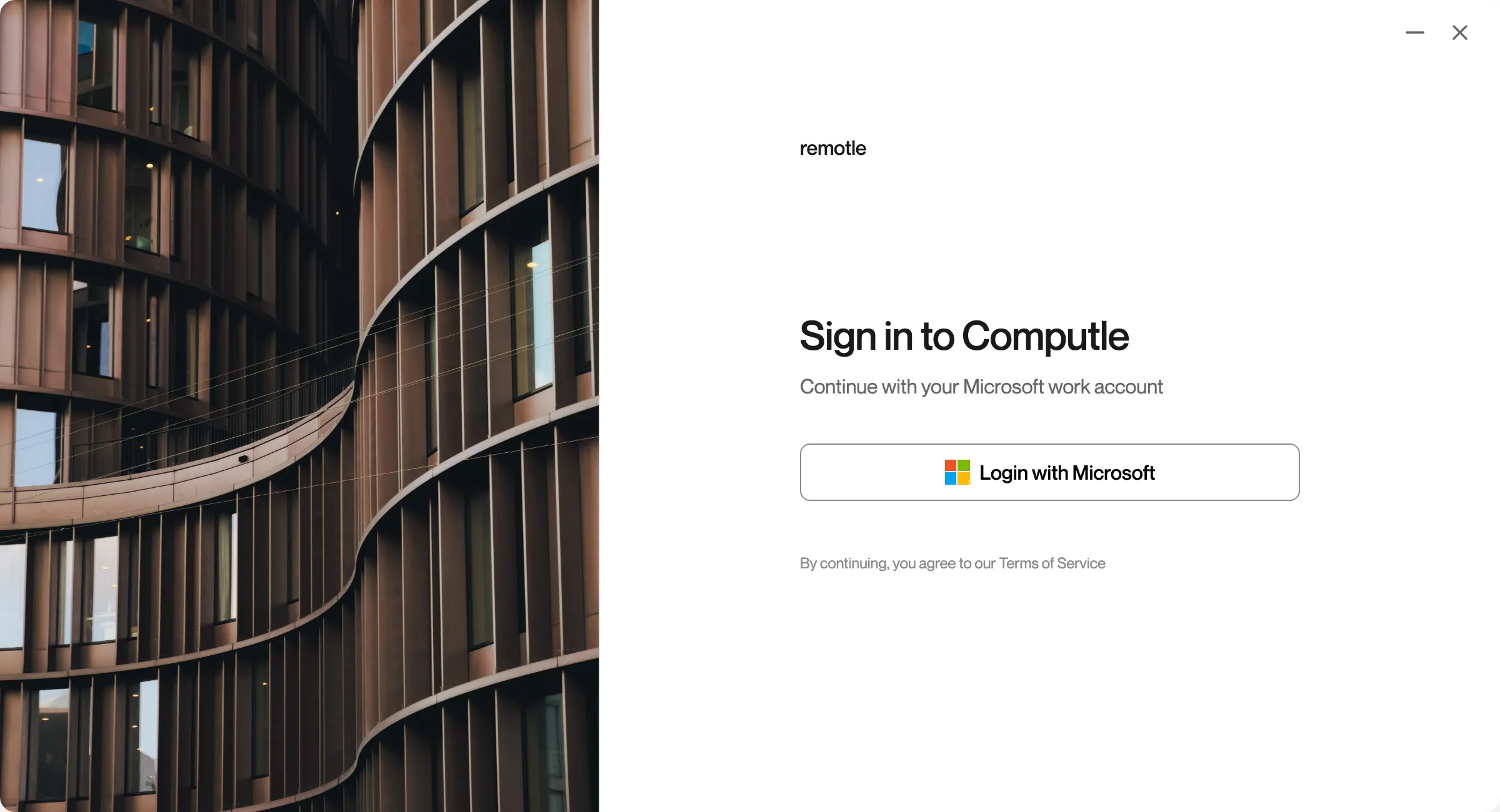
Sign in.
The first screen is the sign-in screen. See Sign In.
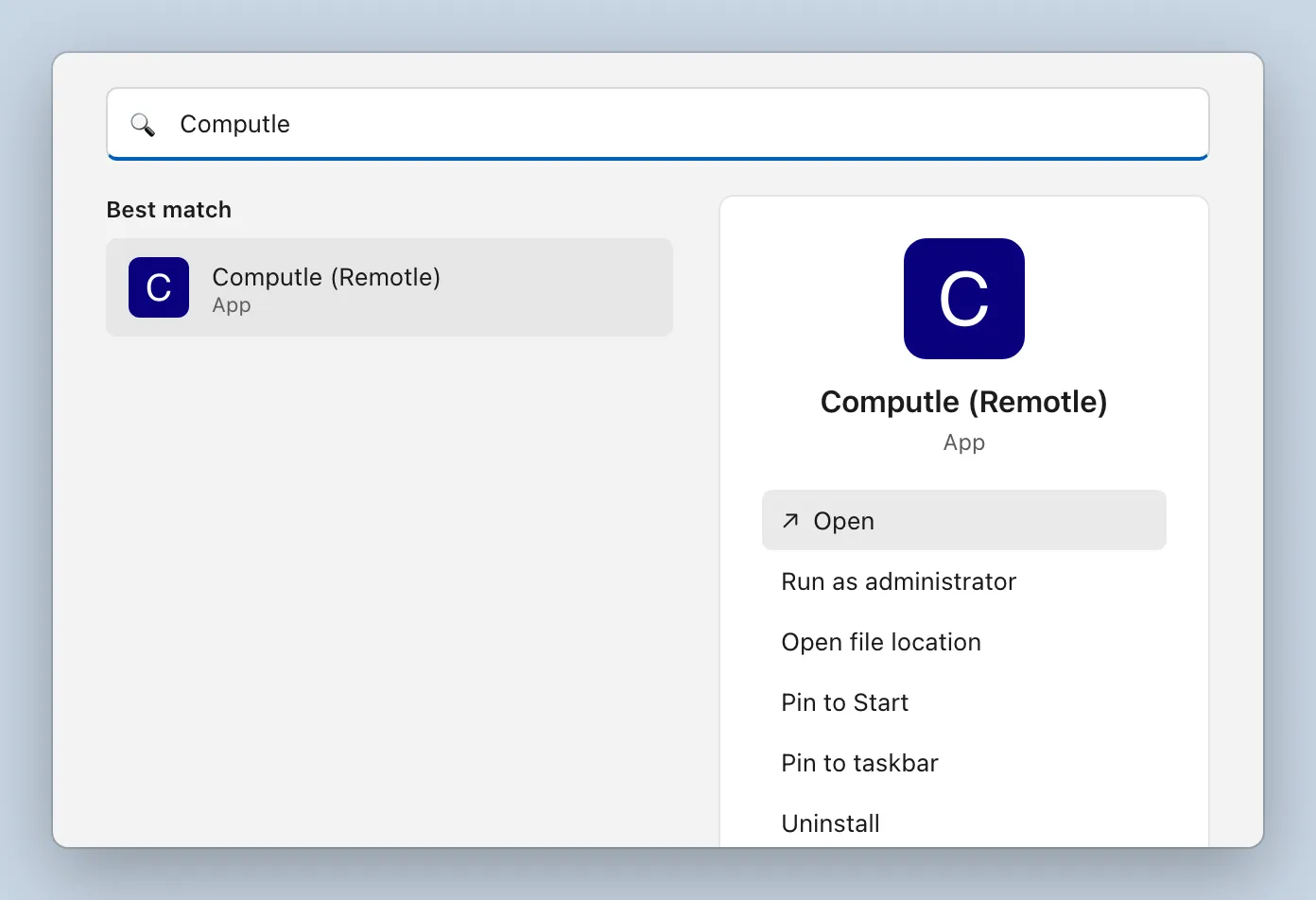
To open Remotle later, open the Start menu and type Computle. Computle (Remotle) is also on the desktop.
Install with the MSI
Section titled “Install with the MSI”The MSI has no wizard. It shows the Windows Installer progress window and installs with the defaults, including kiosk terminal support.
-
Download ComputleRemotleClient.msi and open it.
Windows asks for permission to make changes. Click Yes.
-
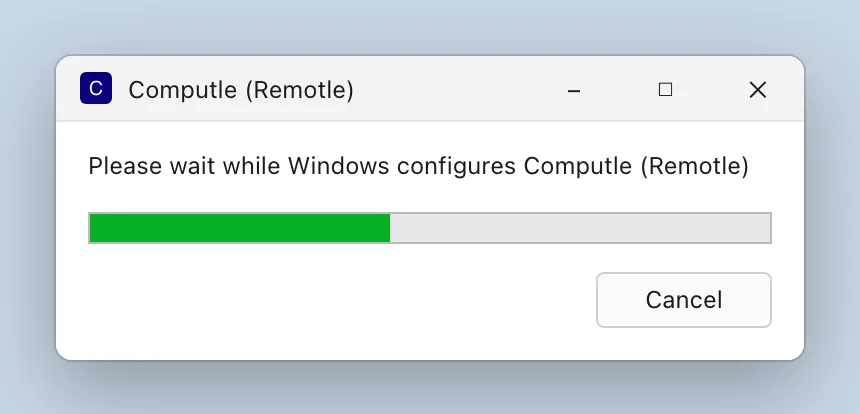
Wait while Windows Installer configures Computle (Remotle).
-
Open Computle (Remotle) from the Start menu or the desktop.
To leave out kiosk terminal support, your IT team passes a property on the command line. See Deploying the Client.
What the Windows installer puts on your PC
Section titled “What the Windows installer puts on your PC”| Item | Detail |
|---|---|
| Install folder | C:\Program Files\Computle\Remotle Client\ |
| Shortcuts | Computle (Remotle) in the Start menu, under Computle, and on the desktop |
| Update service | Checks for updates and installs them in the background. See Updates. |
| USB sharing service and driver | Let you share a USB device with your workstation. See USB Devices. |
| Kiosk terminal support | Installed by default. Nothing changes until your administrator enrols the PC as a kiosk terminal. |
| About Computle (Remotle) | A small program beside the app that shows your version and why Remotle will or will not open. See Check your version. |
To remove Remotle, see Uninstall.
Questions
Section titled “Questions”Can I install the MSI and the setup program on the same PC?
Section titled “Can I install the MSI and the setup program on the same PC?”They install the same product. A newer version upgrades an older one whichever installer you use. Installing an older version over a newer one is refused: Setup says A newer version is installed and offers Uninstall.
Setup opened the plain Windows Installer window. Is that a problem?
Section titled “Setup opened the plain Windows Installer window. Is that a problem?”No. When the setup program cannot show its own screens, it runs the same package with the Windows Installer window shown above. The result is the same.