Single Sign-On
Before You Connect
Check these before you click Connect Microsoft Entra.
Your directory
Section titled “Your directory”| Requirement | |
|---|---|
| Who connects | A Microsoft Entra account holding Application Administrator (or Cloud Application Administrator) and Groups Administrator. Global Administrator also works and is not required. |
| How users sign in to Remotle | With Sign in with Microsoft, using an account in the directory you connect. A user signed in to Remotle any other way gets the normal Windows sign-in screen. On Mac the Microsoft sign-in opens in the user’s browser, so security keys, passkeys and Duo Desktop work. |
Each workstation
Section titled “Each workstation”| Requirement | |
|---|---|
| Directory join | Joined to Microsoft Entra, or hybrid joined, in the directory you connect. A workstation joined only to an on-premises domain cannot use Single Sign-On. |
| Windows | Windows 11 24H2 with KB5065789 (build 26100.6725) or later, or Windows Server 2025 with KB5073379 (build 26100.32230) or later. |
| Device group | A member of the Single Sign-On device group (see The device group). |
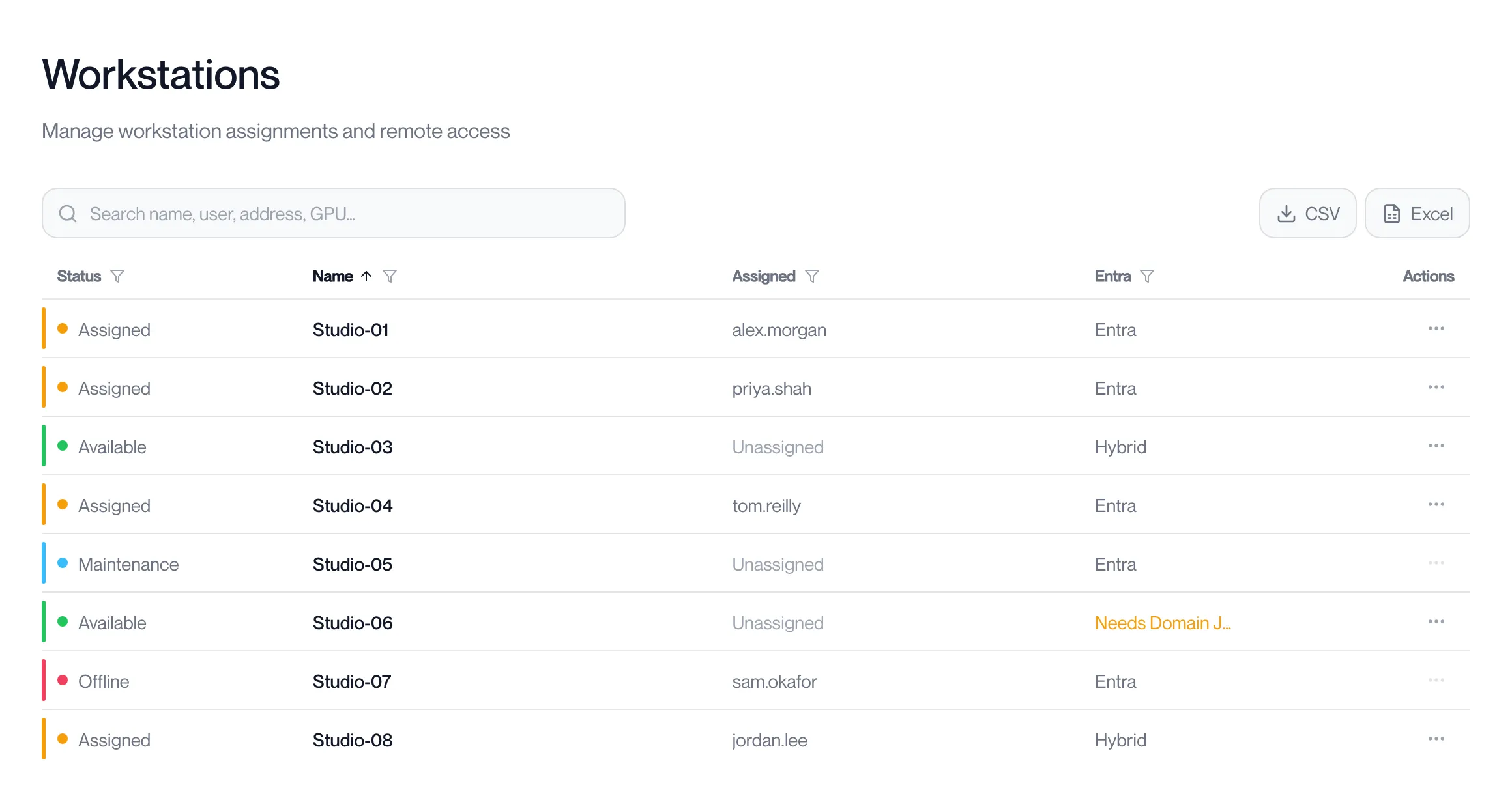
The Entra column on the Workstations page shows each workstation’s directory join as it last reported it. Entra and Hybrid can use Single Sign-On; Domain, Needs Domain Join and Join Unknown cannot yet. See Directory join.
Policies that stop it working
Section titled “Policies that stop it working”Check your Group Policy and Intune configuration profiles for these settings before you connect:
| Setting | Effect | What to do |
|---|---|---|
| Allow Custom SSPs and APs to be loaded into LSASS (Local Security Authority) set to Disabled | Windows cannot accept the sign-in ticket. | Leave the setting Not configured, or set it to Enabled. |
| Always prompt for password upon connection (Remote Desktop Session Host, Security) set to Enabled | Windows asks for a password instead of signing in. | Set it to Not configured or Disabled. |
Exclude credential providers (System, Logon) listing the Computle Credential Provider, {86298202-B2EE-44AE-A354-A1CE4A2E5C26} | Windows never shows the Single Sign-On sign-in. | Remove that identifier from the list. |
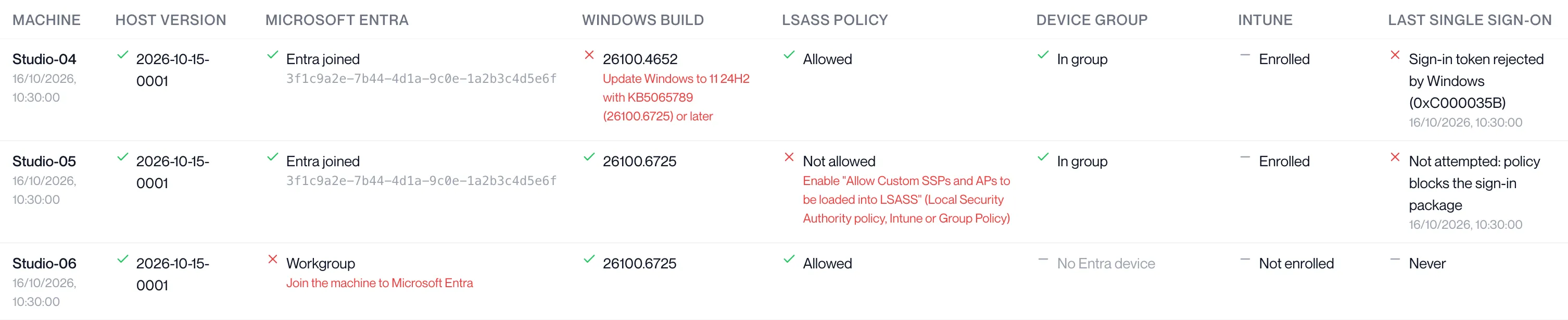
The SSO diagnostics page in the portal shows the join state, Windows build, LSASS policy and device group of every workstation, with what to fix under each failed check (see Check each workstation).
The Remotle app
Section titled “The Remotle app”Single Sign-On runs from the Remotle app on Mac, Windows and iPad. A user connecting from another client gets the normal Windows sign-in screen.